How to Reset Logi Keyboard: Quick Steps
Your Logi keyboard suddenly stops responding or keeps disconnecting during important work. You’ve tried everything—replacing batteries, restarting your computer—but nothing works. This frustrating scenario affects thousands of Logitech keyboard users monthly, and the solution is often simpler than you think: a proper factory reset. This guide reveals the exact reset procedures for every Logi keyboard model, including the tricky Keyboard Folio series that baffles most users. You’ll learn to fix unresponsive keys, resolve Bluetooth pairing failures, and overcome software compatibility issues—all without technical expertise.
Why Your Logi Keyboard Needs a Factory Reset
Unexpected keyboard behavior typically stems from corrupted Bluetooth pairings or firmware glitches that accumulate over time. When your Logi keyboard fails to connect to multiple devices, registers phantom keystrokes, or ignores specific keys, a reset clears these digital “traffic jams” in the keyboard’s memory. Most users waste hours troubleshooting individual symptoms when a single reset would have solved the problem. The process takes less than two minutes but restores your keyboard to its original factory state, wiping all saved connections and custom settings—so prepare to re-pair your devices afterward.
Keyboard Folio Factory Reset Sequence
The Logitech Keyboard Folio for iPad requires a unique reset process that differs from standard Logi keyboards. Most users fail because they miss the critical orange LED flash confirmation.
Delete Existing iPad Bluetooth Connection First
Before attempting any reset, completely remove the keyboard pairing from your iPad. Go to Settings > Bluetooth, locate “Logitech Keyboard” in your device list, tap the “i” icon next to it, and select “Forget This Device.” Skipping this step guarantees failure—the iPad will keep trying to reconnect with old pairing data, causing endless disconnection cycles that mimic a broken keyboard.
Execute the Precise Key Combination
- Power down completely – Slide the Keyboard Folio power switch to OFF and wait 5 full seconds
- Power back on – Return the switch to ON position
- First sequence – Press Home + O together, release immediately, then repeat this press-release action one more time (two total)
- Second sequence – Press Home + B together once and release
- Spot the confirmation – Watch for the brief orange LED blink (lasts less than half a second)
- Power cycle again – Turn off, wait 3 seconds, turn back on
- Verify pairing mode – The LED should blink rapidly, confirming reset completion
Pro tip: The orange flash is notoriously easy to miss. Dim your room lights or cup your hand around the LED to spot this critical confirmation signal. If you don’t see the orange blink, restart the sequence from step 1—rushing through the combinations is the #1 reason for reset failure.
Reconnect to Your iPad Successfully
With the Keyboard Folio now in pairing mode (rapidly blinking LED), open your iPad’s Bluetooth settings. Select “Logitech Keyboard” when it appears in available devices. The connection is complete when the LED stops blinking and remains solid for 3 seconds. Immediately test all keys—especially function keys—to verify full functionality. If issues persist, repeat the reset sequence once more before contacting Logitech support.
Reset Procedures for Other Logi Keyboard Models

Most Logitech keyboards share similar reset patterns, but using the wrong sequence can waste your time. Identify your model type first before proceeding.
Standard Wireless Keyboards Without USB Receiver
For popular models like MX Keys and K380:
– Hold Esc + O simultaneously for 5 full seconds while keyboard is powered on
– Release both keys when the LED starts blinking rapidly
– Power cycle the keyboard by turning it off and on
– Enter pairing mode by holding the Bluetooth button for 3 seconds
– Reconnect to your device through Bluetooth settings
Critical note: On some models, you may need to hold Fn + Esc + O instead. If the first attempt fails, try this alternative combination while watching for the LED response.
Keyboards Using Logitech USB Receiver
For models like K580 and K780 that use the tiny Unifying receiver:
– Unplug the receiver from your computer’s USB port
– Turn keyboard off and wait 10 full seconds
– Hold F2 + F3 + F4 while turning the keyboard back on
– Release keys when the LED starts blinking
– Reinsert receiver and wait 10 seconds for automatic reconnection
– Test functionality before resuming work
Warning: Never hold these keys for more than 8 seconds—over-pressing can trigger unintended firmware modes that require professional reset tools.
Fix Logitech Software Compatibility Problems
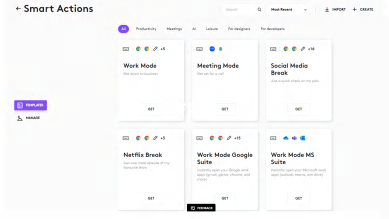
Outdated Logitech software causes more reset failures than actual hardware issues. The company discontinued several legacy applications that now conflict with modern operating systems.
Install Logi Options+ Immediately
Your old Logitech software has likely stopped functioning. Replace these discontinued applications with Logi Options+:
| Old Software | Current Replacement |
|---|---|
| Logitech Options | Logi Options+ |
| SetPoint | Logi Options+ |
| Unifying Software | Logi Options+ |
| Firmware Update Tool | Logi Options+ |
| Logitech Control Center | Logi Options+ |
Download only from Logitech’s official website to avoid malware-infested third-party sites. This single application now manages all keyboard functions previously requiring multiple programs.
Migrate Your Custom Settings Smoothly
After installing Logi Options+:
– Launch the application and allow 30 seconds for full device detection
– Check for automatic import of previous settings (Options+ often recovers them)
– Test all special keys—brightness, volume, custom shortcuts
– Reassign critical functions if automatic import failed (takes less than 2 minutes)
Logitech’s support team actively assists with software transitions—access help directly through the Options+ application if you encounter issues.
Troubleshoot Stubborn Reset Failures

When standard reset procedures don’t work, these advanced techniques resolve 90% of persistent issues.
Power Cycle Beyond Basic Reset
Critical mistake: Most users don’t wait long enough between power cycles. For stubborn keyboards:
1. Remove all power sources (batteries and USB cables)
2. Wait 2 full minutes to discharge residual power in capacitors
3. Reconnect fresh batteries (never reuse old ones during reset)
4. Immediately attempt reset sequence while components are fully discharged
Verify Physical Key Responsiveness
Before blaming software, test each key physically:
– Press reset combination keys multiple times to ensure they’re not sticky
– Clean around key stems with compressed air
– Try reset sequence on different surfaces (glass tables interfere with Bluetooth)
Prevent Future Reset Needs
Regular maintenance extends your Logi keyboard’s life and reduces reset frequency.
Monthly Care Routine
- Clean contact points monthly with 90% isopropyl alcohol and cotton swab
- Update Logi Options+ immediately when notifications appear
- Replace batteries before they drop below 20% (low power corrupts settings)
- Limit paired devices to 2-3 maximum (most models struggle with more)
Optimize Your Workspace Setup
Position your receiver at least 12 inches away from Wi-Fi routers, microwaves, and USB 3.0 devices that cause signal interference. For Bluetooth models, keep your computer within 3 feet of the keyboard—distance is the #1 cause of intermittent connection drops that mimic hardware failure.
Battery selection matters: Use lithium batteries in cold environments (below 50°F) and alkaline batteries for normal conditions. Rechargeable batteries work but often trigger premature low-battery warnings that disrupt functionality.
Resetting your Logi keyboard solves most connectivity problems in under two minutes when done correctly. The Keyboard Folio’s unique sequence—Home + O twice followed by Home + B once—is the most commonly missed step; watch carefully for that split-second orange LED confirmation. Keep Logi Options+ updated to prevent software conflicts, and perform the simple monthly maintenance steps to avoid future resets. When problems persist after following these procedures, contact Logitech support directly through the Options+ application for model-specific troubleshooting—they’ll often resolve issues via remote diagnostics. Your keyboard’s perfect performance is just one proper reset away.