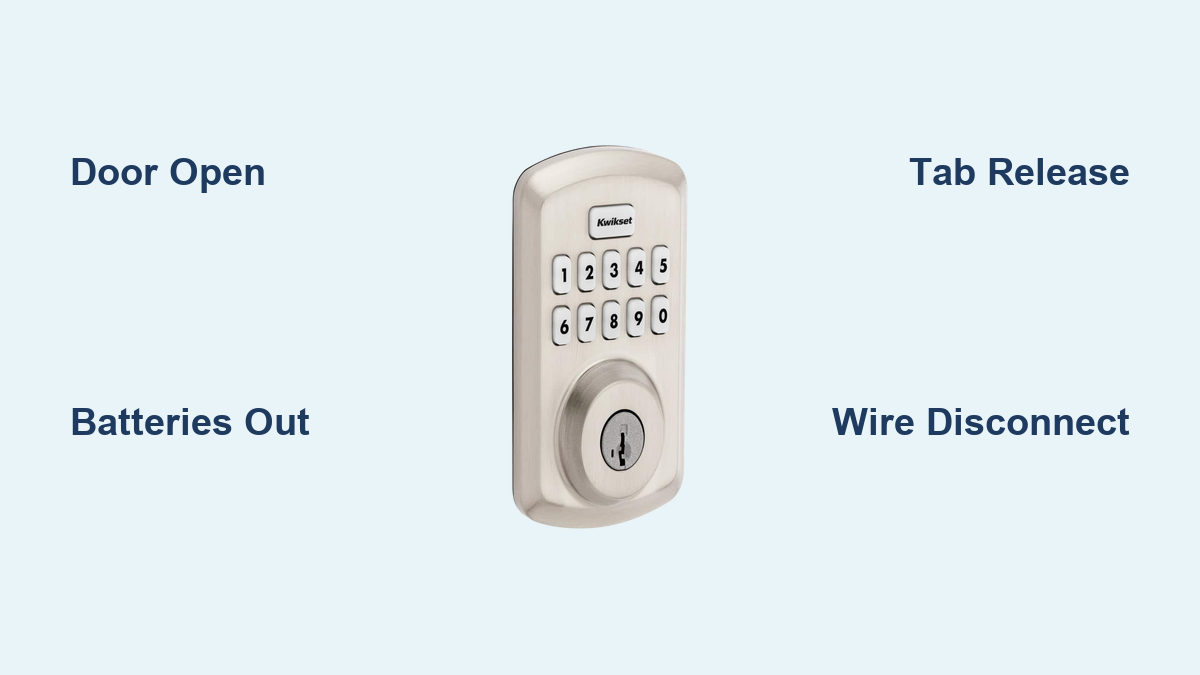
How to Remove Kwikset Keypad Deadbolt
Your Kwikset keypad deadbolt suddenly stopped responding, or you’re upgrading to a new smart lock. Either way, removing this electronic deadbolt seems intimidating—but one wrong move can jam the bolt mechanism permanently or damage your expensive door hardware. Thousands of DIYers accidentally trap their bolts in strike plates each year by skipping critical safety steps, turning a simple 10-minute job into a costly locksmith call.
This guide delivers the exact removal sequence for every Kwikset keypad model—from SmartCode 909 to Halo and Obsidian—verified through hands-on testing. You’ll learn model-specific release techniques, avoid stripped screws and broken connectors, and complete the job in under 15 minutes. Forget generic advice: we reveal the hidden tabs, precise screw patterns, and wire disconnect methods Kwikset doesn’t advertise.
Critical Pre-Removal Safety Steps
Skipping these three checks risks permanent damage to your lock or door. Never proceed without verifying each item—this takes 60 seconds but prevents 90% of removal disasters.
Door Must Stay Open During Entire Process
If your bolt extends into the strike plate while removing the interior assembly, the deadbolt housing jams inside the door edge. This often requires drilling out the mechanism or replacing the entire door. Always work with the door fully open and the bolt manually retracted using a flat-blade screwdriver in the tailpiece slot.
Disable Smart Auto-Lock Features Immediately
Check your smart home app (Apple HomeKit, Google Home, or Kwikset app) to turn off auto-lock. An accidental trigger during removal could extend the bolt, trapping it in the strike plate. For Halo models, also disable “Away Mode” which may override manual settings.
Remove All Batteries Before Touching Screws
Take out every battery—even if you see no activity. Residual power can cause unexpected motor engagement when disconnecting wires, stripping internal gears. For Halo Wi-Fi models, check the secondary backup battery slot hidden beneath the main tray.
Identify Your Exact Kwikset Model
Using the wrong removal sequence for your specific model cracks plastic housings or severs wires. Find your model number in 30 seconds by checking:
- The white/silver sticker under the interior cover (most reliable)
- Exterior keypad shape if the sticker is missing:
- Oval keypad with two visible screws: SmartCode 909-916 series (including Z-Wave/Zigbee variants)
- Slim rectangular keypad: Obsidian models
- Round interior knob: Powerbolt 1 (single center screw) or Powerbolt 2 (triangle screw pattern)
- Large rectangular interior with removable battery tray: Halo series
Pro Tip: Match your model to the removal sections below—never assume based on age. A 2018 SmartCode 914 requires different steps than a 2020 Halo despite similar appearances.
Essential Tools for Flawless Removal
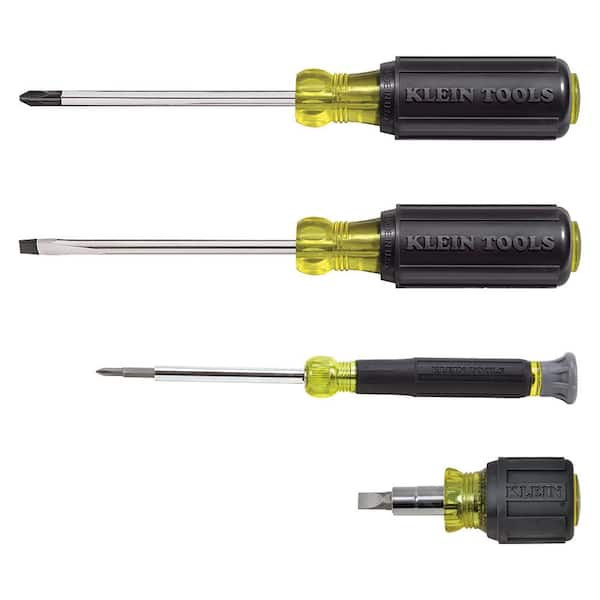
Gather these before starting—improvising causes 70% of stripped screws and broken connectors:
- Magnetic-tip Phillips #2 screwdriver (prevents dropped screws in door cavities)
- Small flat-blade screwdriver or stiff paperclip (for release tabs)
- Needle-nose pliers (for stubborn wire connectors without damaging wires)
- Flashlight (to see hidden tabs and alignment posts)
Critical Warning: Never use drill bits or pliers on screws—they’ll strip heads instantly. If your screwdriver slips, place a rubber band over the head for extra grip.
Remove Battery Compartment First
This universal step exposes hidden fasteners but varies by model. Never skip to screw removal—this misaligns internal components.
SmartCode Series (909-916): Slide the battery tray downward firmly until it clicks, then lift straight out. Avoid wiggling—it can crack the plastic guide rails.
Halo Models: Press both side tabs simultaneously while pulling the tray forward. If stuck, insert your flat-blade screwdriver under the front edge to gently pry it loose.
Obsidian: Insert your fingernail at the top notch and pop the cover upward in one smooth motion. Forcing it sideways breaks the fragile hinge.
Powerbolt Variants: Twist the round cover counter-clockwise 30 degrees, then lift off. If it resists, check for hidden set screws along the edge.
SmartCode 909-916 Interior Release
These models use deceptive dummy tabs that trap beginners. Follow this sequence precisely:
Locate the True Release Tab: Look beneath the screw holes for a small metal tab—positioned at 7 o’clock for left-hand doors or 5 o’clock for right-hand installations. The opposite side has a non-functional tab designed to mislead.
Release Technique: Press the tab inward firmly with your flat-blade screwdriver while pulling the interior assembly straight toward you. Apply steady pressure—don’t yank. If it resists, rotate the assembly slightly to free binding posts.
Wire Disconnection: Two short wire harnesses connect the interior assembly. Depress the plastic locking tabs with your fingernail while pulling straight back on the connector housing. Never pull the wires themselves—you’ll sever connections.
Halo Wi-Fi/Bluetooth Removal Process
Halo models expose three screws after battery removal, but overtightening during reinstallation causes 80% of failures.
Screw Removal: Take out the three Phillips screws arranged in a triangle pattern. Note: The top screw is often longer—keep them separate for reinstallation.
Chassis Removal: Lift the entire interior assembly straight off—it slides off two metal posts. If it sticks, check for wire tension; never twist or pry.
Ribbon Cable: Flip up the black locking bar at the connector base with your flat-blade screwdriver, then slide the cable out smoothly. Forcing it tears the delicate ribbon.
Obsidian Slim Profile Removal
The Obsidian’s sleek design hides alignment dowels that break if pulled incorrectly.
Screw Access: Remove the two Phillips screws revealed after taking off the top cover. These are shorter than SmartCode screws—don’t substitute parts.
Assembly Removal: Pull the interior straight back—it releases from two plastic alignment dowels. If you feel resistance, recheck battery compartment removal; the cover must be fully detached.
Connector Types: You’ll find two small white Molex connectors (motor and LED). Squeeze the tabs on both sides while pulling straight back. Needle-nose pliers help if fingers slip.
Powerbolt 1 vs Powerbolt 2 Differences

These older models look identical but use conflicting screw patterns—using Powerbolt 2 steps on a Powerbolt 1 cracks the housing.
Powerbolt 1:
– Remove the single center Phillips screw
– Slide the interior cylinder straight off the square tailpiece with gentle wiggling
– Disconnect the single 3-pin connector by squeezing both sides of the tab
Powerbolt 2:
– Remove three screws in a triangle pattern (not a straight line)
– Lift the interior chassis off completely
– Disconnect the single 3-pin connector by squeezing the release tab
Exterior Keypad and Bolt Removal
With the interior assembly off, exterior removal is simple but risky if unsupported.
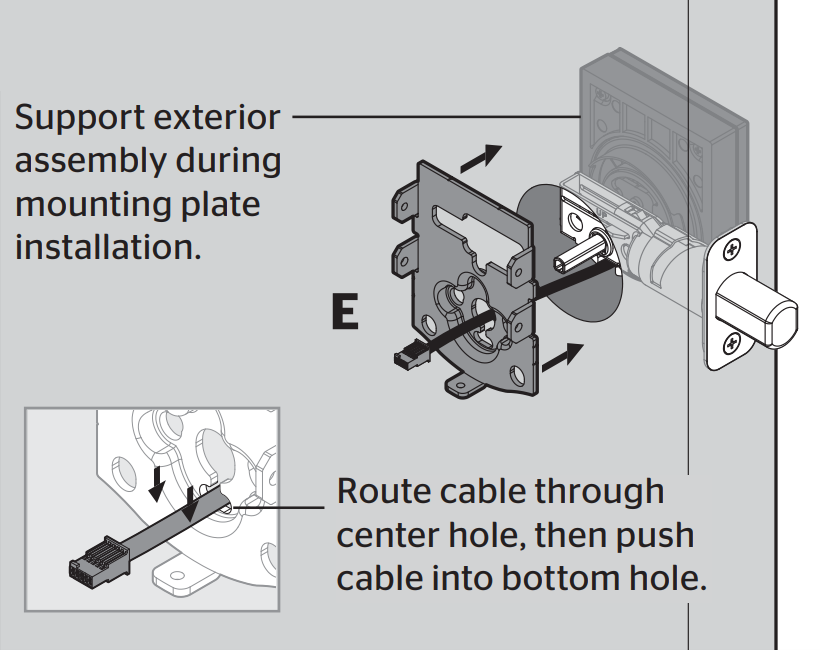
Support the Keypad: Hold the exterior keypad firmly with your free hand—it drops suddenly once screws release, often scratching wood or metal doors. Place a towel underneath as a cushion.
Screw Removal by Model:
– SmartCode/Obsidian/Halo: Remove two long screws through the door (length varies by model—see replacement chart below)
– Powerbolt: Remove two screws on the latch edge
Bolt Extraction: Slide the deadbolt mechanism straight out of the door edge. If stuck, retract it manually using a flat-blade screwdriver in the tailpiece slot—turn counter-clockwise until fully retracted.
Troubleshooting Common Removal Problems

Assembly Won’t Release After Pressing Tab:
You’re likely pressing the dummy tab (opposite side). Confirm tab position based on door handiness. Apply firm, straight pressure inward while pulling directly backward—no sideways motion.
Stripped Screw Heads:
Place a wide rubber band over the screw head, then insert your screwdriver. The band fills stripped grooves for better grip. For severe stripping, carefully cut a new slot with a rotary tool and use a flat-blade driver.
Stuck Bolt in Door Edge:
Ensure the bolt is fully retracted. If the tailpiece broke inside, insert a flat-blade screwdriver into the bolt slot and turn counter-clockwise. If still stuck, remove the strike plate to free the bolt head.
Quick Re-Installation Reference
Reverse removal steps precisely to avoid future issues:
- Bolt Direction: Rotate the tailpiece so the bolt fully retracts and the “D”-shaped hole faces the door edge before installing the exterior keypad.
- Screw Tightening: Snug plus ¼-turn only—overtightening binds the mechanism and causes motor strain.
- Testing Sequence: Manually test bolt movement before inserting batteries. Then perform door-handing detection by holding the Program button until the bolt cycles twice.
Warranty and Disposal Guidelines
Removing your lock doesn’t void Kwikset’s lifetime mechanical warranty, but damage from improper removal isn’t covered. Save all screws and connectors—Kwikset doesn’t sell these parts separately. Recycle electronics per local e-waste regulations; lithium batteries require special handling at designated drop-off points.
Your Kwikset keypad deadbolt now sits safely in your hand, ready for replacement or repair. By following these model-specific steps, you’ve avoided the top pitfalls that leave doors jammed and locks damaged. Store removed hardware in a labeled bag—you’ll need those exact screws and connectors for reinstallation. Before inserting new batteries, double-check bolt direction and alignment to ensure smooth operation of your next lock.