How to Type Spanish Accents on Keyboard
Struggling to type “¿Cómo estás?” during a video call or while drafting an email to your Spanish-speaking colleagues? You’re not alone. Over 40 million people in the U.S. speak Spanish, yet most standard keyboards lack dedicated keys for essential characters like á, ñ, or ¿. This constant copy-pasting from Google or switching between language apps breaks your workflow and frustrates communication. The solution isn’t as complicated as you think—you can type Spanish accents fluently within minutes using built-in tools.
This guide delivers actionable methods to get Spanish accents on keyboard across every major platform. Whether you’re writing a college essay, texting family in Mexico, or preparing business documents, you’ll discover the fastest techniques for your specific device. Forget unreliable third-party apps—we focus exclusively on native solutions that work instantly on Windows, Mac, iOS, Android, and web browsers. You’ll learn how to type accents without memorizing complex codes and troubleshoot common issues when accents refuse to appear.
Windows 10/11 Spanish Accents in 60 Seconds
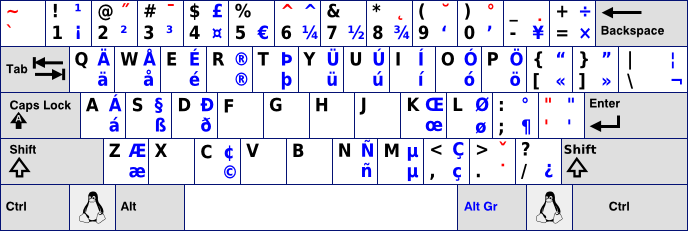
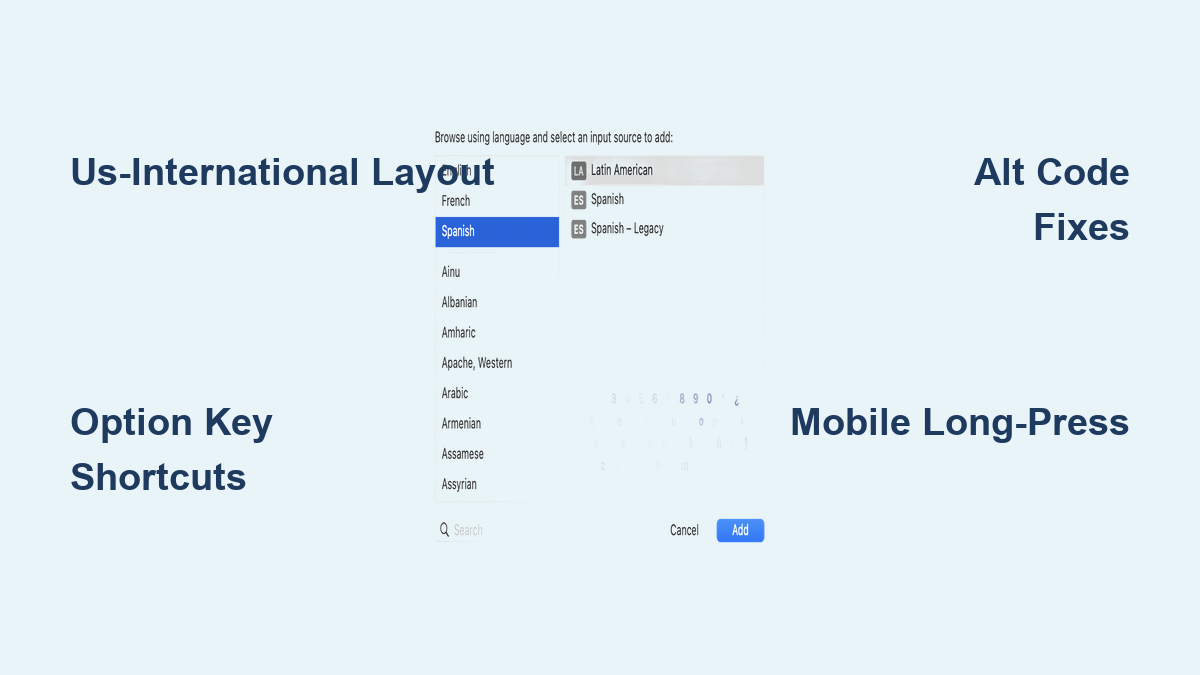
Activate US-International Layout Properly
Most Windows users miss this critical setup step that transforms your standard keyboard into a Spanish accent machine. When you enable the US-International layout, your quote key becomes an accent trigger—no extra keys needed.
Enable correctly:
1. Press Windows + I → Time & Language → Language
2. Under “Preferred languages,” click Add a language
3. Search for “United States-International” (not “Spanish”) → Next → Install
Critical mistake to avoid: Don’t select “Spanish (Spain)”—this replaces your English layout. The US-International option keeps your familiar English keys while adding accent shortcuts.
Typing speed test: Type ' + e then e to get “é” instantly. Practice with common words:
– ' + o → ó (as in “también”)
– ' + u → ú (as in “último”)
– ~ + n → ñ (as in “señor”)
Alt Code Fixes for Laptop Users
When your numeric keypad is missing (common on laptops), standard Alt codes fail—causing endless frustration. Here’s how to force them to work:
Laptop-specific solution:
– Hold Fn + Alt while typing the code
– Press Num Lock first (often requires Fn + Num Lock)
– Use the embedded numeric keypad (top row: 7/M, 8/, 9/, etc.)
Essential codes for fast typing:
– ¡: Alt + 161 (hold Fn + Alt)
– ¿: Alt + 191
– ñ: Alt + 164 (faster than 0241)
– á: Alt + 160
Pro tip: Create a cheat sheet with these codes taped to your laptop lid. You’ll stop mid-sentence less often while memorizing them.
macOS Spanish Accents Without Changing Layouts

Master the Option Key Sequences
Mac users have the most efficient built-in system—but most only know the slow press-and-hold method. The Option key combinations work 3x faster for fluent typing:
Instant accent shortcuts:
– Option + e, then vowel = á, é, í, ó, ú
– Option + n, then n = ñ (add Shift for Ñ)
– Option + u, then u = ü
– Option + 1 = ¡
– Option + Shift + ? = ¿
Real-world example: To type “mañana,” press:
– m → a → ñ (Option+n, n) → a → ñ (Option+n, n) → a
Why this beats press-and-hold: No waiting for popups—your fingers never leave the home row. After 10 minutes of practice, your typing speed stays near 40 WPM.
Fix Missing Accent Menus
When holding vowels shows no accent options, don’t reinstall your OS—this simple fix restores functionality:
- Go to System Preferences → Keyboard → Text
- Uncheck “Use smart quotes and dashes”
- Close settings and restart your current app (e.g., Word, Notes)
Warning: If you skip step 3, the change won’t apply. This glitch commonly occurs after macOS updates.
Mobile Device Spanish Shortcuts That Actually Work
iOS Long-Press Gestures for Speed
Your iPhone’s built-in Spanish keyboard has hidden gestures most users never discover. After adding the Spanish layout (Settings → General → Keyboard → Keyboards → Add Spanish), try these:
Typing “¿Dónde está el baño?” in 5 seconds:
1. Tap ?123 → hold ? to get ¿
2. Type “Donde” → long-press o → select ó
3. Long-press a twice for á
4. Swipe up on n key for ñ
Critical setting: Enable “Key Repeat” in Settings → Accessibility → Keyboards. This makes long-presses register faster.
Android Gboard Hidden Symbols
Gboard buries Spanish punctuation in plain sight. After adding Spanish (Settings → Languages → Add Spanish):
Access ¿ and ¡ instantly:
– Tap ?123 → =\< (next page) → find ¿ and ¡
– Long-press n to see ñ options
Pro trick: Enable “Glide typing” for Spanish in Gboard settings. Your phone will predict accented words like “está” as you swipe.
Web Browser Solutions for Google Docs Users
Google Docs Native Shortcuts
Stop hunting through Insert menus. These keyboard shortcuts work in Docs, Gmail, and most web forms:
Type accents without menus:
– Ctrl + ‘ then vowel = á, é, í, ó, ú
– Ctrl + ~ then n = ñ
– Ctrl + Shift + @ then u = ü
Troubleshooting: If shortcuts fail, check your browser’s keyboard settings. Some extensions (like Grammarly) block these commands—disable them temporarily.
Chrome Extensions That Don’t Slow You Down
Most Spanish accent extensions add bloated toolbars. These two lightweight options integrate seamlessly:
-
Spanish Accents (by Accent Helper):
– Click extension icon → select character → auto-inserts into active field
– No popup menus—works in background -
Easy Accents:
– Type a/ → converts to á instantly
– Customizable triggers (e.g., n~ → ñ)
Warning: Avoid extensions requiring “read all data” permissions—they’re security risks.
Programming Shortcuts for Developers
HTML Entities for Web Content
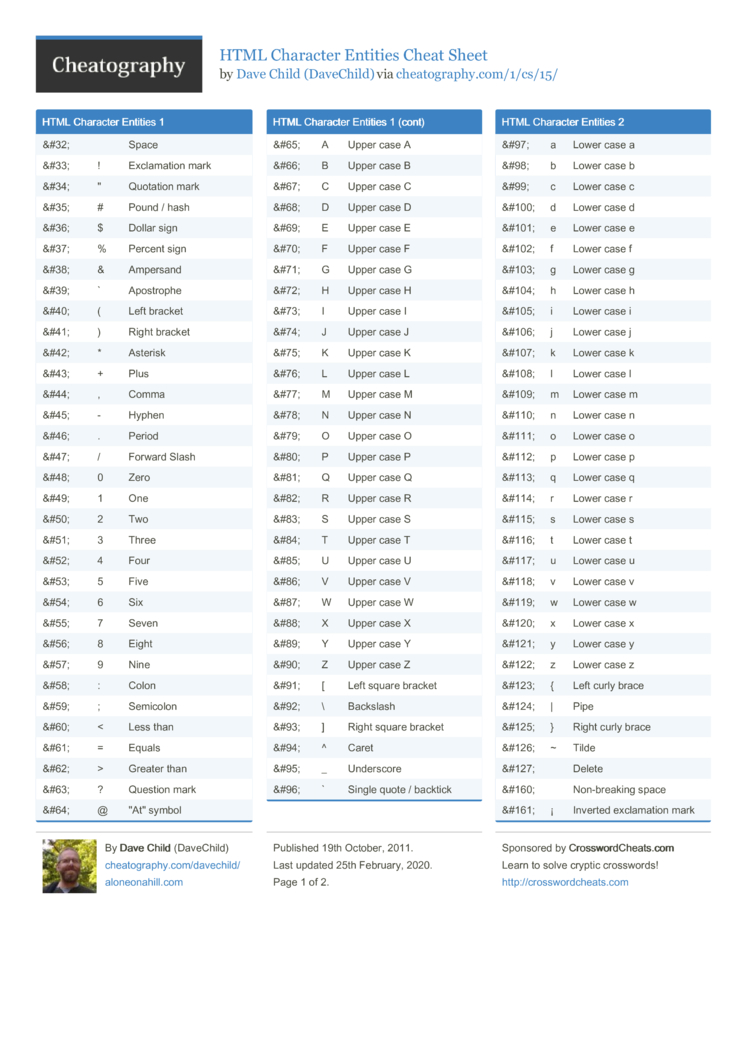
When building multilingual sites, hardcode accents using these verified entities:
á = á   é = é   í = í

ó = ó     ú = ú   ñ = ñ

¿ = ¿   ¡ = ¡
Critical tip: Always use lowercase entities (á not Á). Uppercase versions fail in strict HTML5.
Unicode Hex Codes for Apps
For Android/iOS development or database entries:
- á:
\u00E1 - ñ:
\u00F1 - ü:
\u00FC
Real-world use: In JavaScript, type "ma\u00F1ana" to output “mañana” correctly.
Fix These 3 Common Accent Failures
When Windows Types Two Quotes Instead of Accents
This happens when you forget to press the vowel after the quote key. Fix immediately:
– Press Space after the accent key to output a single quote (e.g., ' + Space = ')
– Or type ‘ + Space + vowel for words like “it’s”
Prevention: Adjust keyboard repeat delay:
1. Control Panel → Keyboard
2. Set “Repeat delay” to Long
3. Test with ' + '—should now require deliberate presses
macOS Accents Appearing as Double Characters
If typing Option + e then a gives “éa” instead of “á,” your keyboard buffer is overloaded. Solution:
1. Open Terminal
2. Type defaults write -g ApplePressAndHoldEnabled -bool false
3. Restart your Mac
This switches to the faster key-combo method permanently.
Mobile Keyboard Reverting to English
Phones often switch layouts mid-sentence. Stop this:
– iOS: Settings → General → Keyboard → uncheck “Auto-Correction”
– Android: Gboard settings → Text correction → disable “Auto-replace”
Pro move: Set Spanish as your primary keyboard and English as secondary—most apps respect this.
Physical Keyboard Upgrades for Daily Spanish Typing
Transparent Sticker Application Guide
If you type Spanish daily, these stickers beat layout switching:
- Clean keys with 70% isopropyl alcohol
- Apply stickers only to keycaps (not between keys)
- Use flashlight to check backlight visibility
- Wait 24 hours before heavy use
Best product: iDuck Spanish Keyboard Stickers (tested for mechanical keyboards).
Mechanical Keycap Solutions
For Cherry MX users:
– Buy DSA profile keycaps (flat tops show legends clearly)
– Choose PBT material (won’t shine like ABS)
– Order ANSI layout (matches US keyboards)
Warning: ISO layouts have larger Enter keys—measure your keyboard first.
Master Spanish Accents in One Practice Session
Spanish accents aren’t optional—they change meanings entirely. “Sí” (yes) versus “si” (if), “tú” (you) versus “tu” (your). The US-International layout pays for itself after typing just 20 accented words. Start with these high-frequency phrases:
- ¿Cómo estás? (
? + o→ó,' + a→á) - Señor García (
~ + n→ñ,' + i→í) - ¡Gracias! (
Option + 1→¡)
Next steps:
1. Set your primary device to US-International or Option-key method today
2. Practice typing your name with accents for 2 minutes
3. Bookmark this guide for quick reference
You’ll type Spanish accents faster than copy-pasting within 48 hours. The 10 minutes you spend setting this up saves hours of frustration—and shows respect for the language you’re using. No more broken messages or awkward Google searches mid-conversation. Your keyboard was built for this; you just needed to know how to unlock it.