How to Type Euro Sign on Mac Keyboard
Struggling to find the euro symbol on your Mac keyboard? You’re not alone. Whether you’re creating financial reports, drafting emails to European clients, or simply trying to budget for your next trip abroad, knowing how to quickly access the € symbol saves valuable time and frustration. The good news is that macOS offers multiple built-in methods to type this essential currency symbol—no third-party software required.
Unlike Windows systems where you might need to memorize complex Alt codes, Mac provides intuitive solutions that work across all applications. This guide reveals every proven method to insert the euro sign on your Mac, from lightning-fast keyboard shortcuts to accessibility features you might not know existed. You’ll never waste time hunting for this symbol again after mastering these techniques.
Master Your Keyboard Shortcut by Layout

US Keyboard: Option + Shift + 2 Combination
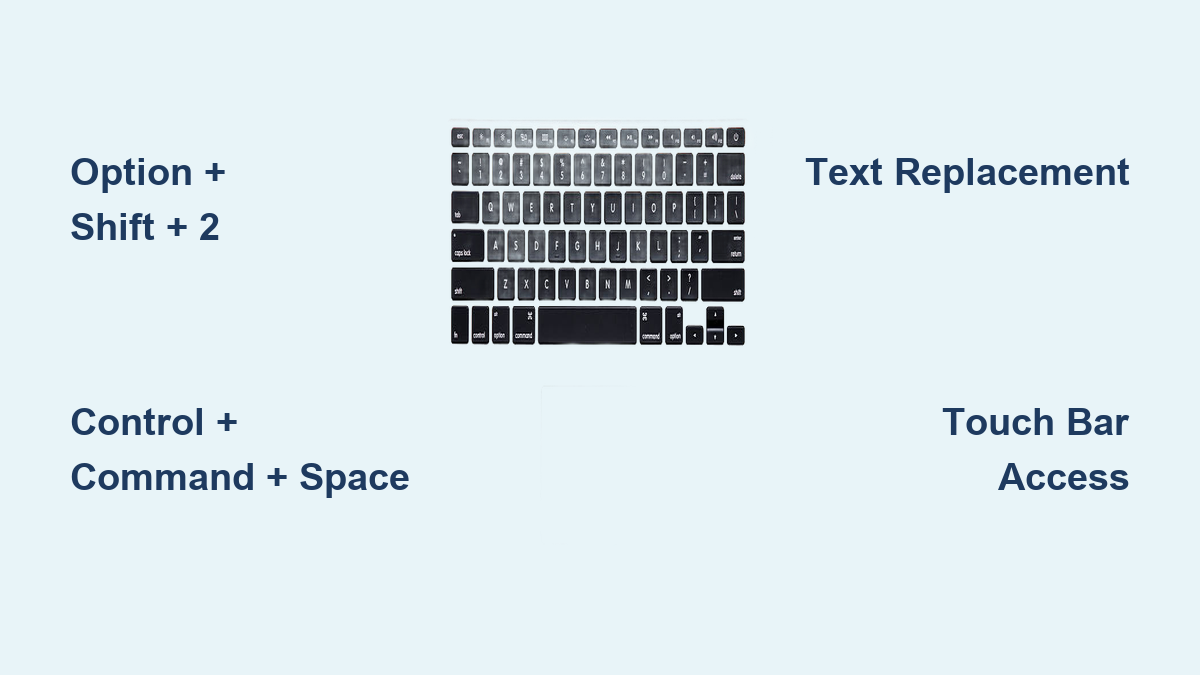
Press Option (⌥) + Shift (⇧) + 2 simultaneously to instantly insert € at your cursor position. This works in every application from Microsoft Excel to Gmail to Apple Notes. The key is located in the top row where the number 2 and @ symbol share space—visualize this shared key to remember the shortcut.
Pro tip: If your shortcut isn’t working, check that you’re not using a third-party keyboard manager that might override system shortcuts. Reset by going to System Settings > Keyboard > Keyboard Shortcuts and ensuring no conflicts exist.
UK Layout: Option + 2 Direct Access
For British keyboard users, simply press Option (⌥) + 2 (without Shift) to produce €. The symbol appears directly on the key alongside @, making this method intuitive once you know where to look. This shortcut works consistently across all macOS versions from Catalina to the latest Sonoma.
European Keyboard Shortcuts Cheat Sheet
Different European layouts use distinct combinations:
– German: Option + E
– French: Option + Shift + 4 (accesses the $ key)
– Spanish: Option + E
– Italian: Option + E
– Swiss German: Option + Shift + E
Critical check: Verify your active layout by clicking the input menu (flag icon) in your menu bar. If the wrong layout appears, go to System Settings > Keyboard > Input Sources to correct it.
Access Character Viewer Instantly
Universal Control + Command + Space Method
Press Control (⌃) + Command (⌘) + Space from any application to open Character Viewer—this works regardless of your keyboard layout. Type “euro” in the search field, then double-click the € symbol to insert it immediately.
Time-saving trick: After your first search, Character Viewer remembers your query. The next time you open it, just press Enter to immediately access your last searched symbol—no typing required.
Navigate Currency Symbols Efficiently
- Open Character Viewer (Control + Command + Space)
- Select Currency Symbols from the left sidebar
- Locate € in the grid (usually near other currency symbols)
- Double-click to insert at cursor position
Visual cue: The Character Viewer window shows symbols in a grid format—€ typically appears near £ and $ when viewing currency symbols.
Set Up Permanent Text Replacement

Create Custom “eur” Shortcut in 30 Seconds
- Go to System Settings > Keyboard > Text Replacements
- Click the + button to add new replacement
- In Replace field: Type “eur”
- In With field: Paste the € symbol
- Click Add to save
Now type “eur” followed by a space anywhere on your Mac, and it instantly converts to €. This method works across all Apple devices signed into the same iCloud account—your shortcut syncs automatically to iPhone and iPad.
Smart customization: Create multiple replacements like “euro” for formal documents or “€€” for double symbols in financial contexts.
Troubleshoot When Shortcuts Fail
Verify Your Keyboard Layout Settings
When your € shortcut doesn’t work:
1. Click the input menu (flag icon) in your menu bar
2. Ensure your selected layout matches your physical keyboard
3. If mismatched, go to System Settings > Keyboard > Input Sources
4. Remove incorrect layouts and add the correct one
Warning: Using a US layout when you have a physical UK keyboard (or vice versa) causes symbol inconsistencies—always match your software layout to your hardware.
Fix Application-Specific Conflicts
Some programs like Adobe apps or specialized financial software override system shortcuts. When this happens:
– Try the universal Character Viewer method instead
– Check the application’s keyboard preferences for conflicts
– Use text replacement as your fallback solution
Pro solution: If an app blocks standard shortcuts, copy € from a working application and paste it directly into the problematic program.
Access € on MacBook Pro Touch Bar

One-Tap Currency Symbol Access
- Tap the Emoji & Symbols button on your Touch Bar
- Navigate to the Currency Symbols category
- Tap the € symbol to insert it immediately
Permanent solution: Customize your Touch Bar for instant access:
1. Go to System Settings > Keyboard > Customize Control Strip
2. Drag the € symbol from the available options to your Touch Bar
3. Now access the euro sign with a single tap anytime
Copy-Paste Emergency Method
Create Your Personal € Reference
Save the euro symbol where you can quickly access it:
– Create a sticky note on your desktop with €
– Store it in Apple Notes for cross-device access
– Keep a text file in your Documents folder
– Use clipboard manager apps like Paste for one-click access
Universal Clipboard magic: Copy € on your Mac, then immediately paste it on your iPhone or iPad (requires same Apple ID with Handoff enabled).
Professional Implementation Tips
Financial Software Integration
€ works seamlessly in:
– Excel: Format cells as Euro currency (Format Cells > Currency > Euro)
– Numbers: Use =DOLLAR() function with Euro symbol
– QuickBooks: Appears automatically when selecting Euro as currency
– Google Sheets: Type € directly in cells or formulas
Pro technique: In spreadsheets, use custom formatting to automatically display numbers with € (e.g., “€#,##0.00”).
Programming and Web Development
For developers needing € in code:
– HTML: € or €
– CSS: content: '\20AC';
– JavaScript: '\u20AC'
– Unicode: U+20AC
Critical note: When working with databases, ensure your character encoding supports UTF-8 to prevent € symbol corruption.
Accessibility Options for Special Needs
Voice Control Method
- Enable Voice Control in System Settings > Accessibility > Voice Control
- Say “Show numbers” when Character Viewer is open
- Say the number corresponding to € in the grid
- macOS inserts the symbol hands-free
This method proves invaluable when typing for extended periods or with limited mobility.
Quick Reference Summary
| Keyboard Layout | Shortcut | When to Use |
|---|---|---|
| US Standard | Option + Shift + 2 | Default for most US Macs |
| UK Standard | Option + 2 | British keyboards |
| German | Option + E | German language settings |
| French | Option + Shift + 4 | French AZERTY keyboards |
| Spanish | Option + E | Spanish layouts |
Three Emergency Methods When All Else Fails
- Universal Character Viewer: Control + Command + Space → type “euro”
- Copy-Paste Lifesaver: Grab € from this article and paste anywhere
- Unicode Input: Hold Option, type 20AC, release Option
Master these methods once and access € forever. Start with Option + Shift + 2 for US layouts or Option + 2 for UK layouts as your primary shortcut. Add Character Viewer to your muscle memory for universal access across all keyboard types. For frequent euro symbol users, set up text replacement with “eur” as your go-to shortcut—it’s the fastest solution once configured. These techniques work across every macOS version from older Catalina to the latest Sonoma, ensuring you’ll never struggle to find the euro symbol again. Save this guide as your reference and transform from frustrated user to Mac keyboard expert in minutes.