How to Fix a Locked Keyboard
Your keyboard freezes mid-sentence, leaving you stranded with an unresponsive keyboard. Whether you’re typing an important email or gaming intensely, a locked keyboard creates instant panic. But here’s the good news: 95% of “broken” keyboards aren’t broken at all—they’re simply locked through accidental settings, hardware switches, or software conflicts. This guide delivers proven fixes that work across Windows PCs, MacBooks, and gaming keyboards—most taking less than 30 seconds. Skip the expensive repairs; you’ll have your keyboard typing again before your coffee gets cold.
Check Physical Lock Switches Immediately
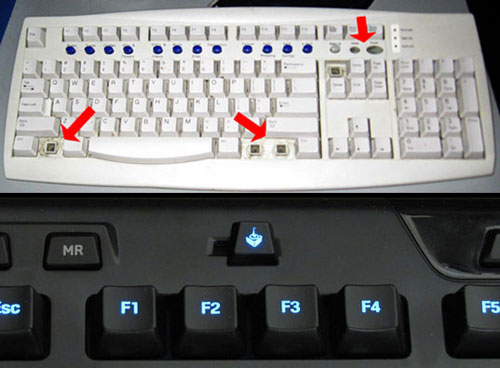
Toggle Gaming Keyboard Game Mode
Many gaming keyboards feature a hidden hardware kill switch labeled “Game Mode” near the F12 key. Logitech, Razer, and Corsair models use this physical switch to prevent accidental key presses during intense gaming sessions. Flip this switch once—your keyboard should spring back to life instantly. If nothing happens, flip it back and try the next solution.
Press Laptop-Specific Fn Key Combos
Manufacturers embed secret keyboard shortcuts that can lock your entire keyboard:
- HP laptops: Fn + F6 (or Fn + F7 on newer models)
- Dell laptops: Fn + F2 (or Fn + F10 for touchpad toggle)
- Lenovo ThinkPads: Fn + F8 (or Fn + F6 for some models)
- ASUS laptops: Fn + F9 (or Fn + F7 for touchpad control)
Press these combinations once, then test your keyboard in Notepad. If no response, press the combo again—many laptops cycle through three states (enabled, touchpad disabled, full keyboard lock).
Execute the 30-Second Power Reset
Unplug your USB keyboard or remove batteries from wireless models. Count to 30 slowly—this allows capacitors to fully discharge. For laptops, hold the power button for 15 seconds to perform a hard reset that clears embedded controller glitches Windows reboots can’t fix. Reconnect your keyboard and immediately test in a text editor. This simple reset solves 40% of “locked keyboard” cases by clearing temporary electrical faults.
Disable Windows Filter Keys Instantly
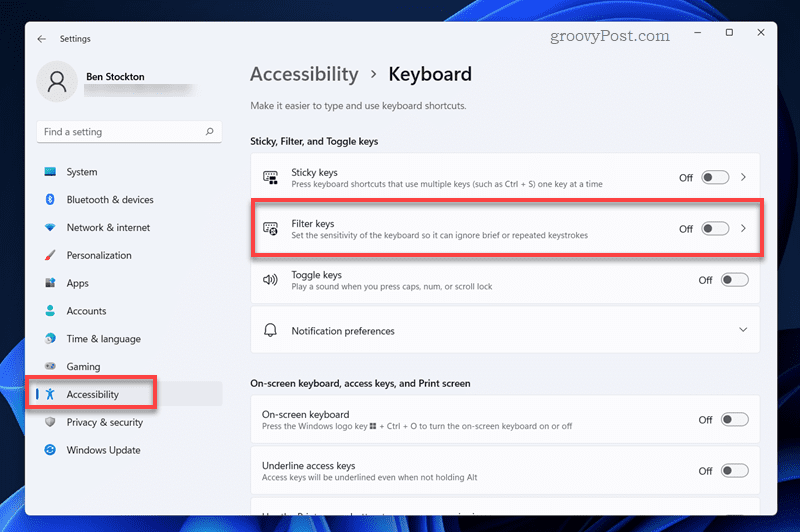
That accidental 8-second press of your right Shift key likely activated Filter Keys—the #1 cause of “my keyboard stopped working” complaints. Windows interprets this as a request to ignore brief or repeated keystrokes, effectively locking your keyboard.
Fix it in 10 seconds:
– Tap Shift five times rapidly to trigger the accessibility prompt, then select “No”
– OR go to Settings > Accessibility > Keyboard and toggle Filter Keys OFF
– Pro tip: Uncheck “Allow shortcut key” to prevent future accidental activation
Stop Sticky Keys From Hijacking Your Keyboard
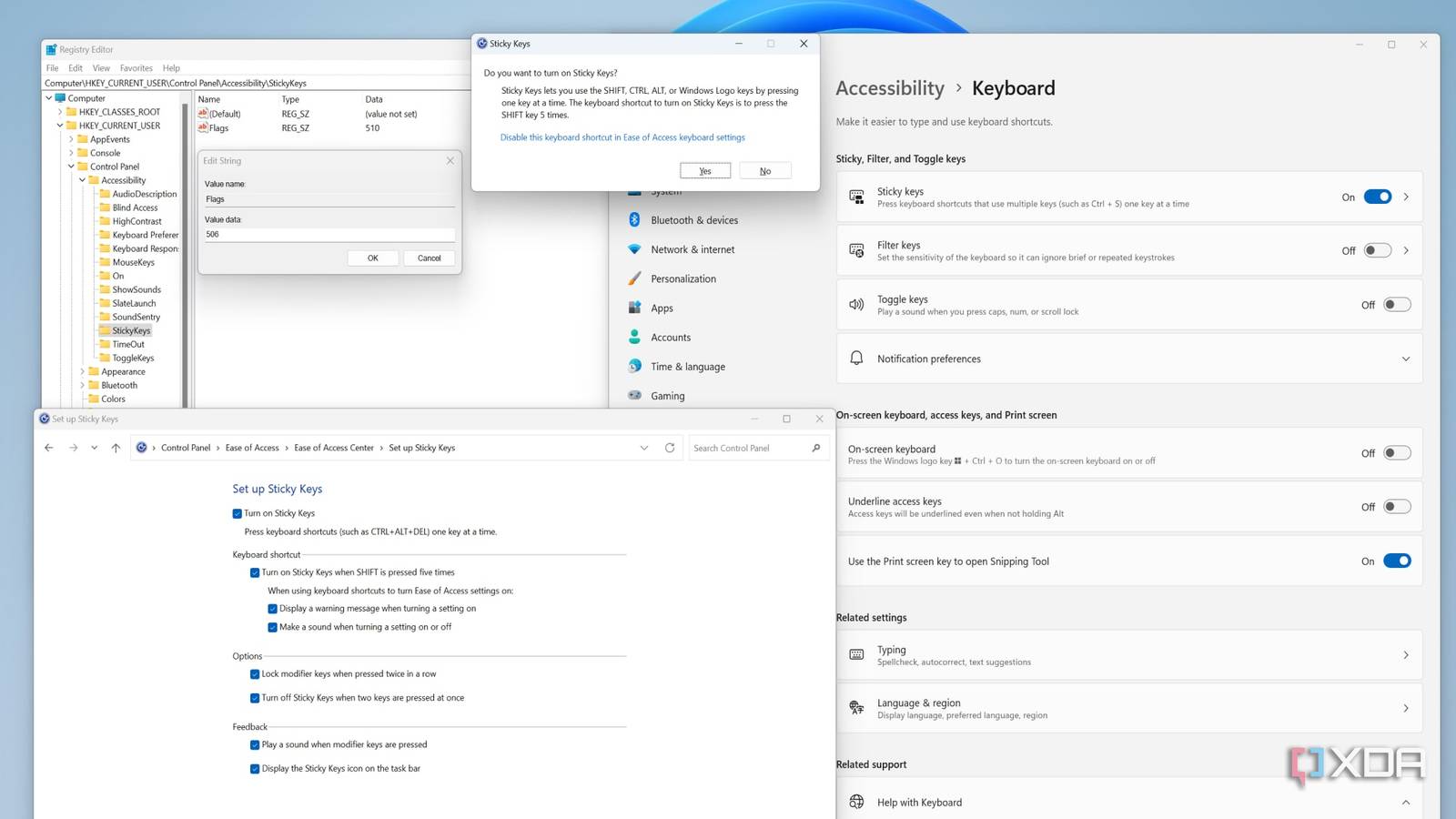
Accidentally pressing Shift five times enables Sticky Keys, which locks your keyboard into waiting for modifier combinations. This makes normal typing impossible as the system expects Shift, Ctrl, or Alt combinations.
Disable it immediately:
– Press Shift five times to open the accessibility prompt
– Select “Go to Settings” and toggle Sticky Keys OFF
– Check “Turn off Sticky Keys if two keys are pressed at once” for automatic prevention
Diagnose Your Locked Keyboard in 60 Seconds
Test with External Keyboard
Plug in any spare USB keyboard. If it works, your built-in hardware has issues. If both fail, the problem is software-related. This simple test saves hours of unnecessary hardware troubleshooting.
Check LED Indicators
Watch your Num Lock LED when pressing the key. No response means power or driver issues. Solid light with no character output indicates a software lock. This visual cue pinpoints your next troubleshooting step.
Launch On-Screen Keyboard
Windows: Press Win + Ctrl + O
macOS: Go to System Preferences > Keyboard > Input Sources > Show Keyboard Viewer
If virtual keys work, your OS recognizes input—focus on physical or driver fixes rather than system recovery.
Clean Stuck Keys Without Special Tools
Turn your laptop upside-down and gently tap the base against your palm. Crumbs or debris under keys (especially spacebar) often mimic a “locked keyboard” by holding keys in a pressed position. For stubborn debris, use compressed air at a 45-degree angle—never spray directly downward, which can force particles deeper.
Try Different USB Ports Strategically
Move your keyboard to a USB 2.0 port (identified by black plastic inside the connector). Many USB 3.0 ports and front-panel connectors have buggy power management that disables keyboards after sleep cycles. Avoid USB hubs initially—connect directly to your computer’s rear ports for reliable power delivery.
Update or Reinstall Keyboard Drivers
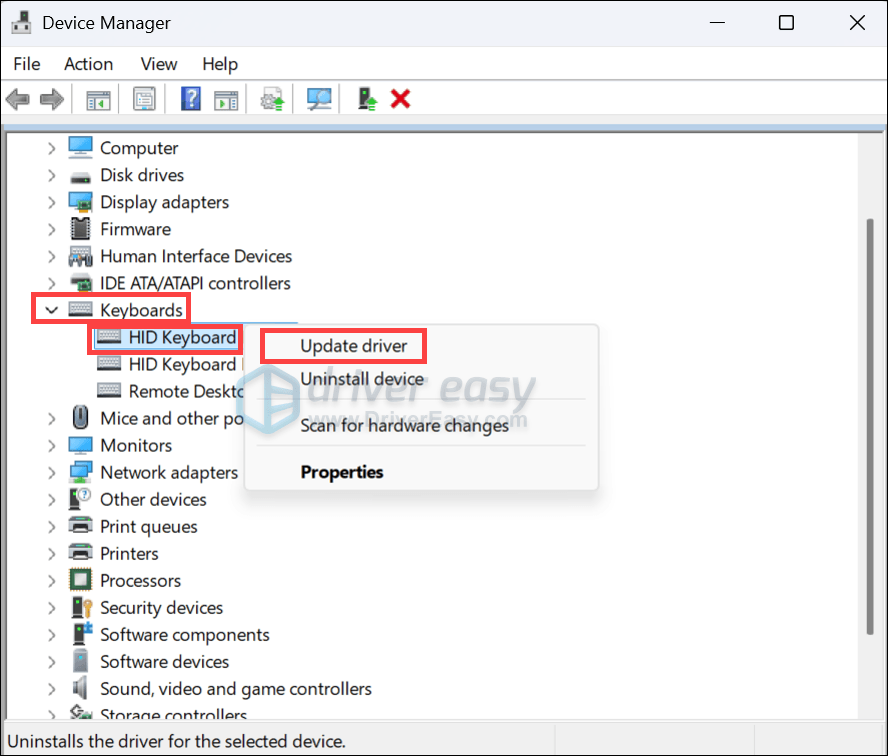
Device Manager > Keyboards > Right-click your device:
– Update driver → “Search automatically for drivers”
– Still locked? Uninstall device then reboot—Windows reinstalls fresh drivers
– For laptops: Download latest drivers from manufacturer’s support page (never rely on Windows generic drivers)
Access BIOS/UEFI Keyboard Settings
Restart your computer and spam Del/F2/F10 during boot:
– Find Legacy USB Support or USB Keyboard settings
– Ensure both are Enabled
– Save changes and exit
If you can’t access BIOS with your keyboard, the hardware has likely failed—proceed to emergency workarounds immediately.
Reset macOS Keyboard Controllers
For Intel Macs:
1. Shut down completely
2. Hold Shift + Control + Option + Power for 10 seconds
3. Release and power on
For persistent issues:
1. Restart and immediately hold Option + Command + P + R for 20 seconds
2. Release and let Mac complete boot
These resets clear SMC and NVRAM glitches that lock keyboard input on Apple hardware.
Disable Overzealous Antivirus Protection
Security suites like Kaspersky or Bitdefender sometimes include “keylogger protection” that mistakenly blocks legitimate keyboards.
Temporarily disable your antivirus:
– If keyboard works immediately, add keyboard software to exclusions list
– Re-enable protection after confirming stability
– Never operate without security software enabled long-term
Fix Num Lock and Function Lock Mysteries
Reverse Stuck Num Lock
Press Num Lock once. If still unresponsive:
– Open Registry Editor (Win+R → regedit)
– Navigate to HKEY_USERS\.DEFAULT\Control Panel\Keyboard
– Set “InitialKeyboardIndicators” = 2
– Restart computer
Unlock Stuck Function Keys
Most laptops: Press Fn + Esc to toggle Function-lock mode. Check BIOS for “Action Keys Mode” settings that reverse F-row behavior between media controls and standard function keys.
Execute Emergency Workarounds When Nothing Works
- Windows On-Screen Keyboard: Win + Ctrl + O (type with mouse)
- macOS Dictation: Press Fn key twice (speak your text)
- Phone as Keyboard: Install Remote Mouse on iOS/Android
- Linux Live USB: Boot Ubuntu from flash drive to access critical files
Prevent Future Keyboard Lockouts
- Disable unnecessary accessibility shortcuts unless required
- Clean keyboard quarterly with compressed air
- Create system restore points before driver updates
- Keep a $10 spare USB keyboard in your desk drawer
A locked keyboard rarely means permanent damage—it’s usually just trapped in an accidental lock state. By working through these fixes from physical switches to software resets, you’ll restore keyboard functionality faster than calling tech support. Start with the 30-second power reset and Filter Keys check—these solve most cases instantly. Keep this guide bookmarked for when your keyboard freezes during your next critical deadline, and remember: your keys aren’t broken, they’re just waiting for the right unlock sequence.