How to Fix Keyboard Number Keys Not Working
Your keyboard number keys suddenly stopped responding while typing a password or entering financial data. This frustrating issue affects both laptop and desktop users across Windows, macOS, and Linux systems. When your number keys fail, simple tasks become impossible—imagine struggling to log into your computer because you can’t type your PIN. The good news is that 90% of number key problems have straightforward solutions you can implement in under 15 minutes. This guide delivers proven fixes that restore your number keys to full functionality without requiring technical expertise.
Verify Number Key Failure Scope Before Troubleshooting
Test Number Keys Across Multiple Applications
Open three different programs—a text editor, web browser, and calculator—and type all numbers 0-9 in each. If numbers work in some applications but not others, you’re dealing with a software conflict rather than hardware failure. Critical test: Type numbers in your operating system’s search function (Windows search or macOS Spotlight). If numbers register here but not in specific programs, the issue lies with those applications, not your keyboard. This simple test saves hours of unnecessary troubleshooting.
Confirm Num Lock Status for Number Pad Issues
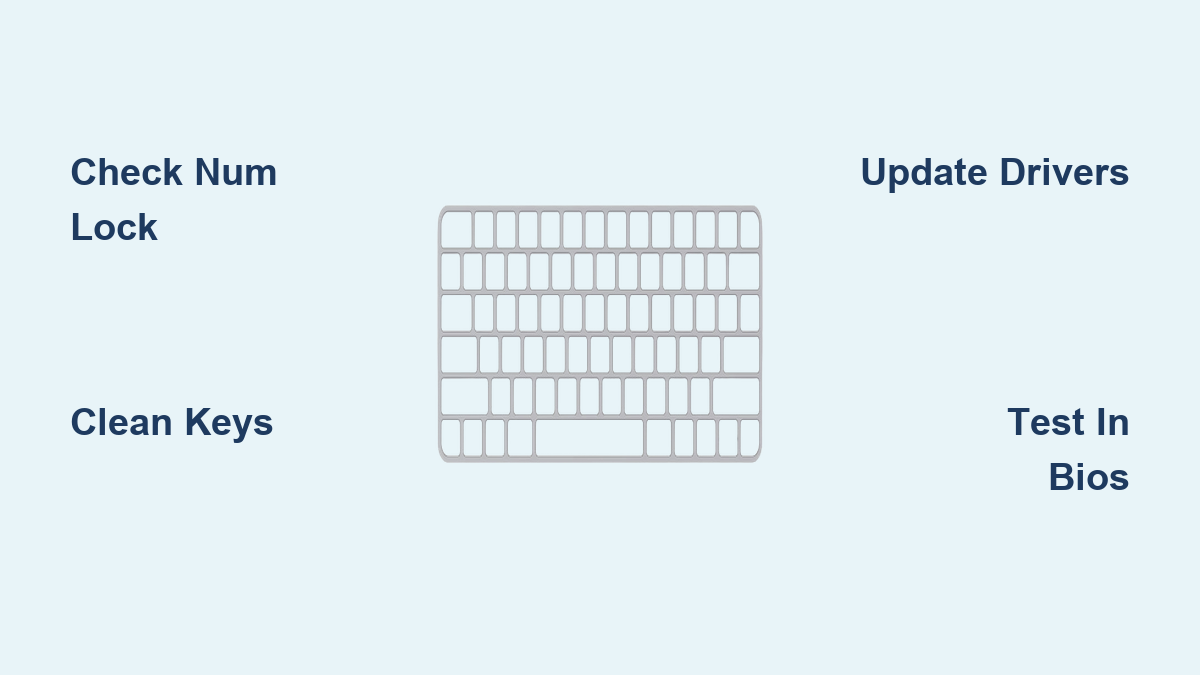
Desktop keyboards feature a dedicated Num Lock indicator light near the top right corner. Laptops often require pressing Fn + Num Lock or a function key like Fn + F11 to toggle this setting. Remember that Num Lock primarily affects the numeric keypad on the right side of your keyboard—it doesn’t control the top row number keys. If only your numeric keypad fails while top-row numbers work, Num Lock is your prime suspect. Check your keyboard manual for the exact key combination as manufacturers vary significantly.
Rule Out Hardware Failure with External Keyboard Test
Connect a USB keyboard to your computer. If the external keyboard’s number keys work correctly, your built-in laptop keyboard or original desktop keyboard has a hardware issue. If the external keyboard also fails to register numbers, you’re facing a system-wide software or driver problem. This test takes 30 seconds but provides crucial diagnostic information—never skip this step before attempting more complex fixes.
Immediate Physical Cleaning Methods That Actually Work

Desktop Keyboard Deep Clean Without Damage
Power down and unplug your keyboard before starting. Turn it upside down over a trash can and shake gently—prepare for surprising amounts of dust and crumbs. Hold compressed air at a 45-degree angle and spray between keys in short bursts, moving systematically across each row. For sticky number keys, carefully remove keycaps using a keycap puller (never use household tools), then clean the switch mechanism with 90%+ isopropyl alcohol and cotton swabs. Critical warning: Never use water, Windex, or household cleaners—they corrode electrical contacts and permanently damage your keyboard.
Laptop Keyboard Safe Cleaning Protocol
Shut down your laptop completely and unplug the power adapter. Hold the laptop at a 75-degree angle over a clean surface and use short compressed air bursts between keys—never hold the can upright to avoid moisture discharge. Use a soft-bristled brush for stubborn debris around number keys. Never attempt to remove laptop keycaps—they’re permanently attached with scissor mechanisms that break easily when improperly handled. If cleaning doesn’t restore functionality within 24 hours, professional service becomes necessary.
Windows-Specific Number Key Fixes That Resolve 80% of Issues
Device Manager Driver Reset Procedure
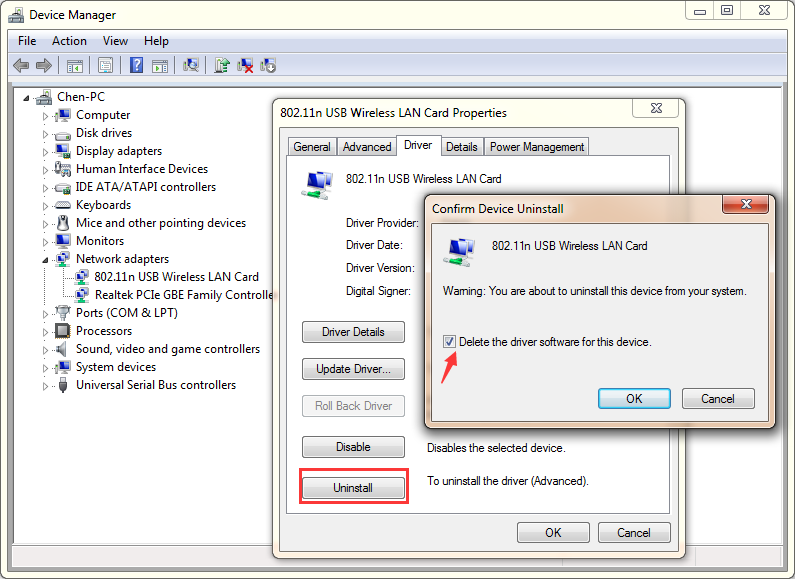
Press Windows key + X and select Device Manager from the menu. Expand the Keyboards section, right-click your keyboard device, and choose Uninstall device. When prompted, check the box to “Attempt to remove the driver software” before confirming. Restart your computer—Windows automatically reinstalls fresh drivers during boot-up. This simple fix resolves approximately 40% of number key failures caused by corrupted drivers. If problems persist, repeat the process but select Update driver instead of uninstalling.
Disable Filter Keys Causing Number Key Disappearance
Navigate to Settings → Ease of Access → Keyboard. Locate the Filter Keys section and ensure the toggle is OFF. This accessibility feature intentionally ignores brief keystrokes, making number keys appear broken when they’re actually being filtered out. Many users accidentally enable Filter Keys by holding Shift for 8+ seconds. If enabled, toggle it off, then test your number keys immediately—this fix works instantly for sudden number key failures.
Run Windows Built-in Keyboard Troubleshooter
Go to Settings → Update & Security → Troubleshoot → Additional troubleshooters. Scroll down and select Keyboard, then click Run the troubleshooter. This automated tool detects and fixes common keyboard configuration issues, including number key malfunctions. The troubleshooter typically completes within 2 minutes and often resolves issues related to recent Windows updates or system changes. Always run this before attempting manual registry edits or hardware replacements.
macOS Number Key Restoration Techniques
SMC Reset for MacBook Keyboard Issues
For MacBooks with non-removable batteries: shut down completely, then press Shift + Control + Option (all on the left side) + Power button simultaneously. Hold all keys for 10 seconds, release, then press the Power button to restart. This resets system management functions controlling keyboard behavior. The SMC reset fixes unresponsive number keys caused by power management glitches—common after sleep/wake cycles or sudden shutdowns.
NVRAM/PRAM Reset to Clear Keyboard Conflicts
Shut down your Mac completely, then press the Power button and immediately hold Command + Option + P + R. Keep holding for 20 seconds (you’ll hear the startup chime twice). This clears keyboard layout preferences stored in NVRAM that might misconfigure number key recognition. Perform this reset if you recently changed keyboard layouts or installed third-party keyboard software that interfered with number key functionality.
BIOS Testing to Identify Hardware vs. Software Failure

Restart your computer and press your BIOS key (typically Del, F2, F10, or Esc—check your motherboard manual). Navigate through BIOS menus using arrow keys and attempt number entry in any field requiring digits. If number keys work in BIOS but not your operating system, you’re dealing with a software or driver issue—focus on OS-specific solutions. If numbers don’t register in BIOS, you’re facing hardware failure requiring repair or replacement. This critical test takes 60 seconds but determines your entire troubleshooting path.
Wireless and Connection Problems That Disable Number Keys
USB Port and Connection Fixes
Try different USB ports—USB 2.0 ports (black) often work better than USB 3.0 (blue) for keyboard compatibility. Avoid USB hubs initially; connect directly to your computer’s rear ports for maximum stability. For PS/2 connections (common on older desktops), inspect for bent pins using a magnifying glass and straighten carefully with tweezers if needed. Pro tip: Unplug all other USB devices temporarily to eliminate power draw conflicts affecting keyboard functionality.
Wireless Keyboard Signal Interference Solutions
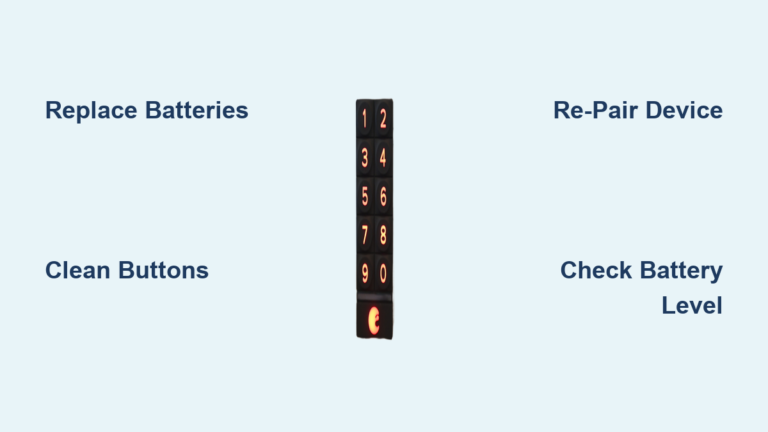
Replace batteries with fresh ones—even if current batteries show adequate charge. Re-pair your device through Bluetooth settings: remove the keyboard first, then add it again as a new device. Keep your wireless receiver within 30 feet with clear line-of-sight to the keyboard. Critical interference check: Move away from 2.4GHz devices like Wi-Fi routers, cordless phones, and microwave ovens that can disrupt wireless keyboard signals and cause intermittent number key failures.
Emergency Workarounds When You Need Numbers Immediately
On-Screen Keyboard Access Methods
Press Windows key + Ctrl + O to activate the Windows on-screen keyboard instantly. On macOS, go to System Preferences → Accessibility → Keyboard and enable the Accessibility Keyboard. This provides immediate number access while you troubleshoot. Pro tip: Pin the on-screen keyboard to your taskbar for one-click access during extended keyboard issues.
External Number Pad Solutions Under $20
Purchase a USB number pad ($15-30) for immediate relief—these plug-and-play devices connect via USB and provide dedicated number keys without replacing your entire keyboard. Bluetooth versions offer wireless convenience for laptops. For permanent damage to specific number keys, programmable macro pads let you assign numbers to custom keys, transforming any functional key into a number input solution.
When Hardware Replacement Becomes Your Only Option
Recognize Irreparable Hardware Damage Signs
Replace your keyboard immediately if you notice liquid damage with sticky keys, physically broken key mechanisms, or multiple failures in the same row/column. Desktop keyboards older than 5 years with intermittent issues typically aren’t worth repairing due to wear on internal membrane circuits. Laptop keyboards showing these signs require professional service—attempting DIY repairs often causes additional damage to delicate ribbon cables.
Cost-Benefit Analysis for Keyboard Replacement
Desktop keyboard replacement costs $20-150 depending on quality and features. Laptop keyboard replacement runs $50-300 including labor. Professional cleaning services charge $30-80 with no guarantee of success. Critical rule: When repair costs exceed half of replacement cost, buying new makes better financial sense. For most users, a $35 mechanical keyboard provides better longevity than repeated repairs on a failing device.
Prevention Strategies to Avoid Future Number Key Failures
Monthly Maintenance Routine That Works
Clean your keyboard monthly using compressed air—hold the can upright at all times to prevent moisture discharge. Avoid eating or drinking near your keyboard; crumbs and spills cause 60% of keyboard failures. Use a silicone keyboard cover in dusty environments. When transporting laptops, use protective cases that prevent key damage from pressure points. Pro tip: Store your laptop with the lid closed but not latched during transport to prevent accidental key depression.
Software Maintenance Best Practices
Download keyboard drivers directly from manufacturer websites rather than relying on Windows Update. Create system restore points before any driver changes. Run weekly malware scans—some keyloggers intentionally interfere with keystroke recognition, making keys appear broken. Uninstall unnecessary keyboard enhancement software that often conflicts with standard operation.
Your number keys should now be fully functional after implementing these targeted solutions. If problems persist after trying all relevant fixes for your system, hardware replacement becomes your most practical option—but you’ll now know exactly which solution to choose and how to prevent recurrence. Remember that regular maintenance prevents 75% of keyboard failures, saving you future frustration and repair costs.