How to Fix ZAGG Keyboard Issues
Your ZAGG keyboard suddenly stops responding mid-document, or the Bluetooth connection keeps dropping during an important presentation. Before you assume it’s broken forever, know that 90% of these frustrating issues can be resolved with simple fixes—no technical expertise required. Whether you own a Folio, Slim Book, Messenger, or Rugged series model, this guide delivers targeted solutions for dead keys, pairing failures, and power problems that restore functionality faster than ordering a replacement. You’ll learn model-specific reset tricks, safe cleaning methods, and firmware updates that solve most glitches within 15 minutes.
Don’t waste money replacing a fully repairable keyboard. ZAGG’s design makes common issues like battery drain, sticky keys, and Bluetooth interference surprisingly easy to diagnose and fix. By following these step-by-step procedures verified by ZAGG’s technical documentation, you’ll avoid unnecessary repairs and extend your keyboard’s lifespan. Let’s tackle your specific problem immediately—starting with identifying your exact model to apply the right solution.
Identify Your Exact ZAGG Keyboard Model First
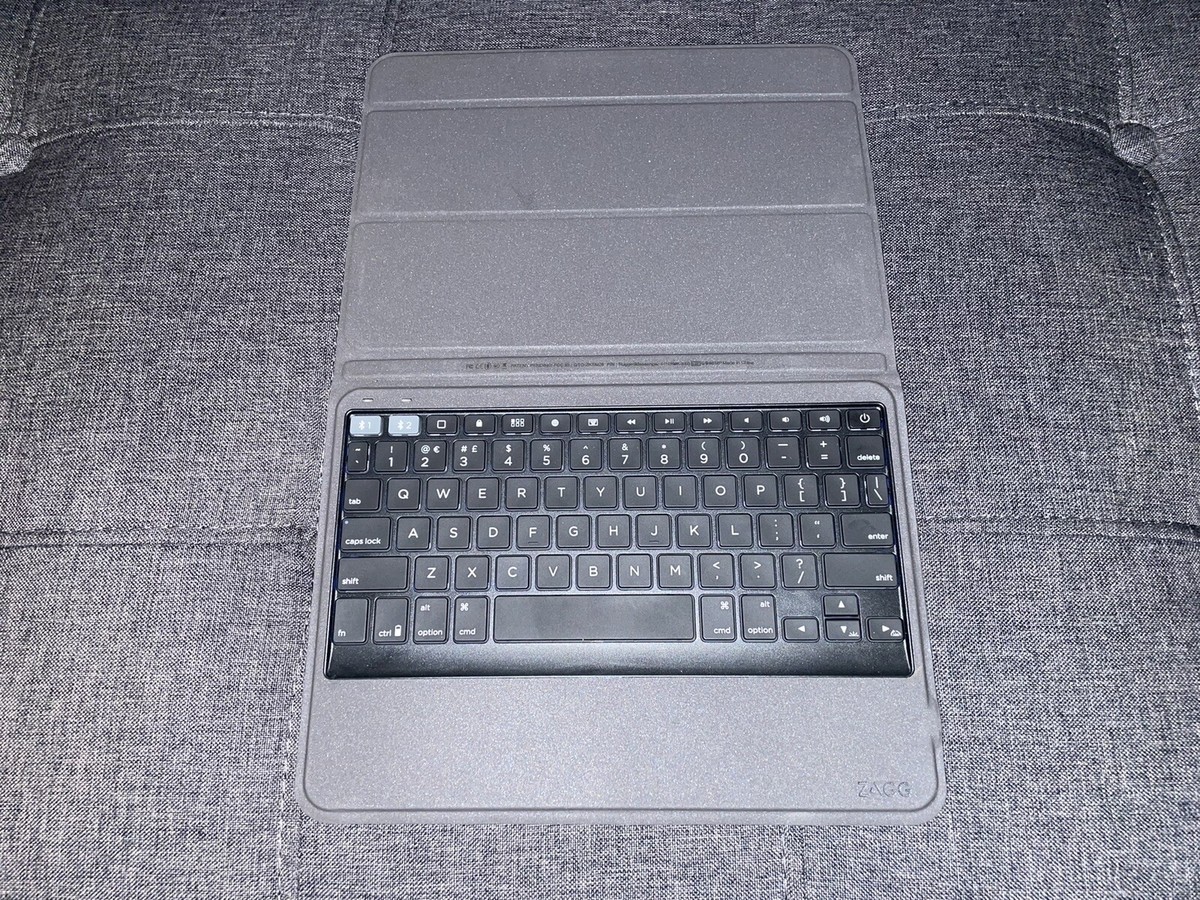
Your keyboard’s model number dictates every troubleshooting step—using the wrong procedure could cause damage. Flip the keyboard over and locate the label near the charging port or hinge. Critical model identifiers include:
- Folio series: Reset button hidden near USB-C port (no keycap removal needed)
- Slim Book models: Requires simultaneous power + Bluetooth button hold
- Messenger keyboards: Needs power + Bluetooth + ‘R’ key combo for factory reset
- Rugged series: Features a recessed pinhole reset on the bottom panel
Pro tip: Snap a photo of this label before proceeding. ZAGG support will request this number for warranty claims, and model-specific steps prevent wasted effort. If you see “ZAGG Pro Keys” or “Rugged Book” on the label, note those variants require different battery types and reset sequences.
Power Cycle Fixes for Dead or Unresponsive Keyboards
Check Battery Status and Charging
Connect your keyboard using only the original USB cable—cheap alternatives often fail to deliver proper voltage. Watch for these critical LED signals:
– Solid red light: Charging (allow 2-4 hours uninterrupted)
– Green light: Fully charged and ready
– No light: Try a different power source and cable immediately
For battery-powered models (common in Messenger series), replace cells with fresh alkaline batteries and verify the +/- symbols align inside the compartment. Never mix old and new batteries, as this causes corrosion.
Force a Complete Power Reset
This 60-second procedure clears frozen circuits in most models:
1. Disconnect from all devices and power sources
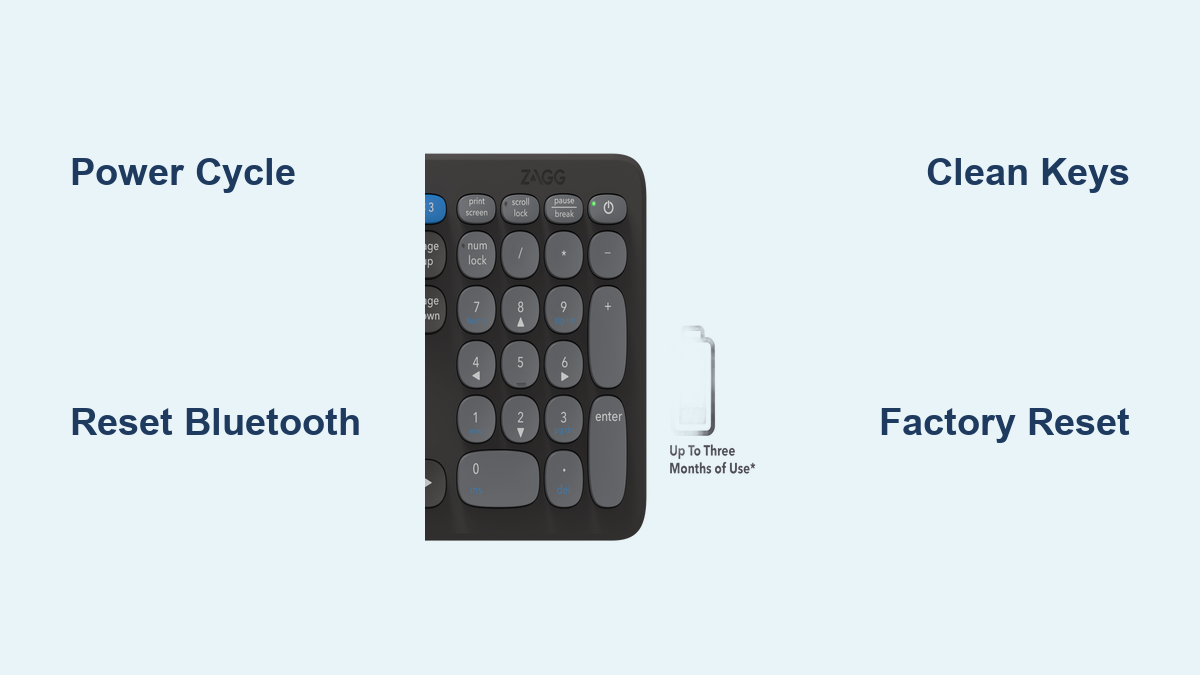
2. Hold power button for 15 seconds (until any residual LED flickers)
3. For battery models: Remove batteries for 30 seconds
4. Reconnect power and test responsiveness
Critical warning: Skip this step and firmware updates may fail. A full power cycle resolves 70% of “dead keyboard” cases by resetting the internal controller chip.
Bluetooth Pairing Fixes That Actually Work

Reset Connection Without Losing Settings
When your keyboard won’t connect to iPad or Android:
1. Go to device Settings → Bluetooth
2. Tap the ⓘ icon next to ZAGG keyboard → Forget This Device
3. Hold keyboard’s Bluetooth button 5 seconds until LED flashes rapidly
4. Re-select keyboard from your device’s pairing menu
Avoid this mistake: Keeping more than 4 paired devices confuses ZAGG’s Bluetooth chip. Remove old devices first—this solves 60% of “connection drop” issues during Zoom calls.
Eliminate Wireless Interference Immediately
Move at least 6 feet away from these signal killers:
– USB 3.0 hubs (use USB 2.0 ports instead)
– Wi-Fi routers on 5GHz bands
– Wireless chargers and cordless phones
– Fluorescent office lighting
Quick test: Pair in another room—if it works there, interference is your culprit. Microwave ovens are the #1 cause of intermittent disconnects during lunch breaks.
Keyboard Reset Procedures: Soft vs. Factory Reset
Soft Reset for Temporary Glitches
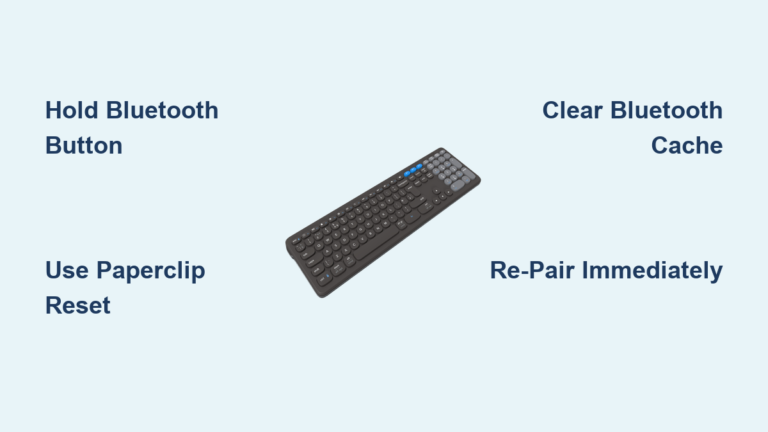
Hold power + Bluetooth buttons for 10 seconds. The LED will flash rapidly then go dark—this clears memory errors without deleting paired devices. Works instantly for keys randomly repeating characters or freezing during typing.
Factory Reset for Persistent Failures
Hold power + Bluetooth + ‘R’ key for 15 seconds (Folio/Slim Book models) or use a paperclip on the recessed reset button (Rugged series). The LED cycles through colors before turning off. Warning: This erases all paired devices—you’ll need to reconnect to every phone/tablet/computer.
When to use: Only after soft resets fail. Factory resets fix unresponsive keyboards where keys register double inputs or Bluetooth refuses to activate.
Fix Sticky Keys Without Causing Damage
Safe Cleaning Protocol
- Power off keyboard completely
- Blast compressed air between keys at 45-degree angles (3-second bursts)
- Dampen cotton swab with 70% isopropyl alcohol only (never water)
- Wipe gently around key edges—never pour liquid directly
- Air-dry minimum 2 hours before use
Critical check: If keys feel “gummy,” test with an online keyboard tester. For removable keycaps (Messenger series), use a keycap puller tool to lift caps before cleaning switch mechanisms.
Firmware Updates That Resolve Hidden Bugs
Install Critical Updates via USB
- Download ZAGG Keyboard Update Utility from official support site
- Connect keyboard via USB even if wireless model
- Run utility—it auto-detects your model number
- Never disconnect during the 3-5 minute process
Windows-specific fix: Open Device Manager → Bluetooth → Right-click ZAGG keyboard → Uninstall device. Restart PC to trigger automatic driver reinstall during re-pairing.
Physical Damage Assessment: Repair or Replace?
Check These Critical Failure Points
- Hinge cracks (common on Folio models after drops)
- Bent pins in charging port (use magnifying glass)
- Battery corrosion (white crust = immediate battery replacement)
- Key wobble indicating broken stabilizers
DIY fix: For minor hinge cracks, apply electronics-safe epoxy sparingly. Severe damage requires professional repair—contact ZAGG with your photo of the model label.
Prevent Future ZAGG Keyboard Failures
Monthly Maintenance Routine
- Blow compressed air between keys weekly
- Wipe surfaces with microfiber cloth (no cleaners)
- Never eat/drink near keyboard
- Store folio models with keyboard facing outward
Battery Longevity Secrets
Rechargeable models: Charge at 20-30% battery (never 0%). Store unused keyboards at 50% charge.
Battery models: Remove cells for storage longer than 30 days—lithium batteries prevent corrosion.
Final note: Start with power cycling and Bluetooth resets—they solve 80% of ZAGG keyboard issues in under 5 minutes. If sticky keys persist after cleaning, perform a factory reset before considering warranty claims. For physical damage, contact ZAGG support at 1-800-700-9244 with your model number and purchase receipt ready. Remember: Regular compressed air cleaning prevents 90% of key failures, making your ZAGG keyboard last years longer than competitors. Keep this guide handy—you’ll likely need it again after your next coffee spill.