How to Find Keyboard Key Codes: Quick Guide
Ever pressed a key and wondered what numeric identifier your computer actually registers? Whether you’re programming custom keyboard shortcuts, building game controls, or configuring a mechanical keyboard with QMK firmware, knowing exact key codes unlocks powerful customization. Key codes are the numeric fingerprints behind every keystroke, and discovering them is simpler than most developers realize.
This guide delivers practical methods to identify keyboard key codes across Windows, macOS, Linux, and web platforms—no advanced programming knowledge required. You’ll learn to pinpoint exact key identifiers for any development scenario, from simple macro creation to complex firmware programming.
Windows Key Code Detection Without Third-Party Tools
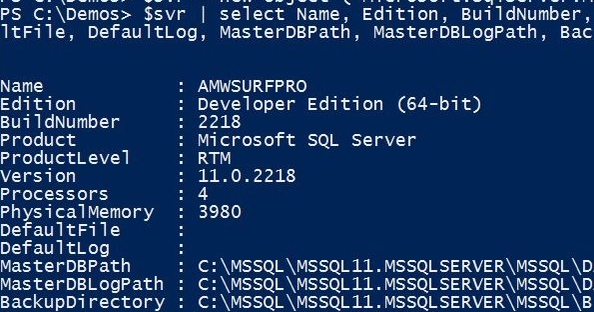
Using PowerShell for Real-Time Key Monitoring
Skip complicated software installations by leveraging PowerShell’s built-in capabilities. Open PowerShell as administrator and run this concise script:
powershell

while ($true) {

    if ([Console]::KeyAvailable) {

        $key = [Console]::ReadKey($true)

        Write-Host "Key: $($key.Key) Code: $($key.KeyChar)"

    }

    Start-Sleep -Milliseconds 100

}
Press any key to instantly see its name and numeric code displayed. This method reveals Windows virtual-key codes directly, including distinctions between left and right modifier keys like VK_LSHIFT (0xA0) and VK_RSHIFT (0xA1).
On-Screen Keyboard Diagnostic Mode
Activate Windows’ hidden key code reference through the built-in On-Screen Keyboard. Press Win + R, type osk, and hit Enter. Enable “Use numeric keypad” from Options, then press physical keys to see which virtual keys light up. Cross-reference these visual indicators with Windows virtual-key codes—letters range from 0x41 (A) to 0x5A (Z), while numbers appear as 0x30-0x39.
Critical tip: For OEM-specific keys like semicolon/colon (VK_OEM_1 = 0xBA) or forward slash/question mark (VK_OEM_2 = 0xBF), test each physical key since their codes vary by keyboard layout.
Web-Based Key Code Identification for Developers
JavaScript Console Method for Cross-Browser Testing
Web developers can identify key codes instantly through browser developer tools. Open Chrome, Firefox, or Edge, press F12, navigate to Console, and paste:
javascript

document.addEventListener('keydown', function(e) {

    console.log(`Code: ${e.code}, Key: ${e.key}, KeyCode: ${e.keyCode}`);

});
This displays three critical values as you type:
– code: Physical key location (e.g., “KeyA” for A key)
– key: Actual character produced (e.g., “a” or “A”)
– keyCode: Numeric identifier (65 for both ‘a’ and ‘A’)
Pro insight: When building keyboard-responsive applications, use event.code for physical key detection (consistent across layouts) rather than event.key which changes with Shift/Caps Lock states.
macOS Key Code Discovery Through Native Tools
Keyboard Viewer for Visual Key Mapping
Skip terminal commands with macOS’s built-in visual reference. Go to System Preferences > Keyboard > Input Sources, check “Show Input menu in menu bar,” then select “Show Keyboard Viewer” from the menu bar icon. Press physical keys to see their highlighted positions on the virtual keyboard.
This method reveals key positions but not numeric codes. For exact values, use Quartz Event Services with this Swift command:
swift

import Cocoa

NSEvent.addGlobalMonitorForEvents(matching: .keyDown) { event in

    print("Key code: \(event.keyCode)")

}
Save as keymonitor.swift and run via Terminal to capture numeric key codes ranging from 0-127.
Linux Terminal-Based Key Code Detection
evtest for Real-Time Hardware Monitoring
Install evtest (sudo apt install evtest on Ubuntu) to monitor raw input events. Run sudo evtest, select your keyboard device, and press keys to see detailed output including key codes. For focused results, pipe output to grep: sudo evtest | grep -A2 "type 1".
Each key press displays:
– Event type (EV_KEY)
– Key code (e.g., KEY_A = 30)
– Value (1 for press, 0 for release)
Time-saving tip: Use showkey command in virtual terminals (Ctrl+Alt+F3) for basic key code detection without installing additional packages.
Mechanical Keyboard Firmware Key Code Reference
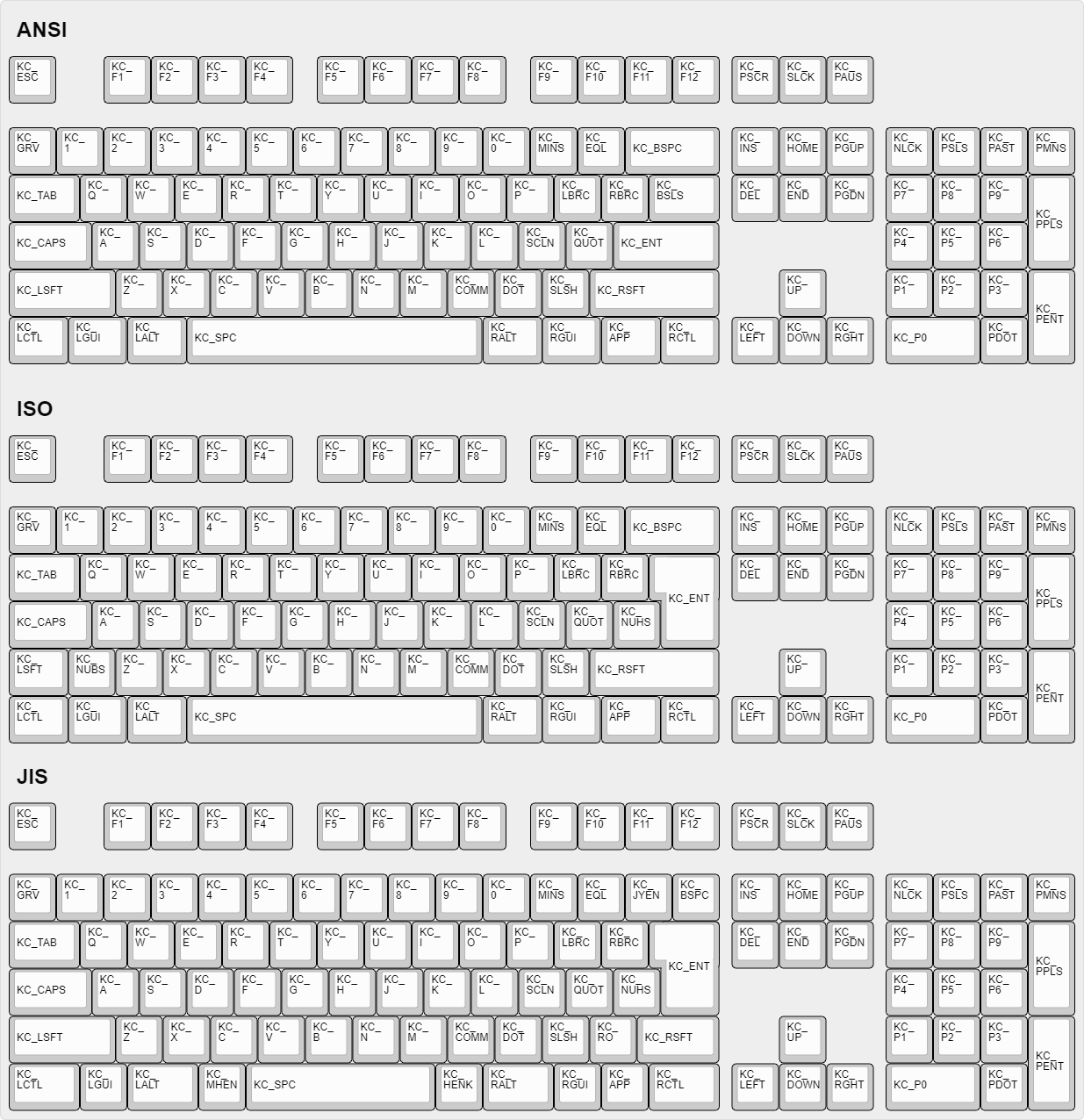
QMK Standard Keycode Cheat Sheet
When programming mechanical keyboards with QMK firmware, memorize these essential keycodes:
| Function | Code | Function | Code |
|---|---|---|---|
| KC_A | 0x04 | KC_Z | 0x1D |
| KC_1 | 0x1E | KC_0 | 0x27 |
| KC_ENTER | 0x28 | KC_ESCAPE | 0x29 |
| KC_SPACE | 0x2C | KC_TAB | 0x2B |
| KC_LEFT | 0x50 | KC_RIGHT | 0x4F |
| KC_UP | 0x52 | KC_DOWN | 0x51 |
Critical distinctions: Modifier keys have separate left/right variants—KC_LCTL (0xE0) vs KC_RCTL (0xE4), KC_LSFT (0xE1) vs KC_RSFT (0xE5). Always specify exact modifiers in your keymaps.
VIA Software for Instant Key Code Verification
Install VIA for QMK-compatible keyboards to test key mappings in real-time. Connect your keyboard, open VIA, and navigate to the “Key tester” tab. Press any physical key to instantly see its assigned keycode—perfect for verifying custom firmware without recompiling.
Troubleshooting Key Code Detection Issues
Resolving International Keyboard Conflicts
Non-US keyboard layouts often cause unexpected key codes. German keyboards, for instance, require different physical keys to produce @ and € symbols. Always test key codes on the exact keyboard layout you’re targeting—never assume US ANSI mappings apply universally.
Fixing Modifier Key Recognition Problems
Applications frequently mishandle modifier keys because Windows distinguishes between VK_LSHIFT (0xA0) and VK_RSHIFT (0xA1), while many frameworks treat them identically. When debugging input issues, check whether your environment recognizes left/right modifier distinctions.
Solving Web Application Key Code Inconsistencies
Browser differences cause major headaches—Chrome reports keyCode 186 for semicolon (;) while Firefox uses 59. Always normalize key detection using both event.code (physical key) and event.key (character output), with fallbacks for older browsers.
Python Cross-Platform Key Logger Solution

Create a universal key detection tool using Python’s pynput library. Install with pip install pynput, then run:
python

from pynput import keyboard

def on_press(key):

    try:

        print(f'Alphanumeric key: {key.char}')

    except AttributeError:

        print(f'Special key: {key}')

with keyboard.Listener(on_press=on_press) as listener:

    listener.join()
This script works identically across Windows, macOS, and Linux, displaying both character keys and special key identifiers like Key.shift_l and Key.esc.
Windows Virtual-Key Code Quick Reference
| Key Type | Examples | Code Range |
|---|---|---|
| Letters | A-Z | 0x41-0x5A |
| Numbers | 0-9 | 0x30-0x39 |
| Function Keys | F1-F24 | 0x70-0x87 |
| Navigation | Left/Right/Up/Down | 0x25-0x28 |
| Modifier Keys | Ctrl/Alt/Shift | 0x11-0x12, 0xA0-0xA5 |
Memory aid: Most punctuation keys fall between 0x33-0x38—VK_OEM_COMMA (0xBC) is comma, VK_OEM_PERIOD (0xBE) is period.
Next Steps for Key Code Implementation
Now that you can identify any keyboard key code, apply this knowledge immediately to your projects. Create custom keyboard shortcuts in AutoHotkey using Windows virtual-key codes, program mechanical keyboards with precise QMK keycodes, or build responsive web applications with reliable JavaScript key detection.
Pro maintenance tip: Maintain a personal key code reference document sorted by platform and key type—update it whenever you encounter new keyboard layouts or special function keys. This living document will save hours of debugging during future development projects.
For mechanical keyboard enthusiasts, bookmark the QMK documentation’s complete keycode reference. Web developers should test key codes in all target browsers before finalizing keyboard navigation logic. Remember that key code detection is the foundation of responsive input handling—mastering it makes your applications feel instantly more intuitive to users.