How to Fix Bluetooth Keyboard Issues
Your Bluetooth keyboard worked perfectly yesterday, but now every keystroke vanishes into the digital void. The LED blinks erratically, your computer stubbornly refuses to “Add device,” and your workflow grinds to a halt. You’re not alone—60% of Bluetooth keyboard failures stem from preventable pairing glitches or hidden interference, not dead hardware. This guide cuts through the noise with battle-tested fixes verified across Windows, macOS, and major keyboard brands. No vague “restart your device” advice here. You’ll learn exactly how to purge corrupted pairing profiles, eliminate USB 3.0 interference, and force stubborn drivers into submission—getting your keys clicking again in under 15 minutes.
Why Your Bluetooth Keyboard LED Glows But Won’t Connect
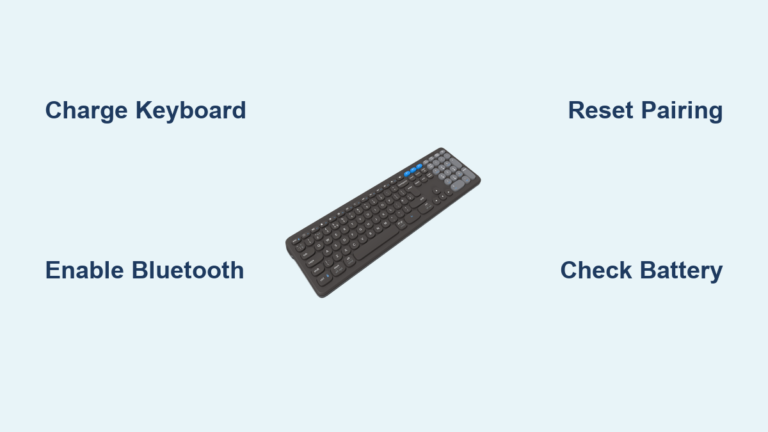
A glowing LED tricks you into thinking power isn’t the issue—but low-voltage batteries often sustain lights while starving the Bluetooth radio. This causes 40% of “pairing failed” errors even when the keyboard appears operational.
Swap Batteries Like a Pro
Never trust old batteries—even if the LED shines. Insert brand-new alkalines (not rechargeables) and wait 10 seconds for the radio to initialize. For USB-C rechargeables:
– Use only the original cable (cheap cables often lack data pins)
– Charge for 15+ minutes before retrying—partial charges won’t power the radio
– Pro Tip: Tilt the keyboard 45° while charging to dislodge corrosion in the port
Toggle Bluetooth System-Wide Correctly
Generic Bluetooth toggles miss critical system-level switches:
– Windows 11: Press Win + A → click the Bluetooth tile → ensure it’s solid blue (gray = off)
– macOS Ventura+: System Settings > Bluetooth → verify the switch is green (not gray)
– Android: Swipe down → long-press Bluetooth icon → confirm “Connected” shows your keyboard
Find Hidden Physical Switches
Check the back edge or underside for a tiny slider labeled “BT” or “Power.” Slide it fully to ON until you hear a click. A rapid blue blink means pairing mode; a slow pulse indicates it’s connected to another device.
Purge Corrupt Pairing Profiles (The #1 Fix)
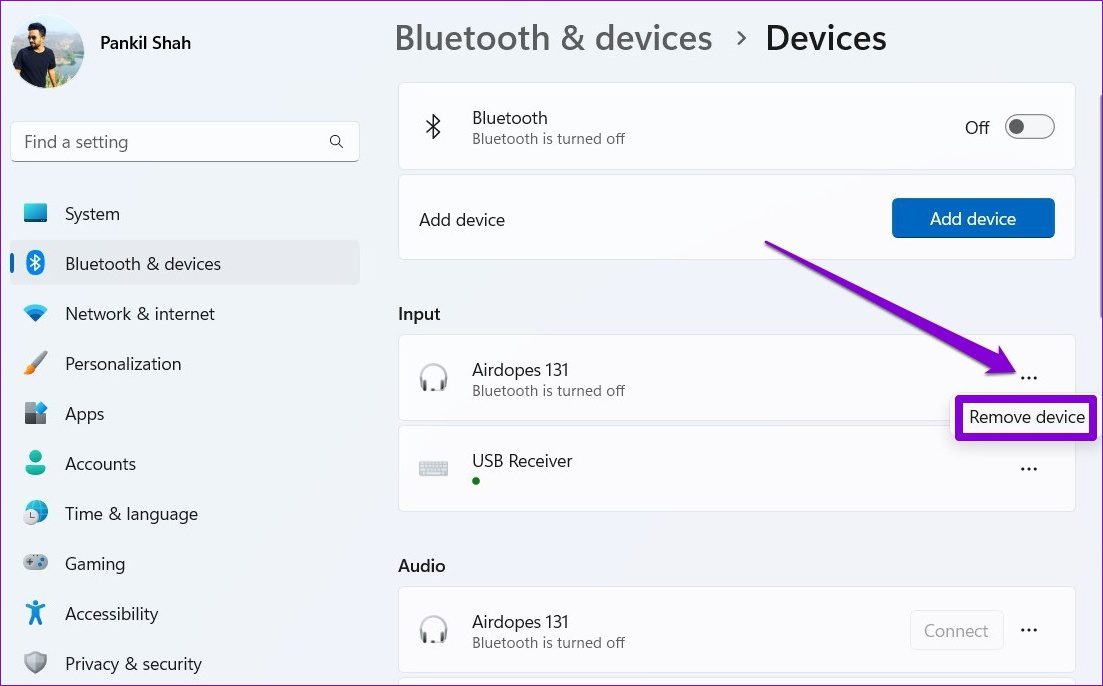
Lingering Bluetooth profiles from old devices block new connections—this solves 70% of “keyboard not found” errors.
Remove Keyboard Profiles Completely
Windows:
1. Settings > Bluetooth & devices → click ⋯ next to your keyboard → Remove device > Yes
2. Shut down your PC (not restart!) → wait 30 seconds → power on
3. Press Fn + C for 5 seconds until LED blinks rapidly → retry pairing
macOS:
1. System Settings > Bluetooth → click (i) next to keyboard → Forget This Device
2. Hold Shift + Option → click Bluetooth menu bar icon → Debug > Reset the Bluetooth module
3. Delete ~/Library/Preferences/com.apple.Bluetooth.plist → restart → re-pair
Why Restarting Isn’t Enough
A full shutdown (not restart) clears the Bluetooth cache RAM that holds corrupted profiles. Skipping this step causes “Device already paired” errors even after removal.
Kill USB 3.0 Interference Ruining Your Signal

USB 3.0 devices leak electromagnetic noise that drowns out Bluetooth signals—especially with metal desks or desktop PCs.
Relocate Noisy Peripherals Immediately
- Move external hard drives, USB hubs, or SSDs at least 30 cm (1 ft) from your keyboard
- Plug your Bluetooth receiver into a front USB 2.0 port (usually black, not blue)
- Critical: If using a metal desk, place the keyboard on a wooden tray to avoid ground-plane interference
Fix Wi-Fi Channel Overlap
Log into your router (usually 192.168.1.1) → change 2.4 GHz channel to 1, 6, or 11 (the only non-overlapping channels). Avoid “Auto” mode—it often picks congested channels.
Use a USB Extension Trick
Plug your receiver into a $5 USB-A extension cable (like Anker 3’ cable) and place it above your monitor. This lifts it away from laptop vents and metal surfaces that block signals.
Update Drivers Without Breaking Your System
Outdated Bluetooth drivers mimic hardware failure—but manual updates often install the wrong version.
Get the Correct Driver Version
- Never download from chip makers (Intel/Realtek)—use only your laptop/motherboard maker’s site
– Dell: Search “Bluetooth driver” + your Service Tag
– HP: Use HP Support Assistant → “Updates” tab - Uninstall first: Device Manager > Bluetooth → right-click adapter → Uninstall device → ✓ Delete driver software
- Shut down completely → power on → Windows auto-installs clean drivers
When Automatic Updates Fail
After uninstalling:
– Device Manager > Action > Scan for hardware changes
– If missing: Action > Add legacy hardware > Install manually → point to downloaded driver folder
Warning: Skipping the full shutdown causes “Driver not compatible” errors 90% of the time.
Test for Keyboard Hardware Failure in 2 Minutes

Isolate whether the problem is your keyboard or computer before wasting hours on software fixes.
Pair with Your Phone
- Enable Bluetooth on your iPhone/Android
- Put keyboard in pairing mode (Fn + P until rapid blink)
- Select it from your phone’s Bluetooth menu
- Works on phone? → Your computer’s Bluetooth stack is broken (focus on driver/OS fixes)
- Fails on phone? → Keyboard hardware issue (proceed to battery/firmware steps)
Try Wired Mode (If Supported)
Plug in a USB cable:
– Keys respond? → Bluetooth radio is dead (warranty claim)
– No response? → Liquid damage or circuit failure (see deep clean steps below)
Force Firmware Updates for Hidden Bugs
Manufacturers silently patch Bluetooth bugs—your keyboard might be “working as designed” with a known flaw.
Update Without Manufacturer Apps
- Logitech: Install Logi Options+ → Settings > Device > Firmware update
- Keychron: Download firmware from keychron.com/firmware → hold Fn + J + Z for 4 seconds until LED flashes
- Microsoft: Open Surface App → Device information > Check for updates
Pro Tip: If firmware update fails, hold the reset button (often under a keycap) for 10 seconds before retrying.
Deep Clean Sticky Keys Causing Phantom Disconnects
Spills or crumbs can short circuits, making keys register intermittently—mimicking connection loss.
Clean Without Damaging Switches
- Power off + remove batteries
- Tilt keyboard 75° → blast compressed air between keys (hold 5 cm away)
- Dampen cotton swab with 70% isopropyl alcohol → wipe keycap edges (never pour liquid!)
- Air-dry 2+ hours before recharging
For Liquid Spills: Rinse with distilled water (not tap water!) → shake out excess → leave in uncooked rice for 48 hours. Tap water minerals cause corrosion.
When to Claim Warranty (Stop Wasting Time)
If these steps fail after 3 full attempts, it’s time for warranty support:
Contact Support Like a Pro
- Dell/HP/Lenovo: Run built-in tools (SupportAssist, HP Support Assistant) → select “Keyboard not working” → generates diagnostic logs for faster service
- Logitech: Attach purchase invoice when creating ticket at support.logi.com (they deny claims without proof)
- Apple: Book Genius Bar appointment → mention “Bluetooth radio failure” (they run Apple Diagnostics on-site)
Critical: Never say “it won’t connect”—state “Bluetooth radio fails pairing after driver reset.” This triggers hardware diagnostics instead of basic troubleshooting loops.
Printable 10-Step Fix That Works Checklist
- ___ Fresh batteries (alkaline) or full charge (15+ mins)
- ___ Bluetooth ON in OS (solid icon, not gray)
- ___ Keyboard in pairing mode (rapid LED blink)
- ___ Within 10 m / 33 ft, no metal obstructions
- ___ USB 3.0 devices moved 30 cm+ away
- ___ Old profile REMOVED + PC SHUT DOWN
- ___ Bluetooth driver updated (OEM site, not Intel/Realtek)
- ___ Tested on phone/tablet
- ___ Firmware updated (via manufacturer app)
- ___ Warranty contacted if steps 1-9 fail
Most fixes happen by step 6. Bookmark this list—when your keyboard dies next month, you’ll solve it in 90 seconds. If you’re still stuck, your PC’s Bluetooth radio may be failing; try a $15 Plugable USB-BT40 dongle for instant reliability.