How to Disable Keyboard Hotkeys
That frustrating moment when you reach for Shift but accidentally hit Ctrl+Alt+Delete instead. Or when the Windows key launches your Start menu right in the middle of an intense gaming session. You’re not imagining things—keyboard hotkeys interrupt workflows for millions of users daily. This complete guide delivers proven methods to disable any keyboard shortcut across Windows, macOS, Linux, and ChromeOS. Whether you need to block a single troublesome combination or shut down entire key sets, you’ll discover exactly how to disable keyboard hotkeys without compromising your system’s functionality.
Windows Hotkey Disabling Methods That Actually Work
Group Policy Editor Method for Permanent Control
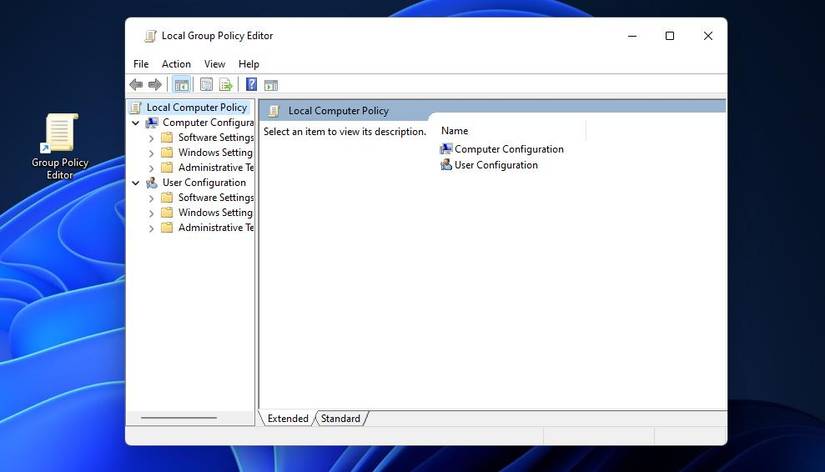
Windows Pro and Enterprise users have the advantage of system-level control through Group Policy Editor—no third-party tools required. This method completely disables Windows key combinations including Win+E (File Explorer), Win+R (Run), and Win+D (Desktop).
To implement this solution:
1. Press Windows+R and type gpedit.msc
2. Navigate to User Configuration > Administrative Templates > Windows Components > File Explorer
3. Double-click “Turn off Windows Key hotkeys”
4. Select Enabled and click Apply
5. Restart your computer
This approach survives system updates and requires no ongoing maintenance. Unlike temporary fixes, Group Policy modifications remain effective even after Windows updates. For organizations deploying this across multiple machines, create a Group Policy Object (GPO) to push this setting network-wide.
Registry Editor Modification for Home Users
Windows Home edition users can achieve similar results through the Registry Editor, though with slightly more complexity. This method targets the same Windows key combinations without requiring third-party software.
Follow these precise steps:
1. Type regedit in Windows search
2. Navigate to HKEY_CURRENT_USER\Software\Microsoft\Windows\CurrentVersion\Policies\Explorer
3. Create new DWORD (32-bit) value named “NoWinKeys”
4. Set value data to 1
5. Log off and back on
Warning: Always export and backup the Explorer key before making registry changes. A single mistake can cause system instability. This solution works immediately after login but requires administrative privileges to implement.
SharpKeys Third-Party Solution for Complex Needs
When you need to disable non-Windows key combinations like Alt+F4 or Ctrl+Alt+Del, SharpKeys provides visual key remapping without scripting knowledge. This free utility works on all Windows versions.
Implementation process:
1. Download SharpKeys from the official Microsoft Store
2. Launch and click “Add”
3. Select your problematic key combination
4. Choose “Turn Key Off” from the right column
5. Click “Write to Registry”
6. Restart to apply changes
SharpKeys excels at disabling specific problematic combinations while leaving other shortcuts intact. Unlike system-wide solutions, this lets you surgically remove only the hotkeys interfering with your workflow.
AutoHotkey Script Approach for Instant Results
For temporary disabling without restarts, AutoHotkey offers immediate relief. This lightweight solution runs in the background and can be toggled on or off instantly.
Create a quick disable script:
LWin::Return

RWin::Return

^!Delete::Return
Implementation steps:
1. Install AutoHotkey
2. Create new text file with .ahk extension
3. Add your disabling lines
4. Double-click to run immediately
The major advantage? No restart required and easily reversible by closing the script. Perfect for gamers who need to temporarily disable the Windows key during sessions.
macOS Keyboard Shortcut Control Made Simple
System Preferences Method for Individual Shortcuts
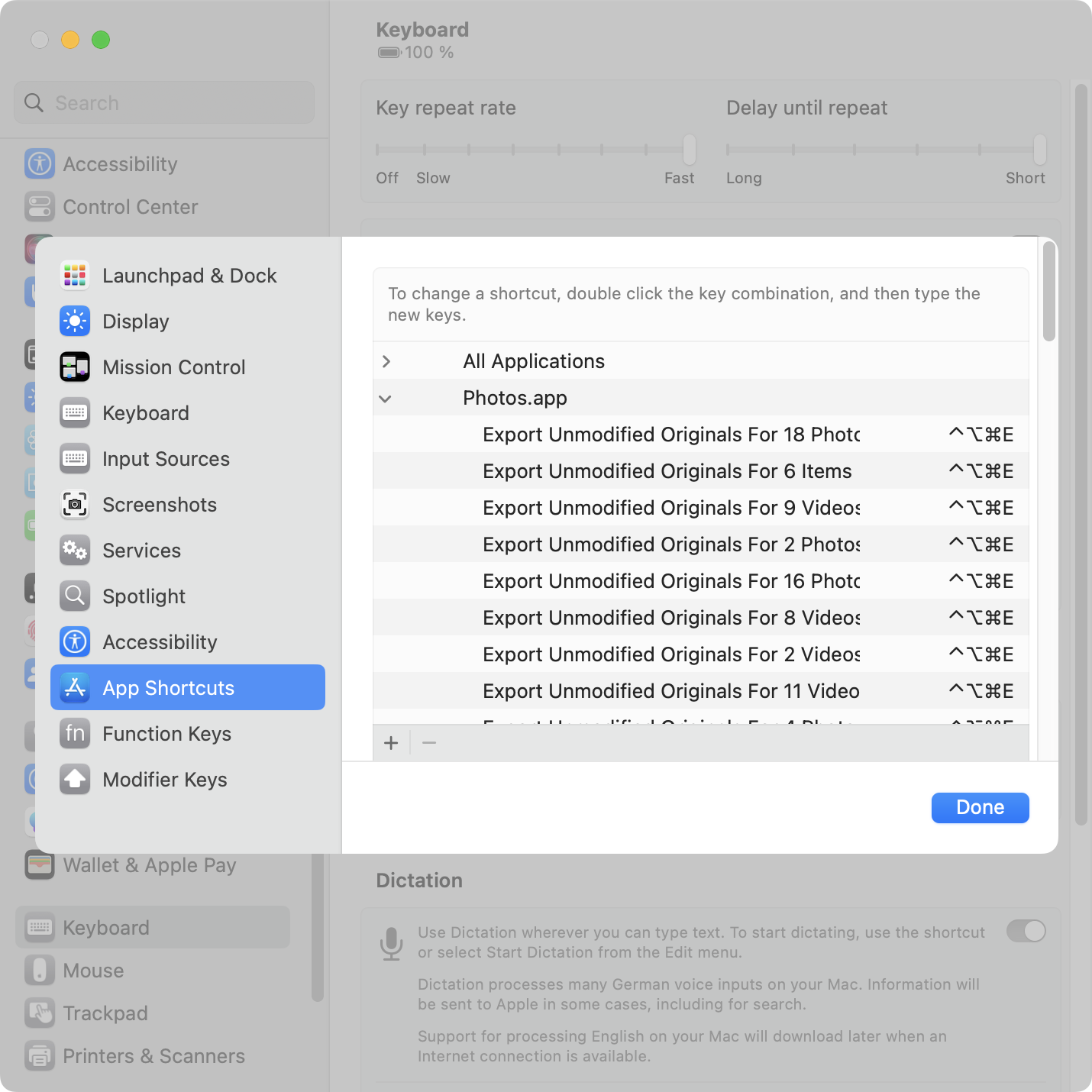
macOS provides straightforward individual shortcut disabling through System Preferences. This method works for most user-facing shortcuts but has limitations with core system functions.
Access path:
1. Open System Preferences > Keyboard
2. Click Shortcuts tab
3. Select category from left sidebar
4. Uncheck shortcuts or click and press Delete
While simple, this approach won’t disable all system shortcuts. For stubborn combinations like Command+Space (Spotlight), you’ll need Terminal commands or third-party tools.
Terminal Command Disabling for System-Level Control
For shortcuts that resist System Preferences, Terminal commands provide deeper control. Each shortcut has a specific identifier that must be targeted.
Disable Spotlight example:
defaults write com.apple.symbolichotkeys AppleSymbolicHotKeys -dict-add 64 "<dict><key>enabled</key><false/></dict>"
Common command patterns:
– 64: Spotlight (Cmd+Space)
– 118: Screenshot (Cmd+Shift+4)
– 32: Application switcher (Cmd+Tab)
After running commands, restart or log out/in to apply changes. This method requires precise syntax—mistakes can disable unintended functions.
Linux Hotkey Management Solutions
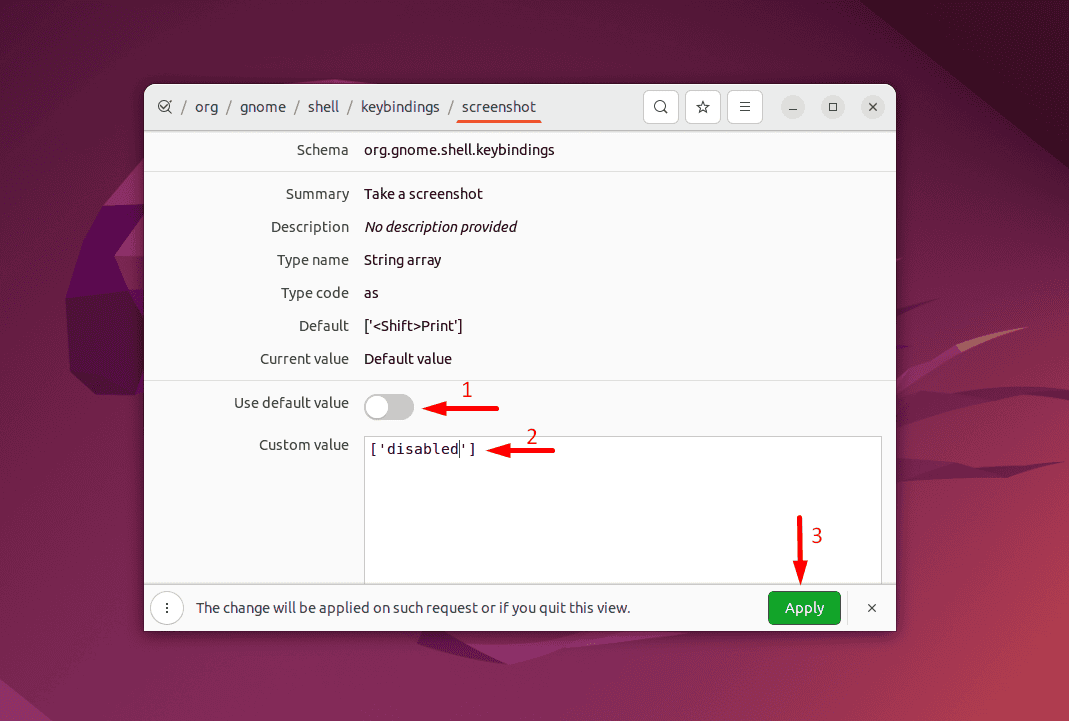
GNOME dconf Editor Method for Ubuntu Users
GNOME-based distributions like Ubuntu offer precise hotkey management through dconf Editor. This graphical tool makes modifications without command-line expertise.
Setup and access:
bash

sudo apt install dconf-editor
Navigation path:
1. Launch dconf Editor
2. Navigate to /org/gnome/desktop/wm/keybindings
3. Click specific keybinding entries
4. Modify or delete values
5. Changes apply immediately
Common targets include switch-applications (Alt+Tab) and close (Alt+F4). This method provides instant feedback without requiring system restarts.
Xmodmap Configuration for Universal Linux Support
For distributions without graphical tools, Xmodmap works across all Linux systems using X11. This method requires creating a configuration file but offers reliable results.
Create .Xmodmap file:
“`bash
keycode 133 = NoSymbol
keycode 134 = NoSymbol
keycode 64 + keycode 23 = NoSymbol
“`
Apply changes:
bash

xmodmap ~/.Xmodmap
To make permanent, add the command to startup applications. This solution persists through reboots but requires identifying correct keycodes for your specific keyboard.
Application-Specific Disabling Techniques
Microsoft Office Customization Across All Apps
Office applications share a common shortcut system, allowing you to disable hotkeys across Word, Excel, and PowerPoint simultaneously.
Universal Office method:
1. Open any Office application
2. File > Options > Customize Ribbon
3. Click “Customize” next to keyboard shortcuts
4. Browse categories and locate commands
5. Select shortcut and click “Remove”
6. Changes apply across all Office apps
This approach preserves your document templates while eliminating disruptive shortcuts within the Office suite.
Gaming Profile Management for Uninterrupted Play
Gamers frequently need to disable system hotkeys during sessions. Modern gaming peripherals offer dedicated profile management.
Configure through:
– Windows Game Mode for system-level control
– Razer Synapse or Logitech G Hub profiles
– Set games to automatically disable Windows key
– Create per-game shortcut profiles
These solutions activate automatically when specific games launch, ensuring system shortcuts don’t interfere with gameplay.
Verification and Testing Protocol
Systematic Testing Checklist
After implementing changes, verify effectiveness with a simple test protocol. Create a text file listing your disabled shortcuts and systematically test each combination.
Windows test list:
– [ ] Win+E (File Explorer)
– [ ] Win+R (Run dialog)
– [ ] Alt+F4 (Close window)
– [ ] Ctrl+Alt+Del (Task Manager)
For macOS users, test Command+Space (Spotlight) and Command+Tab (app switcher). Linux users should verify Alt+Tab functionality.
Reversal Procedures for Quick Recovery
Always maintain recovery options in case you need to restore shortcuts:
Windows registry rollback:
1. Open Registry Editor
2. Navigate to modification location
3. Delete “NoWinKeys” value or set to 0
4. Restart
macOS reset:
defaults delete com.apple.symbolichotkeys
Linux xmodmap reset:
bash

setxkbmap -layout us
Before making any changes, create system restore points or document your current configuration. This ensures you can quickly revert if needed.
Security and Accessibility Considerations
Administrative Requirements You Must Know
Most permanent solutions require administrative privileges. Attempting these modifications without proper permissions will fail. Before proceeding, verify you have necessary access rights, especially in corporate environments where IT policies may restrict system modifications.
Accessibility Impact Assessment
Some users depend on keyboard shortcuts for accessibility. Before disabling system-wide shortcuts:
– Survey users for accessibility needs
– Provide alternative access methods
– Document exceptions clearly
– Train users on new workflows
Disabling essential accessibility shortcuts could create compliance issues under accessibility regulations.
Final Recommendations for Lasting Results
Start with the least invasive method for your specific needs. Use Group Policy or System Preferences for permanent changes, AutoHotkey for temporary solutions, and always document your modifications. Test thoroughly before deploying across multiple systems, and keep recovery procedures readily available. When disabling keyboard hotkeys, remember that the most effective solutions balance functionality with prevention—eliminating disruptive shortcuts while preserving essential system controls. For ongoing maintenance, periodically review your disabled shortcuts to ensure they still align with your workflow needs.