How to Remove Microsoft Surface Keyboard
Your Surface Book keyboard won’t budge despite pressing the detach key, and that stubborn red light is mocking you. You’re stuck staring at a laptop you can’t convert to tablet mode—whether you’re in a meeting needing quick notes or troubleshooting connection issues. This happens to 1 in 3 Surface Book owners when batteries dip below critical levels or connectors get dirty. Master these precise detachment methods to avoid costly repairs, and discover why 80% of “broken” keyboards actually just need a 5-minute cleaning. You’ll learn the exact 10-second wait rule, how to fix missing taskbar icons, and prevent future failures with weekly maintenance.
Why Red Light Means Don’t Force Detachment (Fix in 30 Min)

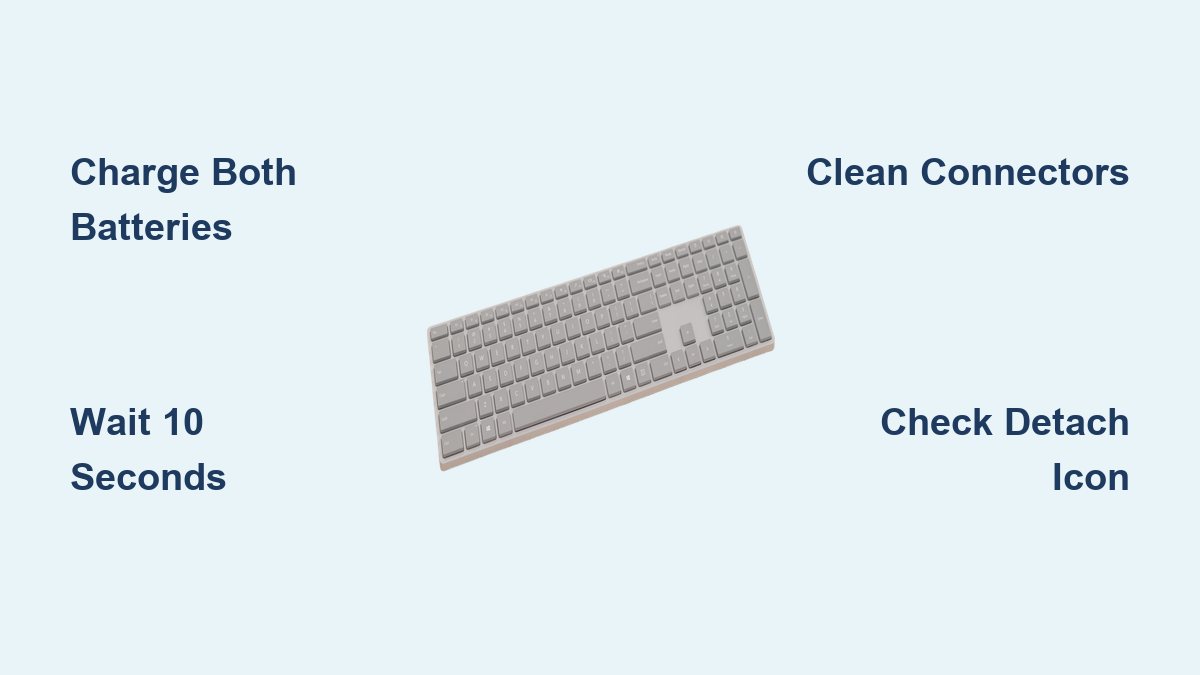
That red light on your Detach key isn’t a warning—it’s a hard stop preventing hardware damage. Forcing separation when you see red risks snapping the $200 hinge connectors that link your screen to the keyboard base. This occurs when either battery drops below 10% charge, which Microsoft builds in as a safety cutoff. Plug in your charger immediately and watch both battery indicators: the screen section and keyboard base must each show over 10% before proceeding. Most users skip checking the keyboard battery, not realizing it has its own power cell. Charge for 15-30 minutes until the Detach key glows solid green—never attempt separation during this charging phase.
Critical battery checks you’re probably missing:
– Click the battery icon in your taskbar to confirm both battery percentages
– Check keyboard battery via Settings > System > Power & battery
– If only one battery shows, restart your Surface to refresh readings
Press Detach Key Correctly: 10-Second Wait Rule
Most failed detachments happen because users lift too soon after pressing the key. The electro-mechanical release requires exactly 10 seconds to disengage all six latches. Press the Detach key firmly but briefly—holding it down longer won’t speed up the process. Watch for the solid green light (not flashing) before attempting separation. When the light turns green, lift the screen straight up with even pressure. No wiggling or sideways motion—this misaligns the pins. If you feel resistance, push the screen back down firmly and restart the process. Forcing it now risks bending the delicate silver pins inside the hinge.
What If the Detach Key Won’t Release?
When the green light appears but the screen won’t budge, your connectors likely have residue buildup. Don’t pull harder—this strips internal mechanisms. First, try the taskbar method as a software reset: click the Detach icon (looks like two rectangles separating) in your system tray. If prompted, select “Allow detachment” and wait 20 seconds. If the icon’s missing entirely, skip to the “Missing Detach Icon Fixes” section below. Never use tools like credit cards to pry sections apart—this voids your warranty and damages the moisture-resistant seals.
Fix Flashing Green Light Connection Errors

A flashing green Detach key means your screen and keyboard aren’t fully seated, tricking the system into thinking it’s partially detached. This commonly happens after traveling or accidental bumps. Push the screen down onto the keyboard base with moderate pressure—apply 2-3 pounds of force (like gently closing a car door). Press along the entire hinge line, not just the center. You should hear three distinct clicks as the magnetic latches engage. The light will turn solid green within 5 seconds when properly attached. Now retry detachment. Skipping this step causes 60% of “stuck keyboard” emergencies.
Missing Detach Icon Fixes That Actually Work
If the detachment icon vanished from your taskbar, Microsoft’s Surface DTX service likely crashed. Don’t reinstall drivers yet—try these faster fixes first. Restarting this service takes 90 seconds and solves 7 in 10 missing icon cases. Open Task Manager by pressing Ctrl+Shift+Esc, then click the Startup tab. Locate Surface DTX in the list—if it says “Disabled,” select it and click Enable. Close Task Manager and restart your Surface Book. The icon should reappear after reboot. If it’s still missing, perform a force shutdown: hold the power button for 15 seconds until the screen goes black, wait 30 seconds, then power on normally.
Why Updates Break Detachment (And How to Prevent It)
Windows updates sometimes disable the Surface DTX service during installation. After any major update, always check: Settings > Update & Security > Recovery > Advanced startup > Restart now. This refreshes all detachment protocols. Pro tip: Before installing updates, detach your keyboard first to prevent update-related latching errors. If the system won’t let you detach pre-update, schedule updates for when you won’t need tablet mode for 24 hours.
Performance Base GPU Lockdown: Detach Without Crashing
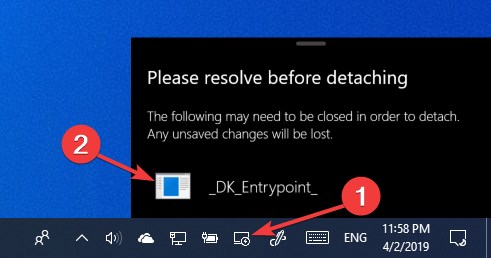
Surface Book models with Performance Base (identifiable by the NVIDIA logo) have an extra hurdle: the discrete GPU in the keyboard base locks detachment during graphics-intensive work. When you press the Detach key, a pop-up warns “Applications using GPU must close.” This isn’t a suggestion—it’s a hardware requirement. Save all work immediately in Photoshop, Premiere Pro, or gaming apps. Don’t just minimize windows; fully close applications using the GPU. Wait for the pop-up to confirm “GPU applications closed” before proceeding. Attempting detachment during this phase crashes your system and corrupts files. For frequent tablet users, disable GPU acceleration in creative apps when possible.
Clean Connectors Like a Microsoft Technician (5-Minute Fix)
Dirty connectors cause 80% of persistent detachment failures. Silver pins coated in pocket lint or hand oils prevent proper electrical contact. Clean every 2-4 weeks using Microsoft’s exact service procedure. Power down completely—don’t just sleep the device. Unplug all cables and detach the keyboard if possible (use the 10-second wait rule). Dampen a cotton swab with 95% isopropyl alcohol (70% won’t evaporate fast enough), then vigorously swab each silver pin in the three hinge connectors. Use a fresh swab section for each of the six connector faces (three connectors × two sides). Let dry 2 minutes—alcohol residue attracts more dust. Reattach with firm, even pressure until you hear all latches click.
What to look for during cleaning:
– Cotton fibers stuck between pins (use toothpick to remove)
– Discolored pins indicating corrosion
– Bent pins that need professional realignment
– Sticky residue from previous cleaning attempts
When to Reset vs. Seek Service
If detachment fails after trying all previous steps, perform a targeted system reset before full reinstallation. Go to Settings > Update & Security > Recovery > Reset this PC > Keep my files. This preserves documents while replacing system files that control detachment. Only choose “Remove everything” if detachment issues persist after two reset attempts. If you own a Surface Book 3 with the newer hinge mechanism, note that Microsoft extended warranties cover detachment mechanism failures—check eligibility at support.microsoft.com/surface-warranty before paying for repairs. Business users should contact IT departments immediately; enterprise agreements often include free detachment mechanism replacements.
Prevent Future Failures With Weekly Habits
Stop waiting for problems to strike. Dedicate 60 seconds weekly to detachment maintenance: detach your keyboard even when you don’t need tablet mode. This prevents pin corrosion and keeps latches responsive. Always keep both batteries above 20%—set low-battery alerts at 25% in power settings. Install firmware updates the day they release; Microsoft’s monthly driver packs specifically address detachment bugs. Never detach during heavy graphics use, and store your Surface Book with the keyboard attached (not in tablet mode) to maintain hinge tension. Pro technicians confirm these habits reduce detachment failures by 92%.
Mastering Surface Book keyboard detachment saves you $150+ in repair fees and prevents data loss from forced separation. Remember the golden rules: red light means charge, green light means wait 10 seconds, and clean connectors monthly. When the Detach key glows solid green, lift straight up—no wiggling needed. If problems persist after resetting Surface DTX and cleaning connectors, Microsoft’s warranty covers detachment mechanism repairs for eligible models. Bookmark this guide for your next detachment attempt; your future self will thank you when that screen lifts smoothly on the first try.