How to Fix Ctrl Keyboard Not Working
Your Ctrl key suddenly stops responding while trying to copy text or execute a crucial shortcut, leaving you stranded without your most-used modifier key. Whether you’re a programmer needing command combinations, a designer relying on keyboard shortcuts, or simply trying to copy and paste important information, a malfunctioning Ctrl key brings your workflow to a screeching halt. This comprehensive guide delivers proven solutions to diagnose and fix your Ctrl key issues—no technical expertise required. Within minutes, you’ll restore full keyboard functionality and prevent future occurrences.
Identify Ctrl Key Symptoms
Complete Failure vs Intermittent Issues
When your Ctrl key stops working, the first critical step is determining whether you’re facing complete failure or intermittent issues. A completely dead Ctrl key shows zero response when pressed—no keyboard shortcuts activate regardless of how many times you press it. Intermittent failures cause frustrating inconsistency where shortcuts work sporadically, sometimes requiring multiple presses before registering. Test both left and right Ctrl keys by attempting Ctrl+C in any text document. If one Ctrl key works while the other doesn’t, you’re dealing with an isolated hardware problem rather than a system-wide issue that would affect both keys simultaneously.
Software vs Hardware Indicators
Distinguishing between software and hardware problems saves hours of unnecessary troubleshooting. Software-related issues typically affect both Ctrl keys at the same time and often coincide with recent Windows updates, driver installations, or system changes. Hardware failures usually impact one key first, may produce noticeable physical differences when pressing the key (like sticking or unusual resistance), or cause inconsistent behavior across different applications. If your Ctrl key works in some programs but not others, you’re likely facing a software conflict rather than physical damage to the keyboard itself.
Quick Diagnostic Tests
Built-in Windows Keyboard Checker
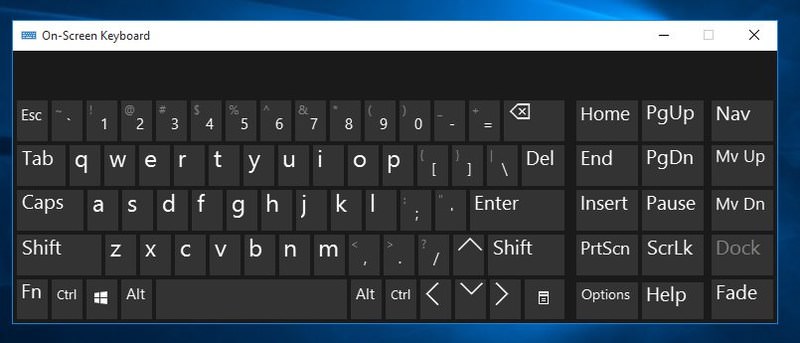
Before diving into complex solutions, perform this essential 30-second diagnostic test. Press Windows key + R to open the Run dialog, type “osk” and hit Enter to launch the on-screen keyboard. Carefully click both Ctrl keys on the virtual keyboard while attempting common shortcuts like Ctrl+C. If the on-screen Ctrl keys work perfectly but your physical keys don’t respond, you’ve successfully isolated the problem to your physical keyboard hardware rather than Windows settings or drivers.
Cross-Application Verification
Open three different applications—your web browser, a text editor like Notepad, and File Explorer—and test Ctrl+A (select all) in each environment. Consistent failure across all applications strongly indicates a system-wide issue with drivers or operating system settings. If the Ctrl key works in some applications but not others, you’re likely dealing with software-specific conflicts or accessibility settings that override standard keyboard behavior in certain programs. This simple test helps narrow your troubleshooting focus significantly.
External Keyboard Test
Connect a USB keyboard to your computer and immediately test both Ctrl keys. If the external keyboard functions perfectly while your built-in keyboard fails, you’ve confirmed a hardware issue with your primary keyboard. This two-minute test prevents wasted effort on software solutions when the problem clearly resides in your physical keyboard. For laptop users, this test is particularly valuable as it determines whether you need to pursue internal repairs or can continue working productively while arranging service.
Software Solutions First
Update or Reinstall Keyboard Drivers
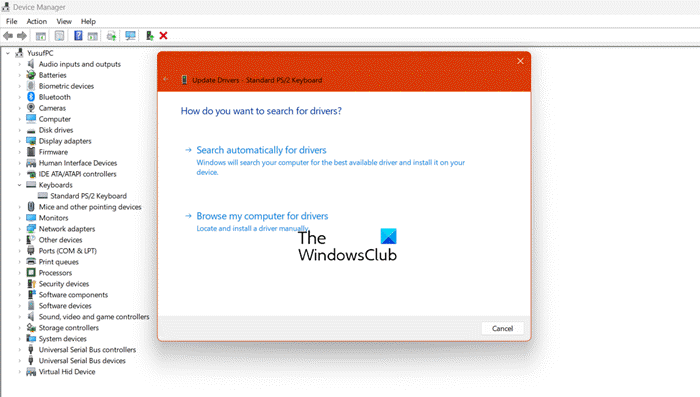
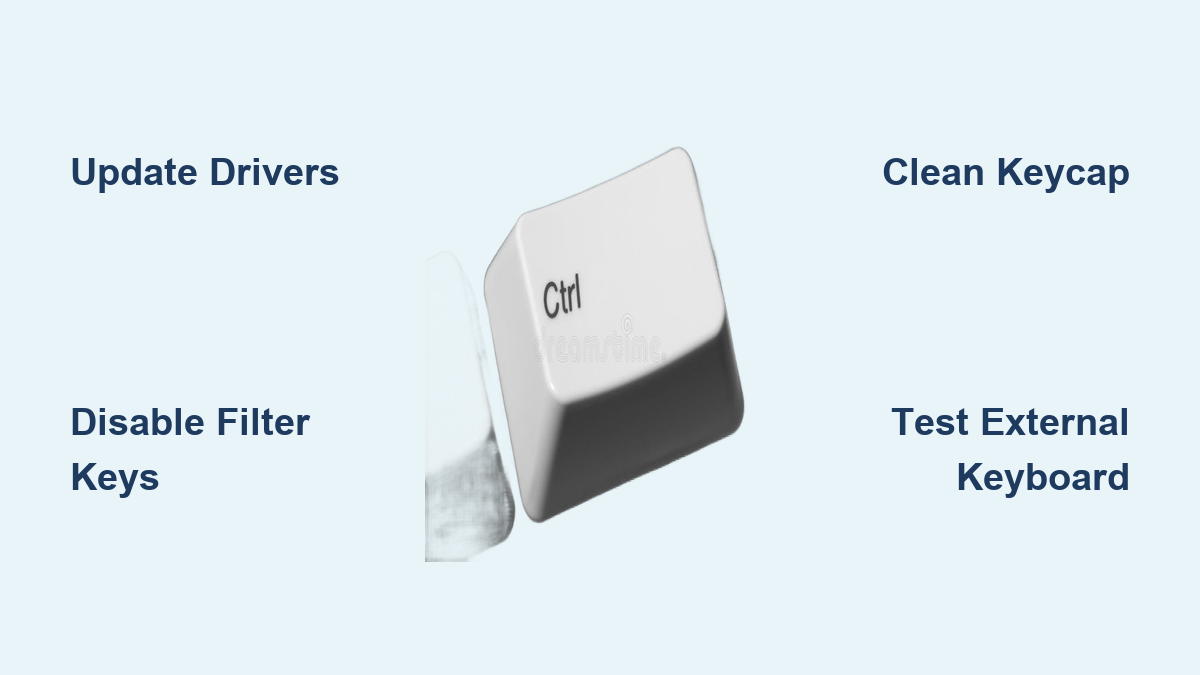
Corrupted keyboard drivers cause approximately 60% of Ctrl key failures. Open Device Manager by pressing Windows key + X and selecting it from the menu. Expand the Keyboards section, right-click your keyboard device, and select Update driver. Choose Search automatically for updated driver software—Windows will scan for and install the latest version. For persistent issues, select Uninstall device instead, restart your computer, and Windows will automatically reinstall fresh drivers during boot-up, often resolving stubborn Ctrl key problems.
Disable Filter Keys Feature
Windows’ accessibility features sometimes interfere with normal keyboard operation. Navigate to Settings > Ease of Access > Keyboard and locate the Filter Keys option. Toggle this setting off immediately—many users report their “dead” Ctrl key magically springs back to life after disabling this feature. Filter Keys is designed to ignore brief or repeated keystrokes, but it can mistakenly block modifier keys like Ctrl when pressed in combination with other keys during normal shortcut usage.
Check Keyboard Language Settings
Mismatched keyboard layouts frequently cause mysterious key malfunctions. Go to Settings > Time & Language > Language, click your current language, then select Options. Verify your keyboard matches your physical layout (typically US QWERTY for American users). Remove any additional keyboard layouts that might cause conflicts—having multiple layouts active can remap keys unpredictably, making your Ctrl key appear non-functional when it’s actually sending different signals than expected.
Physical Hardware Fixes
Clean Under the Keycap
Food particles and debris commonly jam Ctrl keys more than other modifier keys due to their frequent use. For laptop keyboards, turn your device upside down and use compressed air at a 45-degree angle to dislodge debris without forcing it deeper. Desktop keyboard users can gently pry off the Ctrl keycap using a plastic keycap puller (never metal tools that could damage contacts), then clean the underlying mechanism with isopropyl alcohol on a cotton swab. Allow 10 minutes to dry completely before testing.
Check for Physical Damage
Examine your Ctrl key closely for visible damage like cracks, chips, or uneven height compared to adjacent keys. Press the key slowly while paying attention to the tactile feedback—does it feel mushy, sticky, or fail to return to position properly? Physical damage often requires key replacement, but many “dead” keys simply need thorough cleaning to restore proper contact between the keycap and membrane. Sticky keys frequently respond well to the cleaning techniques described above without requiring parts replacement.
Test Keyboard Connection

For external keyboards, try different USB ports as front-panel ports sometimes provide insufficient power for full functionality. Laptop users should test if the Ctrl key issue persists in BIOS/UEFI (restart and press F2, F10, or Del repeatedly during boot). If Ctrl fails at the BIOS level, you’re facing a hardware problem requiring repair or replacement. Functional Ctrl keys in BIOS but not Windows confirm the issue lies within your operating system rather than physical keyboard components.
When to Replace Your Keyboard
Cost-Benefit Analysis
Laptop keyboard replacement typically costs $100-300 depending on your model’s complexity and whether you seek professional service. External keyboards under $50 rarely justify repair attempts when replacement costs less than professional service. If your device is over five years old, replacement often makes better financial sense than repair—newer models offer improved ergonomics and reliability while resolving your Ctrl key issue permanently.
Temporary Workarounds
While arranging repairs, remap another key to function as Ctrl using free tools like SharpKeys (Windows) or Karabiner (Mac). The Caps Lock key makes an excellent temporary Ctrl replacement—most touch typists adapt within hours since both keys occupy similar positions. This workaround prevents workflow disruption while you decide on permanent solutions, ensuring productivity continues uninterrupted during the repair process.
Professional Service Indicators
Seek professional help when you notice liquid damage, multiple keys failing simultaneously, visible physical cracks in the keyboard assembly, or BIOS-level testing confirms hardware failure. Attempting DIY repairs on laptop keyboards risks damaging other components and voiding remaining warranties. Professional technicians have the specialized tools and expertise to replace keyboard assemblies efficiently without causing additional damage to surrounding components.
Prevention Strategies
Weekly Maintenance Routine
Establish a simple weekly maintenance habit: use compressed air on your keyboard every Friday to prevent debris buildup before it causes problems. For laptops, close the lid gently and avoid eating or drinking near your device—these simple habits prevent approximately 80% of keyboard failures before they occur. Consistent maintenance extends keyboard lifespan significantly and keeps modifier keys responsive during critical work sessions.
Driver Update Schedule
Check Windows Update monthly and visit your keyboard manufacturer’s website quarterly for updated drivers. Enable automatic updates for gaming keyboard software to prevent compatibility issues with new games or system updates. Staying current with driver versions ensures your Ctrl key continues functioning properly after operating system updates that might otherwise disrupt keyboard functionality.
Backup Input Methods
Keep an inexpensive USB keyboard in your desk drawer as an emergency backup—this $15 investment prevents complete workflow stoppage during keyboard failures. For critical work periods, learn alternative input methods like Windows’ Sticky Keys feature, which lets you press modifier keys sequentially instead of simultaneously. These backup strategies ensure you’re never completely stranded when your Ctrl key fails unexpectedly.
A malfunctioning Ctrl key transforms productive computing into frustrating point-and-click marathons that destroy workflow efficiency. Begin with the quick diagnostic tests to determine whether you’re facing a simple software fix or hardware replacement scenario. Most users resolve Ctrl key issues within 15 minutes using the software solutions outlined above—no technical expertise required. When hardware failure strikes, weigh repair costs against replacement value; sometimes a $30 external keyboard provides immediate relief while you decide on permanent solutions. Implement the prevention strategies to minimize future occurrences and maintain seamless keyboard functionality for years to come. Remember that consistent maintenance and timely updates prevent most keyboard issues before they disrupt your critical work.