How to Reboot ASUS Laptop: Quick Steps
Your ASUS laptop freezes mid-presentation, the cursor won’t budge, and the fan is roaring like a jet engine. Before panic sets in, knowing the right reboot method can save your work—and your sanity. Whether you’re troubleshooting software glitches or simply applying updates, this guide walks you through every way to restart your ASUS laptop, from gentle Windows commands to emergency force shutdowns. You’ll learn exactly which button to press when your screen locks up, how to reboot without losing unsaved files, and why certain methods work better for gaming models like ROG or TUF series.
Quick Reboot via Start Menu (Windows 10/11)
Click the Windows logo in your taskbar, then the Power icon (circle with a line). Choose Restart and confirm any prompts. This method safely closes running programs and initiates a fresh boot sequence—perfect for routine restarts or applying system updates. Windows automatically saves open documents to Session History, but always manually save critical work first to avoid data loss.
Pro tip: If your mouse freezes but keyboard works, press Windows + X then U followed by R to restart instantly. This keyboard sequence works even when the Start menu is partially responsive.
Alt + F4 Desktop Shortcut
Press Alt + F4 while on your desktop (not inside any program). Select Restart from the dropdown, then hit Enter. This keyboard shortcut bypasses unresponsive applications—ideal when your cursor moves but won’t click anything. Unlike Start menu restarts, this method gives you immediate control when Windows feels sluggish.
Advanced Startup Recovery
Navigate to Settings > Update & Security > Recovery. Click Restart now under “Advanced startup” to access Windows Recovery Environment. Select Continue after the reboot for a standard restart—useful when Windows updates fail or boot issues occur. This method clears temporary system files during the reboot process, often resolving update-related freezes.
Force Shutdown When Frozen

Hold the Power button for 10-15 seconds until the screen goes black. Wait 30 seconds for capacitors to discharge, then press Power again. This method cuts power completely, so use it only when your laptop is completely unresponsive. Critical warning: Unsaved work will be lost. Force shutdowns should be your last resort—never use this for routine reboots.
Reset Hole Method for ZenBook Models
Check your laptop’s bottom panel for a tiny recessed button labeled RESET. Insert a paperclip, press for 10-15 seconds, then restart normally. This emergency feature exists on select ASUS models like ZenBook UX425 and Flip series. If you don’t see the reset hole, consult your model’s manual—most mainstream Vivobook models omit this feature.
BIOS-Level Restart for Boot Failures
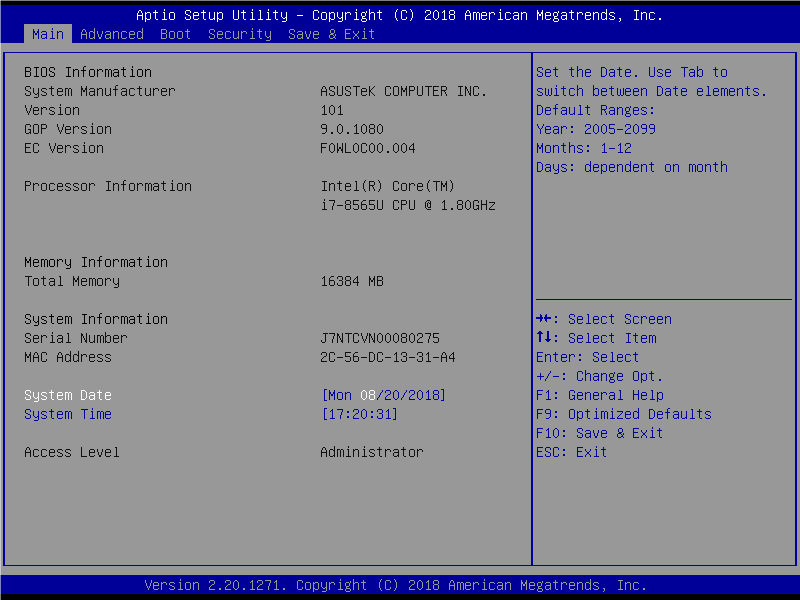
Power on your laptop and immediately tap F2 repeatedly. In the BIOS menu, use arrow keys to reach the Exit tab. Choose Exit Saving Changes or Discard Changes and Exit—both trigger a reboot from the firmware level. Use this method when Windows won’t load past the ASUS logo. Note: Changes made in BIOS affect system stability—never modify settings unless troubleshooting specific hardware issues.
Command Line Reboots for Power Users
Press Windows + R, type cmd, and hit Enter. Execute shutdown /r /t 0 for an instant restart, or shutdown /r /t 60 to delay by 60 seconds. This method works remotely and can be scripted for automated restarts—perfect for IT administrators managing multiple ASUS laptops.
PowerShell Alternative for Network Restarts
Open PowerShell as administrator, then type Restart-Computer. This cmdlet offers more control, like Restart-Computer -ComputerName RemotePC for restarting other ASUS devices on your network. Save this command in a .ps1 file for one-click restarts during remote support sessions.
Safe Mode Restart for Persistent Crashes
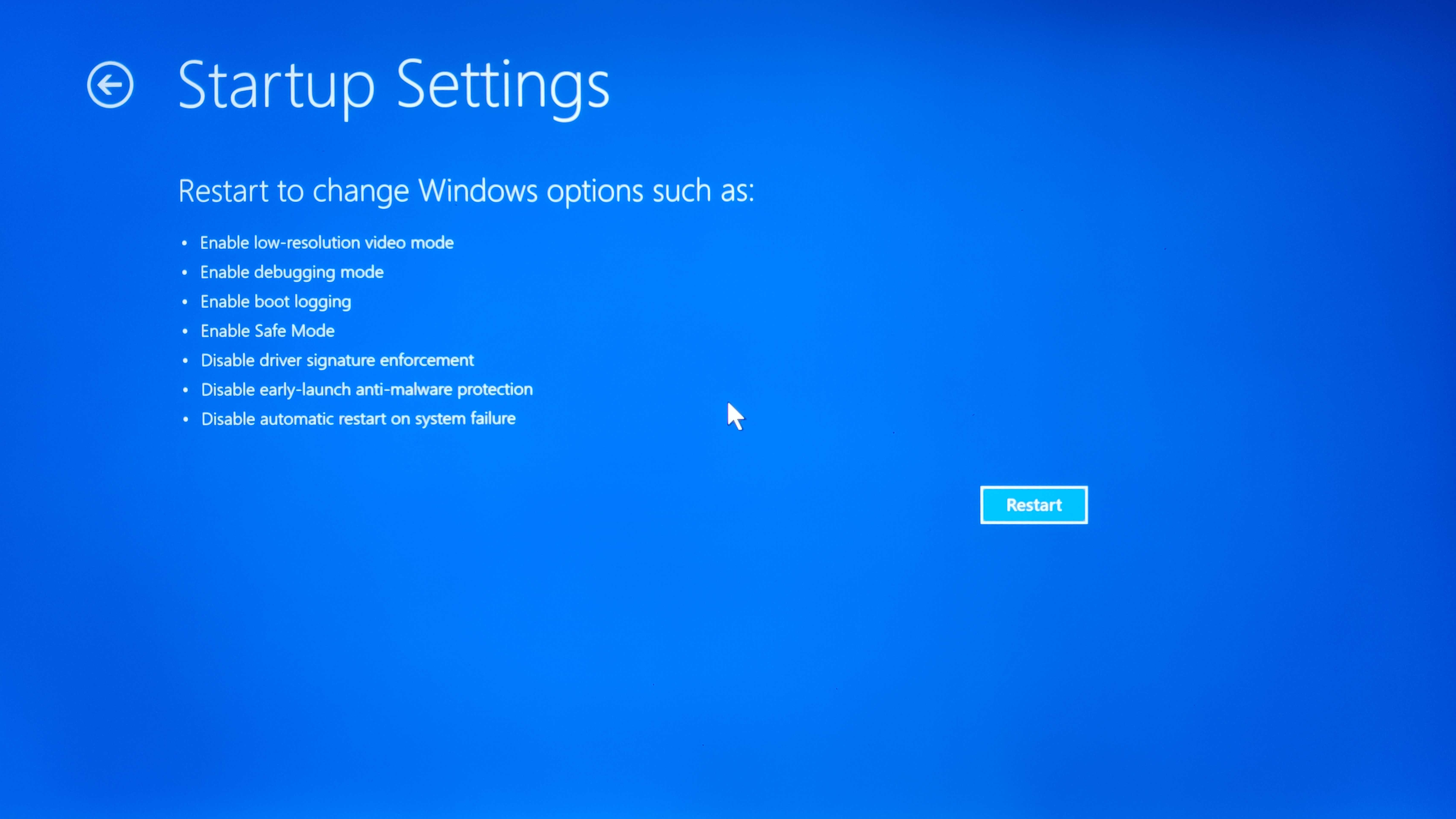
Hold Shift while clicking Restart from the Start menu. Navigate Troubleshoot > Advanced Options > Startup Settings, then click Restart. Press 4 for Safe Mode or 5 for Safe Mode with Networking. When to use this: After failed Windows updates, driver conflicts, or suspected malware infections. Safe Mode loads only essential services—ideal for removing problematic startup programs.
Gaming Series Quick Reboots (ROG & TUF)
ROG Laptop Instant Restart
On Republic of Gamers models like Strix Scar 16, press ROG Key + Power button simultaneously for instant restart. Alternatively, open Armoury Crate (ROG Key), go to System, and select Restart. These shortcuts skip Windows menus entirely—perfect when your game freezes mid-match. Pro tip: Enable “Game Mode” in Armoury Crate to prevent accidental restarts during gameplay.
TUF Gaming Series Method
TUF Dash F15 and similar models use the TUF Gaming key (F5-F9 range) combined with Power button for quick restarts. Some variants require holding both keys for 3 seconds. If this fails, launch Armoury Crate and use the on-screen restart button—this method preserves your game session settings.
Chromebook Reboot (ASUS Models)
Click the system tray (bottom-right), select the Power icon, then Restart. For frozen Chromebooks like ASUS Chromebook Flip C436, hold Refresh key (circular arrow) and tap Power—release Refresh when the screen lights up. This hard reset clears temporary files without affecting your Google Drive data. Note: Chromebooks reboot 40% faster than Windows models due to simplified OS architecture.
Post-Reboot Checklist for Stability
After your laptop restarts:
– Wait 2-3 minutes for full initialization—don’t panic if startup seems slow
– Check Windows Update if you rebooted due to glitches (search “Check for updates”)
– Verify peripherals reconnect your mouse, external monitor, or USB devices
– Review Event Viewer (search “Event Viewer”) for error logs if problems persist
Prevent Future Reboot Issues
- Keep battery above 15% or plug in before rebooting (ASUS laptops below 5% charge may hibernate instead)
- Schedule weekly restarts via Task Scheduler to clear memory leaks
- Update drivers through MyASUS > Customer Support > System Diagnosis before major updates
- Avoid force shutdowns—use Alt+F4 restart when mouse freezes
Advanced Reboot Configurations
Scheduled Automatic Restarts
Search Task Scheduler in Windows, create a basic task, and set triggers for daily or weekly restarts. Use shutdown.exe /r as the program to run. Set the schedule for 2 AM when you’re not using the laptop—this prevents memory leaks during long computing sessions. Ideal for: ASUS laptops used as home servers or media centers.
Fast Startup Registry Hack
Press Windows + R, type regedit, navigate to HKEY_LOCAL_MACHINE\SYSTEM\CurrentControlSet\Control\Session Manager\Power. Create a DWORD named HiberbootEnabled and set it to 1. This enables Windows Fast Startup, cutting reboot times by 30-50% on most ASUS models. Warning: Disable this if you dual-boot with Linux.
Recovery Environment Access for Critical Failures
Power off completely, then power on while tapping F9. Select Windows Boot Manager if prompted, then Troubleshoot. Choose Reset this PC for factory reset options or Advanced options for system restore. This accesses ASUS’s hidden recovery partition—your lifeline when Windows won’t boot after a failed update. Critical step: Always back up data to external drive before using Reset this PC.
Firmware Update Reboots (BIOS/UEFI)
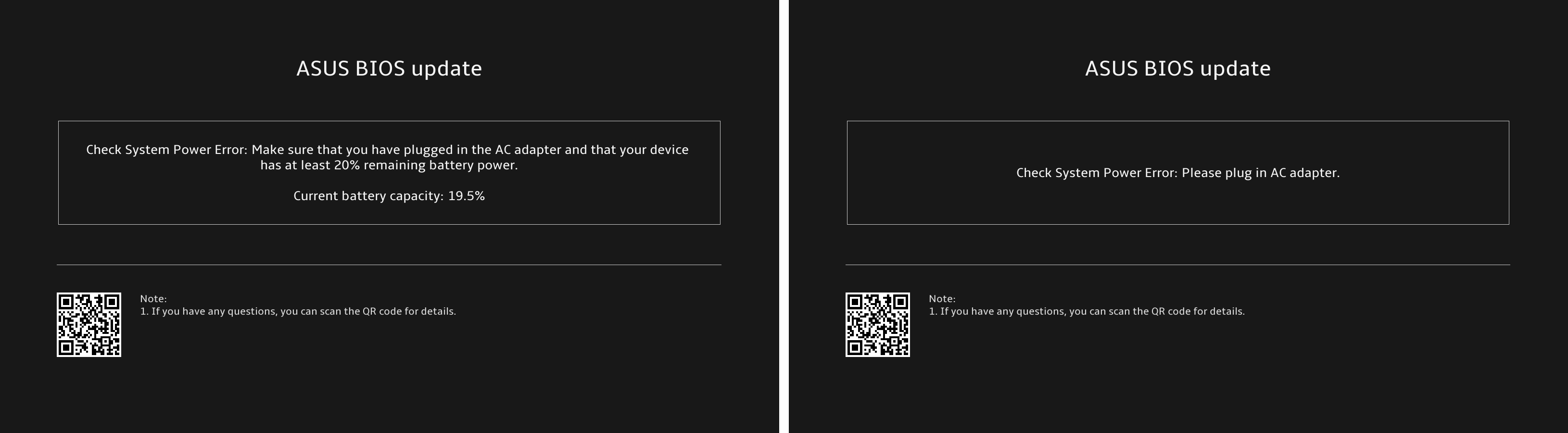
During BIOS updates through MyASUS > Updates, keep your AC adapter connected. Your laptop will restart multiple times automatically—never interrupt this process. Wait 8-10 minutes for full completion after the final reboot. Brick prevention: Firmware updates failing mid-process can permanently disable your ASUS laptop—only update when battery is above 60% or plugged in.
Mastering these reboot methods transforms you from a frustrated user into a capable troubleshooter. When your ASUS laptop freezes during an important task, you’ll know whether to use the gentle Alt+F4 restart or emergency reset hole. Bookmark this guide—because when your presentation crashes with 100 people watching, you’ll need the right reboot method within seconds. For ongoing maintenance, run MyASUS Diagnostics monthly and schedule automatic restarts to keep your system running like new.