How to Reformat Lenovo Laptop: Quick Steps
Your Lenovo laptop is running slow, crashing frequently, or infected with malware that won’t go away. A complete reformat can restore peak performance, but the process can seem overwhelming—especially when you’re worried about losing important files. This comprehensive guide walks you through every step of safely reformatting your Lenovo laptop, from backing up your data to optimizing your fresh system. Whether your Lenovo uses the older OneKey Recovery system or newer Windows reset options, you’ll learn exactly which method works for your specific model and how to execute it flawlessly.
Backup Critical Files Before Reformatting
Essential Data to Save Immediately
Before touching your recovery options, gather these crucial items to prevent permanent data loss. You absolutely need your personal documents like photos, videos, and work files—these often live in your Documents, Pictures, and Downloads folders. Don’t forget browser data including bookmarks, saved passwords, and extensions, which most browsers let you export as HTML files. Software licenses for Office, Adobe products, and antivirus programs require special attention since you’ll need those product keys during reinstallation.
Pro tip: Create a simple text file listing all your installed programs. You’ll thank yourself later when you can’t remember that obscure PDF reader you use twice a year. For email users, export Outlook PST files or set up Gmail offline data to maintain your email history after the reformat.
Fast Backup Solutions That Work
Connect an external drive and copy your entire “Users” folder to automatically capture most personal files. Test opening a few documents to verify backup integrity—nothing worse than discovering corrupted files after your reformat is complete. For cloud backup, leverage the 5GB free OneDrive storage that comes with Windows to protect your most important documents and photos. Enable automatic sync to catch new files as you create them.
Critical warning: Never skip the backup phase when learning how to reformat Lenovo laptop systems. One accidental click during the recovery process could wipe everything permanently. If you have valuable data, consider creating both external drive and cloud backups for redundancy.
Find Your Lenovo’s Specific Recovery Method
Determine Which Reset Process Works for Your Model
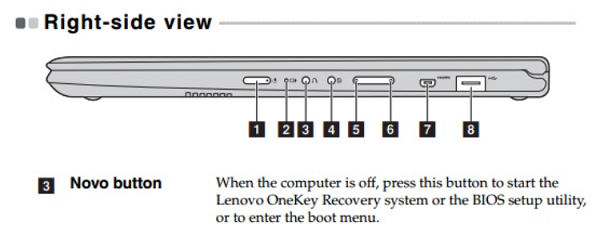
Check for the Novo button—that small recessed button near the power port or on the left side of your laptop. If you find it, your pre-2018 Lenovo uses OneKey Recovery. For newer models without this button, Windows reset options will be your primary method. Press Windows key + X and select “Disk Management” to verify your recovery partition exists—look for partitions labeled “Recovery” or “OEM” with no drive letter.
Your path forward depends on these findings:
– Novo button present → Use OneKey Recovery
– No Novo button → Use Windows reset
– Recovery partition missing → Clean install required
Document Critical System Information First
Before proceeding with any how to reformat Lenovo laptop procedure, gather these details. Press Windows key + R, type cmd, and enter wmic path softwarelicensingservice get OA3xOriginalProductKey to retrieve your Windows product key. Note your laptop serial number from the bottom sticker or by pressing Fn + Esc. Check your current Windows version via Settings > System > About to ensure compatibility with recovery methods.
Execute OneKey Recovery on Older Lenovo Models
Access the Recovery Environment Properly
Power down completely by holding the power button until the laptop shuts off. Use a paperclip to press the small recessed Novo button. From the Novo menu that appears, select “System Recovery.” Choose between “Initial backup” for a factory reset to shipping state or “User backup” if you previously created recovery points.
Critical step: When the data loss warning appears, understand this cannot be undone. Select “Start” only when you’re certain your backups are verified. The recovery process takes 30-120 minutes—keep your AC adapter connected throughout and don’t interrupt power.
Perform Windows Reset on Modern Lenovo Laptops
Navigate to Correct Reset Options
Press Windows key + I to open Settings, then go to Update & Security > Recovery. Under “Reset this PC,” click “Get started.” Select “Remove everything” for complete reformatting. Choose “Cloud download” to get the latest Windows version (requires internet) or “Local reinstall” for a faster process using existing files.
Advanced settings matter: Enable “Clean the drive” if selling your laptop to securely wipe data. Check “Remove files from all drives” if you have secondary storage partitions containing personal files. These options ensure your how to reformat Lenovo laptop process thoroughly protects your privacy.
Complete Clean Installation When Necessary
Create Proper Bootable Installation Media

When your recovery partition is missing or corrupted, you’ll need to create Windows installation media. Download the official Media Creation Tool from Microsoft’s website. Insert an 8GB+ USB drive and run the tool as administrator. Select “USB flash drive” and let it automatically download Windows and make the drive bootable.
BIOS configuration is crucial: Power on and immediately press F2 (or Fn + F2) repeatedly to enter BIOS. Enable UEFI boot mode, set USB as first boot priority, and temporarily disable Secure Boot if installation fails. Save changes with F10 before exiting.
Install Windows Without Data Loss Risks
During setup, delete ALL partitions on your main drive until you see “Unallocated space.” Windows will create new partitions automatically. Skip entering a product key—your Lenovo laptop’s digital license activates automatically after installation connects to the internet.
Pro tip: Disconnect all peripherals except keyboard and mouse during installation to prevent driver conflicts. If the installation gets stuck, restart the process and try a different USB port for your installation media.
Fix Common Reformatting Problems Immediately
Solve “No Bootable Device” Errors
When your Lenovo won’t boot after reformatting, check BIOS boot order first. Power on and press F2 to enter BIOS setup. Ensure your hard drive appears in the boot device list—if not, the drive may need reseating or could be failing. Reset BIOS to defaults if settings appear corrupted.
Recovery partition issues: If OneKey Recovery fails with partition errors, use Windows reset instead. For persistent problems, create recovery media from another Lenovo laptop of the same model using Lenovo’s Digital Download Recovery Service with your serial number.
Resolve Driver and Connectivity Problems
No internet after reformatting? Download drivers on another computer and transfer via USB. Focus first on network drivers to restore connectivity. For reversed function keys, install “Lenovo Hotkey Features Integration” from the support site or toggle function key mode in BIOS.
Touchpad troubleshooting: If your touchpad stops working after reformatting, enable it in BIOS under “Configuration.” Install the latest driver from Lenovo’s website specific to your model number. Test in Safe Mode to determine if software conflicts are causing the issue.
Maintain Your Reformatted Lenovo Long-Term
Create New Recovery Media After Success
Once your how to reformat Lenovo laptop process completes successfully, create fresh recovery media immediately. Use Lenovo’s Digital Download Recovery Service with your serial number. Store this USB in a safe place—it will save you hours if you need to reformat again.
Automate future backups: Connect an external drive and enable File History via Settings > Update & Security > Backup. This automatically backs up your Documents, Pictures, and Desktop folders. Configure System Restore to create monthly automatic restore points for system-level protection.
Implement Monthly Maintenance Routine
Run Lenovo Vantage monthly to check for critical driver updates—this keeps your reformatted system running smoothly. Create a new system image backup every three months to capture your current clean state. Keep your recovery USB updated whenever major Windows updates arrive to ensure future reformatting uses the latest system version.
Performance tip: Disable unnecessary startup programs via Task Manager > Startup tab. Remove pre-installed trial software that slows down your system. Configure power settings for optimal battery life without sacrificing performance.
Ready to begin your reformat journey? Start with the backup phase—even if you decide against reformatting, you’ll gain peace of mind knowing your data is protected. The actual reformat process takes 1-3 hours depending on your method, but the performance boost often transforms older Lenovo laptops into responsive machines that feel brand new again. Remember that proper preparation prevents poor performance—taking time with backups and identifying your correct recovery method ensures your how to reformat Lenovo laptop experience ends with a clean, fast system rather than data loss and frustration.