How to Replace Laptop GPU: Step-by-Step Guide
Your laptop’s graphics performance is declining, games are stuttering, and you’ve heard that replacing the GPU could solve everything. But here’s what most online forums won’t tell you: 95% of modern laptops cannot have their GPUs replaced. Unlike desktop computers where GPU upgrades take minutes, laptop graphics processors present unique challenges that can turn your expensive machine into an expensive paperweight if mishandled. This guide reveals what manufacturers don’t advertise about laptop GPU replacement and helps you determine whether your specific model even has this capability.
Before you unscrew a single screw, understand that laptop GPU replacement isn’t a simple hardware swap. The process varies dramatically between models, and in most cases, it’s simply impossible without specialized equipment and manufacturer-level expertise. We’ll walk you through the critical feasibility assessment you must complete before even considering this complex procedure.
Determine If Your Laptop Even Supports GPU Replacement
Soldered vs. Modular GPU Designs: The Hard Truth
Most modern gaming and ultrabook laptops use GPUs permanently soldered to the motherboard using BGA (Ball Grid Array) technology. These chips cannot be removed without specialized rework stations costing thousands of dollars and requiring expert-level skills. If your laptop was manufactured after 2015 and isn’t from a specialty brand, it almost certainly has a soldered GPU.
The only realistic upgrade path exists with MXM (Mobile PCI Express Module) GPUs, which slot into a dedicated connector similar to desktop graphics cards. However, MXM compatibility is extremely rare in consumer laptops. Check your laptop’s official service manual or contact the manufacturer directly—don’t rely on forum speculation. Genuine MXM-compatible laptops are primarily limited to certain Clevo, Sager, and older Alienware models.
Physical Space and Power Constraints: The Hidden Barriers
Even if your laptop uses an MXM GPU, physical limitations often prevent upgrades. Modern MXM cards frequently require more cooling capacity, different heat pipe routing, and additional power connectors your laptop simply doesn’t have. Measure your current GPU’s height, length, and cooling requirements with precision calipers before considering any replacement. A card that’s just 3mm too tall will prevent case closure, regardless of electrical compatibility.
Power delivery is another critical constraint. Laptop GPUs draw power through the motherboard, which has strict thermal design power (TDP) limitations. A newer, more powerful GPU may exceed these limits, causing system instability or even hardware damage. Verify your laptop’s maximum supported TDP in the technical specifications—not forum claims.
BIOS Whitelist Restrictions: The Digital Lock
Manufacturers implement BIOS whitelists that prevent “unauthorized” hardware from initializing. Even if you physically install a compatible MXM card, your laptop may refuse to recognize it due to firmware restrictions. Research your specific model on enthusiast forums, but be wary of unverified claims. Some users share modified BIOS versions that remove these restrictions, but flashing alternative firmware carries significant risks of permanently bricking your machine.
Required Tools and Workspace Setup: More Than Just a Screwdriver

Precision Tool Kit: What You Actually Need
Laptop GPU replacement demands specialized tools beyond basic computer repair kits. For MXM upgrades, you’ll minimally need:
- Precision screwdriver set (PH000 to PH1 sizes)
- Plastic spudgers and opening picks
- Anti-static wrist strap connected to a proper ground
- High-quality thermal paste (Arctic MX-4 or Thermal Grizzly Kryonaut)
- Isopropyl alcohol (90%+ concentration) for cleaning
For soldered GPUs, you’d need equipment most individuals don’t possess: a professional-grade rework station with precise temperature control, vacuum pickup tools, and microscopic inspection capabilities. Without these, attempting soldered GPU replacement will almost certainly destroy your motherboard.
ESD Protection: Not Optional
Electrostatic discharge can instantly destroy sensitive laptop components. Set up your workspace away from carpet, wear natural fiber clothing, and maintain humidity above 40%. Connect your anti-static strap to a grounded metal object—not just the laptop chassis, which may be electrically isolated. One static zap could cost you hundreds in replacement parts.
Pre-Installation Reality Check: What Most Guides Skip
Document Current Performance: Establish Your Baseline
Before disassembling anything, run benchmarks like 3DMark or Heaven Benchmark to document your current performance. Record temperatures, frame rates, and thermal behavior. This data proves whether any potential upgrade actually delivers improvements or if thermal throttling limits gains. Without this baseline, you won’t know if your efforts were worthwhile.
Battery Safety: Critical First Step
Remove the laptop battery completely, even if it’s internal. Many laptops maintain standby power to critical components. Hold the power button for 30 seconds after battery removal to discharge residual power. Failure to do this creates electrical shock hazards during disassembly.
Why Most Laptop GPU “Upgrades” Fail
Disassembly Complexity: Manufacturer-Specific Nightmares
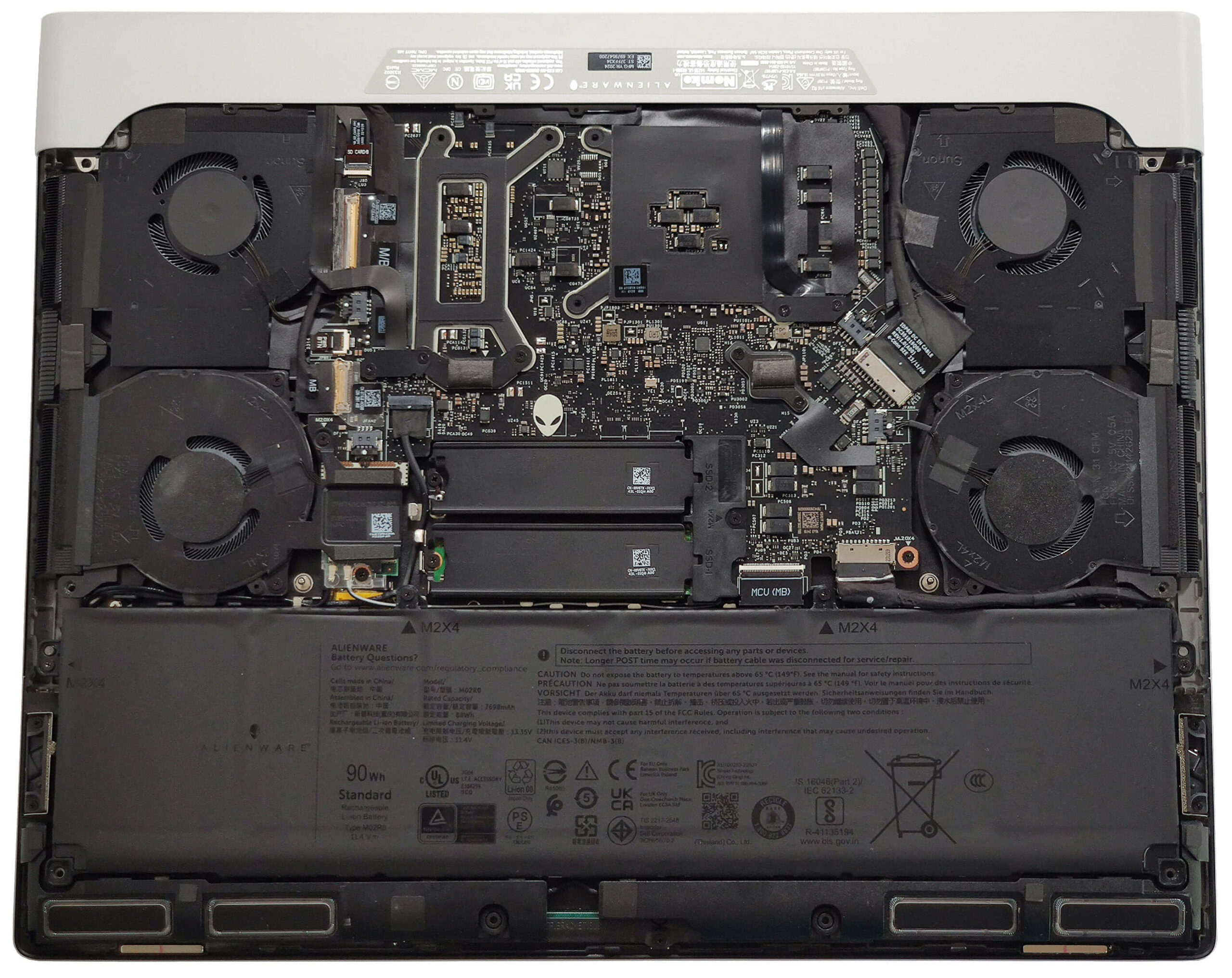
Dell/Alienware: Requires removing bottom panel screws (often hidden under rubber feet), then keyboard/top deck. GPU sits under secondary heat sink assembly with precisely calibrated thermal pads.
MSI Gaming Series: Often uses inverted motherboard designs requiring complete board removal to access the GPU. RGB lighting and USB connections create complex cable management challenges.
Clevo/Sager: While these offer the easiest MXM access, they still require complete cooling system removal and precise thermal pad replacement.
Each manufacturer uses different screw sizes, cable routings, and component layouts. One wrong move can damage ribbon cables or strip tiny screw threads.
Thermal Management Challenges: The Silent Performance Killer
Laptop cooling systems are engineered for specific thermal loads. Upgrading to a more powerful GPU often overwhelms the existing cooling solution, causing thermal throttling that negates any performance gains. Replacing thermal pads requires caliper measurements to match exact thicknesses—too thick reduces heat transfer, too thin risks short circuits.
Post-Installation Configuration: Where Many Upgrades Fail
BIOS Updates and Settings: The Final Hurdle
Even with successful hardware installation, your laptop may require specific BIOS updates for new GPU support. Some models need modified BIOS versions that remove whitelist restrictions—a process that carries its own risks of permanent damage.
Driver Installation Sequence: Avoiding System Instability
The correct sequence matters: boot into Safe Mode, use Display Driver Uninstaller (DDU) to remove old drivers completely, then install new drivers. Skip this step, and you’ll face blue screens, random reboots, and driver conflicts that make your system unstable.
Critical Risk Assessment: The Cost-Benefit Reality

Warranty Impact: Immediate Voidance
Opening your laptop immediately voids most manufacturer warranties. Some brands like Framework explicitly allow user upgrades, but these are exceptions. Check your warranty terms carefully—most standard warranties terminate the moment you remove the bottom panel.
Cost Analysis: Often Not Worth the Risk
Calculate total upgrade costs: GPU module ($300-800 for MXM cards), required tools ($50-100), potential professional installation ($200-400), and risk of laptop damage ($500-2000+ replacement cost). Compare this to selling your current laptop and buying a newer model with desired GPU performance. For most users, the complete replacement route proves more cost-effective and less risky.
Professional Service Considerations
If you’re determined to proceed, consider professional laptop repair services specializing in MXM upgrades. Experienced technicians have proper tools, manufacturer service manuals, and insurance against accidental damage. Get quotes from multiple services before deciding—professional installation often includes warranty on the work itself.
The Hard Truth: When to Walk Away
Most laptop owners considering GPU replacement would be better served by purchasing an external GPU enclosure (eGPU) that connects via Thunderbolt 3/4. This approach preserves your warranty, requires no disassembly, and delivers significant performance improvements for compatible laptops.
For true gaming performance, the most practical solution remains purchasing a new laptop with your desired GPU. Modern laptop designs increasingly prioritize thinness over serviceability, making internal GPU upgrades increasingly rare and complex.
Before spending hours attempting an unverified procedure from an internet forum, ask yourself: Is the potential performance gain worth risking $1,000+ in hardware? For 95% of laptop users, the answer is a definitive no. Your time, money, and peace of mind are better invested in planning your next laptop purchase with upgradeability in mind—not attempting a procedure that likely isn’t even possible for your specific model.