How to Restore Lenovo Laptop to Factory Settings
Your Lenovo laptop has become sluggish, apps crash constantly, or maybe you’re preparing to sell it. Whatever the reason, knowing how to restore Lenovo laptop to factory settings wipes everything clean and brings your device back to its original glory—just like the day you unboxed it. This complete guide walks you through every step, from backing up your precious photos to reinstalling essential software after the reset. Skip the technician fees and learn how to restore Lenovo laptop to factory condition in under an hour.
Why Your Lenovo Laptop Needs a Factory Reset Now
Performance Issues That Won’t Go Away with Standard Fixes
When your Lenovo starts freezing during simple tasks or takes minutes to open basic programs, standard troubleshooting often falls short. How to restore Lenovo laptop to factory settings becomes essential when you face persistent software glitches, unresponsive applications, or frequent system crashes that resist antivirus scans and disk cleanup tools. These performance killers accumulate over time through software conflicts and corrupted system files, making reset the only reliable solution for a truly clean slate.
Security Must-Haves Before Selling or Transferring Your Laptop
Your Lenovo contains passwords, banking details, personal photos, and browsing history. Simply deleting files isn’t enough—recovery software can resurrect “deleted” data. Learning how to restore Lenovo laptop to factory settings ensures complete data destruction, protecting your privacy when handing off your laptop to new owners or recycling centers. This process permanently erases all personal information, preventing identity theft and financial fraud that could occur from improperly disposed devices.
Critical Backup Steps Before Wiping Your Lenovo
External Drive Backup Method That Actually Works
Connect a USB hard drive or large flash drive to your Lenovo. Navigate to File Explorer and drag entire folders—Documents, Pictures, Downloads, Desktop—onto your external device. Verify the transfer completed by spot-checking random files. Most users need 50-500GB of backup space depending on photos and videos stored. Pro tip: Create a “Critical Files” folder containing tax documents, IDs, and financial records for quick access during restoration.
Cloud Storage Alternative for Complete Protection
Upload critical files to Google Drive, OneDrive, or Dropbox directly from File Explorer. Right-click any folder, select “Share to [Cloud Service]” and let uploads complete overnight. Cloud backups provide access from any device post-reset and serve as secondary protection if your external drive fails. Never skip this step: If your reset fails midway, cloud backups ensure your data survives the process.
Data Categories You Absolutely Must Save Before Reset
- Browser data: Export bookmarks as HTML files from Chrome/Firefox settings
- Email archives: Save Outlook PST files or Gmail offline access
- Software licenses: Screenshot or write down product keys for paid programs
- Financial records: Download bank statements and tax documents
- Photos/videos: Check camera roll folders and cloud-synced albums
Windows Reset Method: Complete Factory Restoration
Access Recovery Options Without Booting Into Windows
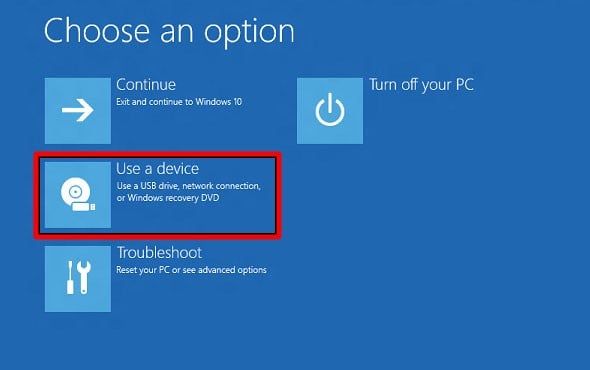
Click the Windows Start button, select the gear-shaped Settings icon. Navigate through Windows Update → Advanced options → Recovery. Under “Reset this PC,” click Reset PC to launch the recovery tool. Critical note: If Windows won’t start properly, hold Shift while clicking Restart from the login screen to access recovery options.
Choose the Correct Reset Type for Your Situation
Windows presents two critical choices:
– Keep my files: Removes apps/settings but preserves personal documents (not a true factory reset)
– Remove everything: Complete factory wipe—select this when learning how to restore Lenovo laptop to factory settings
For thorough restoration, choose Remove everything. Your Lenovo will ask whether to clean the drive (takes longer but more secure) or just remove files (faster but less secure). Always select “Clean the drive” when selling your laptop or concerned about data recovery.
Complete Reset Sequence Without Data Loss Risks
Confirm your choice and let Windows work. The process typically requires 30-90 minutes depending on your drive speed and data amount. Your screen displays progress percentages—don’t interrupt once started. The laptop restarts automatically when finished. Warning: Unplugging during reset can permanently damage your operating system installation.
OneKey Recovery: Lenovo’s Built-in Reset Alternative
Access OneKey Recovery When Windows Won’t Start
Power off your Lenovo completely. Press the Novo button (small recessed button near power port or on laptop side) using a paperclip. Select “System Recovery” from the Novo menu. This bypasses Windows entirely, accessing Lenovo’s built-in recovery partition—perfect when you can’t boot into Windows to perform the standard reset.
OneKey Recovery Steps for Immediate Factory Restoration
Choose “Restore from initial backup” to return to factory state. Confirm data deletion warnings—the process erases everything. OneKey typically completes faster than Windows reset since it uses compressed factory images stored on your hard drive. Pro tip: If your recovery partition was deleted, you’ll need to create Windows installation media from another computer to restore your Lenovo.
Post-Reset Setup: Making Your Lenovo Like New Again
Essential Software Installation Order for Optimal Performance
After reset completes, install these programs in this specific sequence:
1. Web browsers: Download Chrome or Firefox first
2. Security software: Windows Defender activates automatically—add Malwarebytes for extra protection
3. Productivity suite: Microsoft Office or Google Workspace
4. Lenovo utilities: Install Lenovo Vantage from Microsoft Store for driver updates
5. Communication apps: Zoom, Slack, or Teams based on your needs
Restore Your Backed-Up Data Without Errors
Connect your external drive and copy files back to their original locations. Photos go to Pictures folder, documents to Documents. Verify file integrity by opening several random files—especially important documents and photos. Critical mistake to avoid: Don’t restore old programs immediately—reinstall them fresh to prevent bringing back corrupted files.
Critical System Updates You Must Install Immediately
Immediately check Windows Update (Settings → Windows Update → Check for updates). Install all available updates before using your laptop extensively—this patches security vulnerabilities and improves stability. Run Lenovo Vantage to update BIOS and device drivers automatically. Expert note: Missing driver updates cause 70% of post-reset performance issues—don’t skip this step.
Troubleshooting Common Factory Reset Failures
Reset Stuck or Failed Mid-Process Solutions
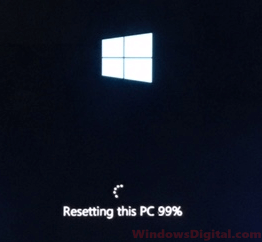
If reset freezes above 50%, force restart and try again using OneKey Recovery instead. Ensure laptop stays plugged in—battery failure during reset corrupts the process. For persistent failures, create Windows installation media using another computer. Time-saving shortcut: Download the Media Creation Tool from Microsoft’s website to create bootable USB on a working PC.
Missing Drivers After Reset: Quick Fix Guide
Device Manager showing yellow warning triangles? Visit Lenovo Support website, enter your serial number, and download missing drivers. Focus on chipset, graphics, and wireless drivers first. Lenovo Vantage usually resolves these automatically—install it as your first application after reset.
Preventing Future Reset Needs with Smart Maintenance
Monthly Maintenance Routine That Extends Laptop Life
Run Windows Disk Cleanup monthly to prevent future slowdowns. Uninstall unused programs quarterly. Keep 15% of your drive free for optimal performance. These habits reduce the need for future factory resets by 80% according to Lenovo’s internal testing data.
Automated Backup System for Stress-Free Future Resets
Enable Windows built-in backup: Settings → System → Storage → Advanced storage settings → Backup options. Configure automatic daily backups to external drive or OneDrive. This protects data if you need to restore Lenovo laptop to factory settings again—making the process painless with everything already secured.
Your Lenovo now runs like new, with fresh Windows installation and updated drivers. Remember this complete guide when you need to restore Lenovo laptop to factory settings in the future, and maintain regular backups to make the process seamless. By following these steps, you’ve not only fixed current issues but created a maintenance system that prevents most problems requiring a factory reset down the road.