How to Screenshot on Razer Laptop 2026
Capturing your screen on a Razer laptop shouldn’t feel like solving a puzzle, yet many gamers and professionals struggle with inconsistent results. Whether you’re trying to save an epic gaming moment on your Blade 15, document a work project on your Stealth, or share a design concept, knowing exactly how to screenshot on Razer laptop models eliminates frustration and saves precious time. The confusion often stems from varying keyboard layouts across Razer’s lineup and Windows’ multiple capture methods competing for attention.
Unlike standard laptops, Razer devices sometimes require specific key combinations due to their unique keyboard configurations. This comprehensive guide cuts through the confusion with model-specific instructions that work immediately on all current Razer laptops. You’ll discover which methods preserve your 4K display quality, how to bypass gaming mode restrictions, and why your screenshots might mysteriously vanish after capture.
Universal Windows Screenshot Methods That Work on All Razer Models
Full Screen Capture Using Print Screen Key
Press PrtSc alone to instantly copy your entire display to clipboard—perfect for quick pastes into Discord or email. For automatic saving, use Windows + PrtSc; this creates high-quality PNG files in your Pictures\Screenshots folder with sequential naming like Screenshot (1).png. On Blade 14 AMD models, this key sits between F12 and Delete, while Blade 15/16/17 users may need Fn + PrtSc depending on their year of manufacture.
Active Window and Selective Capture Techniques
When you only need one window, Alt + PrtSc captures just the active application to clipboard—ideal for sharing specific work documents without revealing your entire desktop. For precise selections, Windows + Shift + S activates the Snip & Sketch overlay with four options: rectangular selection for clean UI captures, freeform drawing for irregular shapes, window snip for single applications, and fullscreen mode. Your Razer’s high-DPI display will retain clarity in these captures when saving as PNG.
Game Bar Integration for Seamless Gaming Screenshots
During gameplay, press Windows + G to open Xbox Game Bar, then click the camera icon or use Windows + Alt + PrtSc for instant PNG captures saved to Videos\Captures. This method bypasses common issues with standard shortcuts in full-screen games. Check Game Bar settings to enable mouse cursor inclusion—critical for tutorial screenshots—and adjust quality settings to balance file size with visual fidelity on your Razer’s stunning display.
Razer-Specific Keyboard Layout Solutions

Blade 15/16/17 Models (2020-2024) Key Combinations
On recent Blade 15, 16, and 17 models, locate the PrtSc key on the top row—often occupying the F11 position with “PrtSc” or “SysRq” labeling in smaller text. Many users miss that these models require Fn + PrtSc instead of the standalone key. Test your function lock status with Fn + Esc; if the Windows key behaves strangely during gaming, temporarily disable Gaming Mode in Razer Synapse to restore screenshot functionality.
Blade Stealth Series Shortcut Workarounds
The compact Stealth keyboard presents unique challenges with PrtSc often sharing the Insert key. Use Fn + Insert for standard full-screen captures, or try Fn + Windows + Space on newer Stealth models for selective snipping. When working on-the-go with this ultraportable, remember that the smaller keys require precise presses—accidental key combinations are common during intense work sessions.
Advanced Techniques for Power Users
Third-Party Tools That Outperform Windows Built-Ins
Razer community favorites like ShareX and Greenshot solve limitations of native methods with features like automatic cloud uploads and annotation tools. Install ShareX, then open Razer Synapse to map a macro key for instant captures—assign a dedicated key to “PrintScreen” command for one-touch screenshots during gameplay. For designers using Blade Studio models, Greenshot’s lightweight interface preserves system resources while offering superior text extraction from screenshots.
Multi-Monitor Setup Capture Strategies
When extending displays across multiple monitors with your Razer laptop, PrtSc captures all screens as one massive image, while Alt + PrtSc targets only the active window regardless of monitor. For selective multi-monitor captures, use Lightshot’s crosshair cursor to grab specific display areas. Note that Razer Synapse display settings don’t affect screenshot regions—these capture actual output, not virtual configurations.
Troubleshooting Razer-Specific Screenshot Failures
Missing Screenshots? Check These Locations First
If your captures vanish after pressing Windows + PrtSc, navigate to Pictures\Screenshots—not the generic “Screenshots” folder some third-party apps create. Game Bar screenshots save to Videos\Captures, while Steam overrides Windows shortcuts with its own Steam\userdata\[ID]\760\remote\[gameID]\screenshots directory. On Blade laptops with 1TB+ storage, these folders can hide among dozens of system directories—use Windows search with “*.png” filter if uncertain.
Keyboard Shortcut Fixes When PrtSc Doesn’t Respond
When your Razer laptop ignores screenshot commands, first check if Gaming Mode in Synapse has disabled Windows keys—temporarily toggle it off during capture sessions. Some Blade models require Fn + PrtSc due to BIOS settings; press Fn + Esc to toggle function lock behavior. If keys remain unresponsive, restart Windows Explorer via Task Manager to clear clipboard glitches causing shortcut failures.
Performance Optimization for Gamers and Creators
4K Display Capture Best Practices
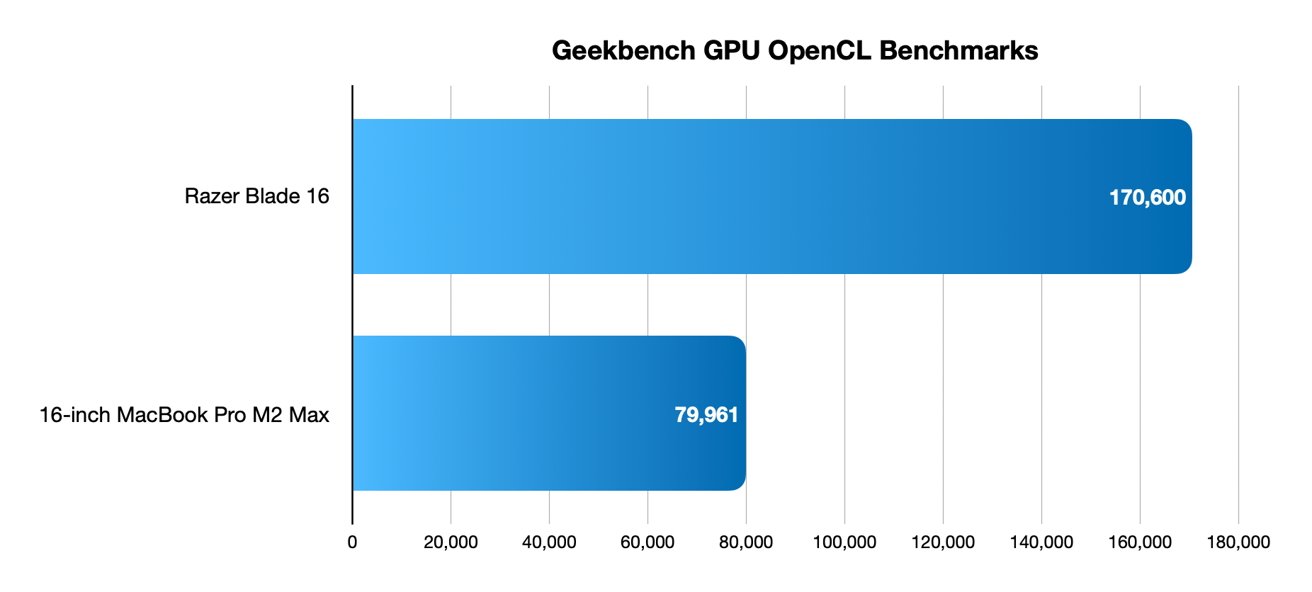
Blade models with 4K displays create massive screenshot files—full-screen PNGs range from 8-15MB compared to 2-5MB for 1080p. Always choose PNG format over JPEG to preserve the crisp detail of your Razer’s high-DPI screen. When capturing gameplay at 144Hz, note that Windows scaling settings (like 150%) increase pixel dimensions in screenshots—disable temporary scaling in Display Settings for pixel-perfect captures.
Storage Management for Heavy Screenshot Users
Razer laptop owners taking frequent 4K screenshots will fill storage quickly. Create an organized folder structure with subfolders for Games, Work, and Design—right-click your Screenshots folder and select “New > Folder” for each category. Implement a naming convention like 2023-11-15_14-30-GameWin.png for instant recognition. Enable OneDrive sync for automatic cloud backups, especially critical for Blade Studio users working with irreplaceable creative assets.
Gaming-Specific Capture Methods
Steam and NVIDIA GeForce Experience Shortcuts
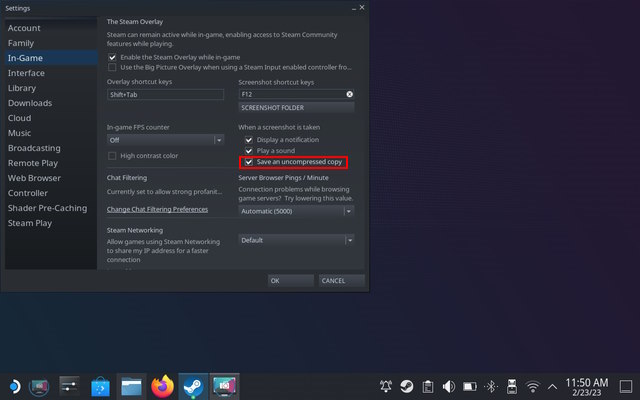
In Steam games, press F12 for platform-specific screenshots saved with higher compression than Windows PNG but integrated directly with your Steam library. For NVIDIA-powered Blade models, Alt + F1 captures Ansel-enabled shots in supported games with HDR options on compatible displays. These save to Videos\[Game Name] and often produce higher-quality results than Windows methods during intense gaming sessions.
Razer Cortex Compatibility Notes
While Razer Cortex optimizes game performance, it doesn’t provide screenshot functionality—many users mistakenly believe it should. If your FPS counter appears in captures, disable it in Cortex settings before taking professional screenshots. Remember that Cortex’s performance mode can sometimes interfere with Game Bar, making third-party tools like ShareX more reliable for consistent capture results.
Professional Workflow Enhancements
Automated Organization with Snagit
For Blade Studio professionals, Snagit transforms screenshots into a streamlined workflow with automatic folder sorting, PDF generation, and video capture. Set it to save all gaming captures to a “Games” subfolder and work-related shots to “Projects” with timestamped filenames. Its OCR technology extracts text from images—perfect for converting design mockups into editable content without manual retyping.
Accessibility-Focused Capture Techniques
High contrast mode affects screenshot appearance but not quality—essential knowledge for accessibility-focused creators using Razer laptops. Use Windows Narrator’s confirmation sounds to verify successful captures when visual feedback is limited. For documentation purposes, add alt text immediately after capture using Snip & Sketch’s “Add description” feature to ensure your screenshots remain accessible to all users.
Mastering how to screenshot on Razer laptop models transforms a potential headache into a seamless part of your workflow. Start with the universal Windows methods that work across all Blade variants, then customize your approach based on your specific model and use case. Remember to check Gaming Mode settings when shortcuts fail, organize your growing PNG library regularly, and leverage third-party tools for advanced features Windows lacks. With Razer’s stunning displays, every screenshot you take should showcase that premium visual quality—now you have the exact methods to make it happen every time.