How to Turn On Laptop Keyboard Light
You’re working late, the room is dim, and your fingers keep missing keys. Your laptop’s keyboard light should be your ally in the dark—but mysteriously, it won’t turn on. Don’t panic. Most modern laptops come with backlit keyboards, but activation methods vary dramatically between brands and models. This guide delivers the exact steps to illuminate your keys, regardless of whether you’re using a Dell XPS, HP Spectre, or Lenovo ThinkPad. Discover precisely how to turn on light on laptop keyboard without wasting hours searching forums.
The frustration of hunting for keys in low light affects millions of users nightly. Yet manufacturers hide the backlight activation in plain sight—often behind obscure key combinations or buried in BIOS settings. Whether you’re a student pulling an all-nighter or a professional working remotely, this guide eliminates the guesswork. You’ll learn not just how to turn on your keyboard light, but also how to troubleshoot when the standard methods fail. Let’s illuminate your typing experience.
How to Confirm Your Laptop Has a Backlit Keyboard
Spot Backlight Control Indicators
Your first step is identifying whether your laptop even has backlighting capability. Don’t waste time hunting for non-existent controls. Look for these telltale signs:
- Illumination symbols on function keys (typically F5, F6, or F10) showing a keyboard with light rays
- Arrow key clusters featuring brightness icons instead of standard symbols
- Dedicated standalone keys near the power button with backlight indicators
No symbols visible? Your laptop likely lacks this feature. Verify by checking your model’s original specifications sheet or manufacturer’s website under “keyboard features.” Many budget models omit backlighting to reduce costs.
Hardware Verification Methods
Beyond visual inspection, confirm backlight capability through these reliable methods:
- Device Manager check: Right-click Start menu → Device Manager → Keyboards → Look for “Illumination” or “Backlight” in driver properties
- Manufacturer diagnostics: Run built-in hardware tests (press F12 during boot on Dell systems)
- Original documentation: Review your user manual’s “keyboard features” section for explicit backlight mentions
Warning: Some laptops have partial backlighting—only certain keys illuminate. Check for subtle lighting around WASD keys on gaming models before assuming complete failure.
3 Proven Methods to Turn On Your Laptop Keyboard Light
:max_bytes(150000):strip_icc()/001-how-to-turn-on-the-keyboard-light-b6ea2a977654462a897f203b6ef47c9b.jpg)
Fn Key Combination Activation (Works on 90% of Models)
This universal method activates backlighting on most Dell, HP, and Lenovo systems:
- Locate your Fn key (bottom-left corner, usually labeled “Fn”)
- Find the backlight key (look for the illumination symbol on F5-F12 range)
- Press and hold Fn, then tap the backlight key once
- Continue pressing while holding Fn to cycle: Off → Low → Medium → High
Critical tip: Some models reverse this—press the backlight key alone first, then add Fn if unresponsive. Gaming laptops like Alienware often use Fn + F10 for immediate activation.
Function Lock Toggle Fix for Unresponsive Keys
When standard combinations fail, bypass the function lock:
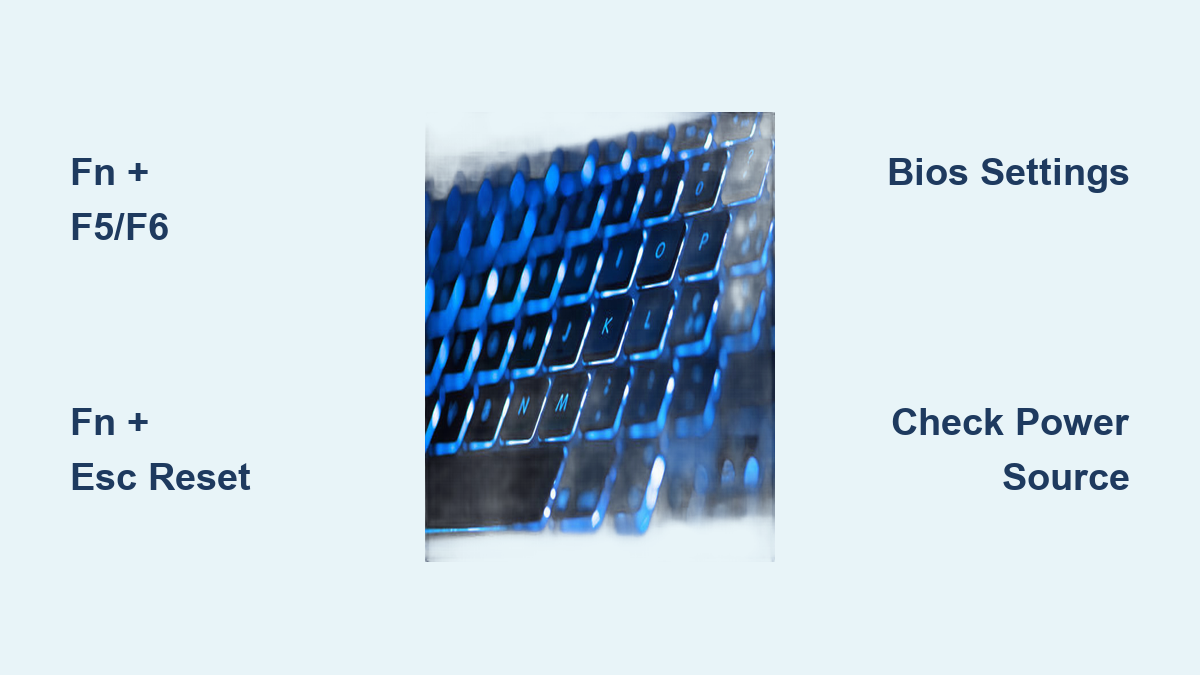
- Hold Fn + Esc for 3 seconds (you’ll hear a confirmation beep on most systems)
- Release both keys simultaneously
- Press the backlight key alone (without Fn) to cycle brightness
- Test multiple keys (F4-F12) as manufacturers vary the control location
Pro insight: This toggle permanently changes how function keys operate—your F1-F12 keys will now require Fn for standard functions until toggled back.
Direct Key Activation for Premium Models
High-end laptops simplify the process with dedicated controls:
- Dell XPS series: Press F5/F6 without Fn key
- Alienware systems: Use dedicated brightness keys above number pad
- MacBook Pro: Press F5/F6 (illumination symbols replace standard function icons)
Visual cue: Look for keys that feel slightly different—dedicated backlight controls often have textured surfaces for blind identification.
BIOS Backlight Activation When Software Fails
Accessing Keyboard Illumination Settings
When keyboard shortcuts stop working after updates, dive into system firmware:
- Restart your laptop completely (don’t just wake from sleep)
- Tap F2 repeatedly during manufacturer logo appearance (Dell) or F10 (HP)
- Navigate to Advanced → System Configuration → Keyboard Illumination
- Select preferred setting: Disabled, Dim, Medium, Bright, or Auto
- Press F10 to save changes and exit
Timing tip: If you miss the BIOS entry window, restart and try again—press keys at 1-second intervals during boot.
Manufacturer-Specific BIOS Paths
BIOS interfaces vary significantly—here’s where to look by brand:
- Dell: Advanced → Keyboard Illumination (all models)
- HP: System Configuration → Built-in Device Options
- Lenovo: Configuration → Keyboard/Mouse → Backlight
- ASUS: Boot → Keyboard Backlight Control
Warning: Never change other BIOS settings while troubleshooting—incorrect configurations can cause system instability.
Troubleshooting Non-Working Keyboard Backlight
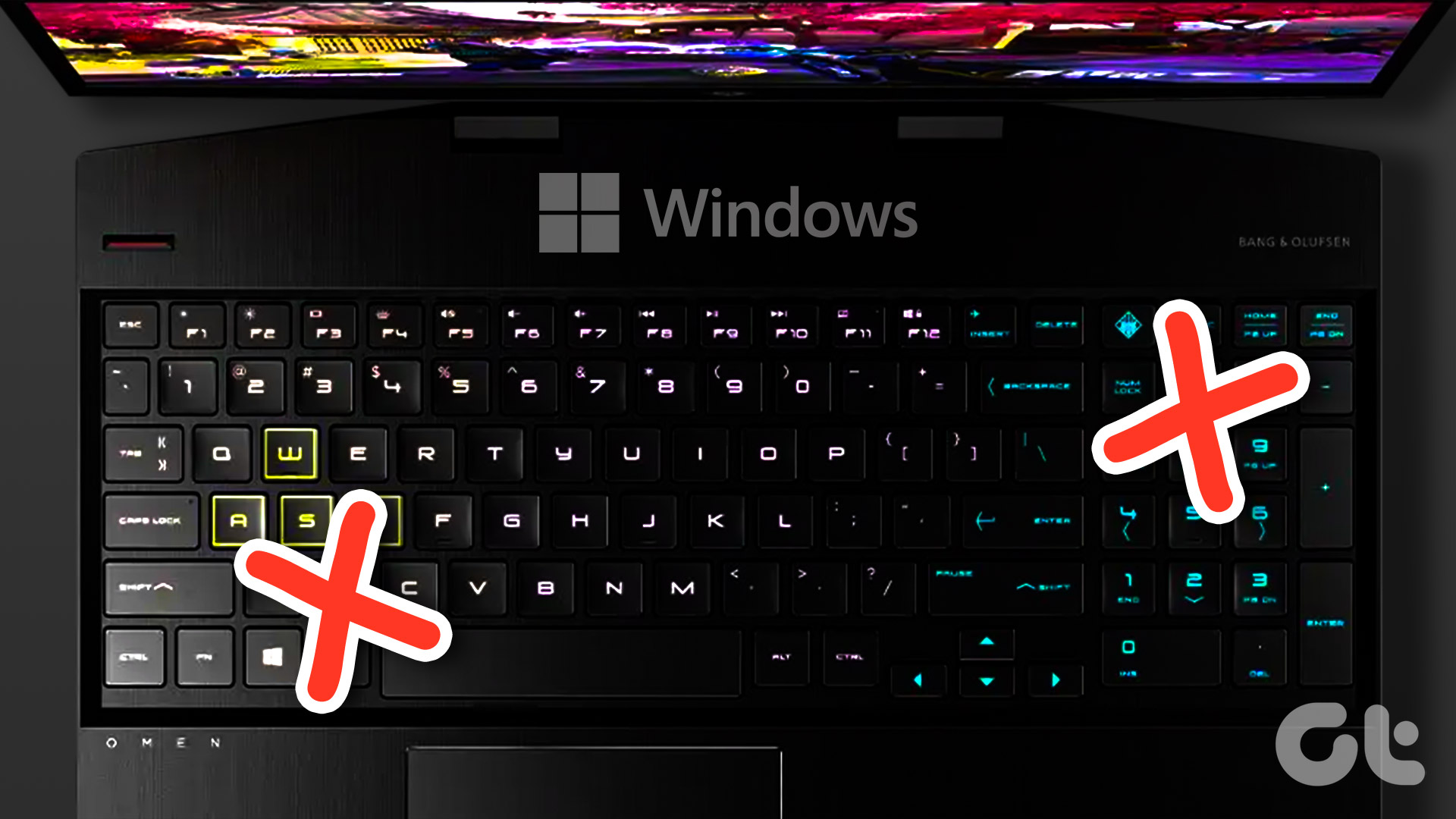
Immediate Diagnostic Checklist
Before deep troubleshooting, verify these common issues:
- Power source: Plug in AC adapter (many laptops disable backlight on battery)
- Sleep mode: Fully wake laptop—backlight won’t activate from sleep state
- Recent updates: Check if Windows update modified keyboard drivers
- Physical obstructions: Remove debris from around backlight control keys
Quick test: Press Caps Lock to verify keyboard functionality—if the indicator light works, the issue is backlight-specific.
Advanced Fixes for Persistent Issues
For stubborn backlight failures:
- Update keyboard drivers: Device Manager → Keyboards → Right-click your keyboard → Update driver
- Reset power management: Control Panel → Hardware and Sound → Power Options → Change plan settings → Restore defaults
- Clear CMOS: For complete hardware reset (consult manufacturer documentation first)
Pro tip: On Dell systems, run the built-in hardware diagnostic (press F12 during boot → Diagnostics) for automated backlight testing.
Brand-Specific Backlight Activation Guide

Dell Laptop Key Combinations
Dell uses consistent patterns across models:
- XPS/Latitude: Fn + F5 (dim) / F6 (bright)
- G Series Gaming: Fn + F10 (cycles through 3 levels)
- Alienware: Dedicated brightness keys above number pad
- Inspiron: Fn + F10 (most models)
Critical note: XPS 13 and 15 often enable automatic brightness—adjust ambient light sensor placement instead of manual controls.
Non-Dell Laptop Shortcuts
Other major brands use these patterns:
- HP: Fn + F5 (most models) or dedicated backlight key
- Lenovo: Fn + Spacebar (ThinkPad) or Fn + PgUp
- ASUS: Fn + F3/F4 or dedicated backlit key
- MacBook: F5/F6 (illumination keys)
Universal shortcut: Try Fn + left/right arrow keys if standard combinations fail—many newer models use this pattern.
Optimizing Backlight Performance
Battery Life Management
Your keyboard backlight significantly impacts battery duration:
- Low setting: Adds 1-2% hourly drain (ideal for mobile use)
- High setting: Contributes 5-8% hourly drain (use only when necessary)
- Auto mode: Best balance—adjusts based on ambient light
Power saving hack: Set timeout to 15 seconds in manufacturer utilities (Dell Power Manager, Lenovo Vantage) to minimize unnecessary drain.
Environmental Adaptation Techniques
Adjust brightness based on your surroundings:
- Complete darkness: Medium brightness prevents eye strain
- Dimly lit rooms: Low setting provides sufficient visibility
- Bright environments: High setting overcomes ambient light interference
Pro technique: Position your laptop perpendicular to light sources—this reduces glare while maximizing backlight effectiveness.
Quick Reference Cheat Sheet
Most Common Activation Shortcuts:
– Dell: Fn + F5/F6/F10
– HP: Fn + F4/F5
– Lenovo: Fn + Spacebar or Fn + PgUp
– ASUS: Fn + F3/F4
– MSI: Dedicated brightness keys above function row
Emergency Reset Procedure:
1. Shut down completely
2. Disconnect AC adapter
3. Hold power button 30 seconds
4. Reconnect power and restart
5. Attempt backlight activation immediately at login screen
Mastering how to turn on light on laptop keyboard transforms your late-night workflow from frustrating to fluid. Start with the Fn key combinations specific to your brand—they work 90% of the time. When shortcuts fail, the BIOS settings provide a reliable fallback. Remember that higher brightness settings significantly drain battery life, so find your visibility sweet spot. Your keyboard light should enhance productivity, not hinder it. If all else fails, the emergency reset procedure resolves most persistent backlight issues. Now that you’ve illuminated the path, type confidently through every late-night session.