How to Use a Firestick on a Laptop
Most laptop owners trying to figure out how to use Firestick on laptop quickly hit a frustrating wall—your HDMI port only sends signals out, not receive them. This isn’t a settings issue or software problem; it’s a fundamental hardware limitation. When you plug your Firestick into your laptop’s HDMI port and get nothing but a black screen, you’re experiencing this one-way signal traffic firsthand. In this guide, you’ll discover the proven workarounds that actually let you view Firestick content on your laptop screen, whether you’re traveling, working in tight spaces, or just want to stream shows without waking others.
The good news? You don’t need to replace your laptop or buy an expensive new TV. With the right $20-$300 hardware solution and free software, you can transform your laptop into a Firestick display in under 10 minutes. We’ll walk through exactly what works (and what doesn’t), step-by-step setup instructions, and troubleshooting for common issues like black screens and audio problems. By the end of this guide, you’ll know precisely how to use Firestick on laptop without wasting time on methods that promise solutions but deliver nothing.
Why Your Laptop HDMI Port Can’t Connect Directly to Firestick
Your laptop’s HDMI port functions like a digital megaphone—it’s designed to broadcast signals to external displays, not receive them from devices like Firestick. This fundamental hardware limitation creates an insurmountable barrier for direct connections. When you attempt to plug Firestick into your laptop’s HDMI port, you’re essentially trying to plug a microphone into another microphone—neither device can receive the signal the other is sending.
Critical reality check: No software update, driver installation, or settings tweak can overcome this physical limitation. Firestick outputs an HDMI signal designed for display inputs, while your laptop HDMI port only provides output capability. This unidirectional signal flow means your laptop simply lacks the circuitry to process incoming video signals from external devices.
What Happens When You Try Direct Connection
If you attempt to connect Firestick directly to your laptop:
– Your laptop displays “No Signal” or remains completely black
– Firestick continues operating normally (you can hear audio if using headphones)
– Laptop battery drains faster as it struggles to detect a non-existent input signal
– No amount of rebooting or port switching will resolve the core hardware limitation
HDMI Capture Device Setup: The Only Reliable $20 Solution
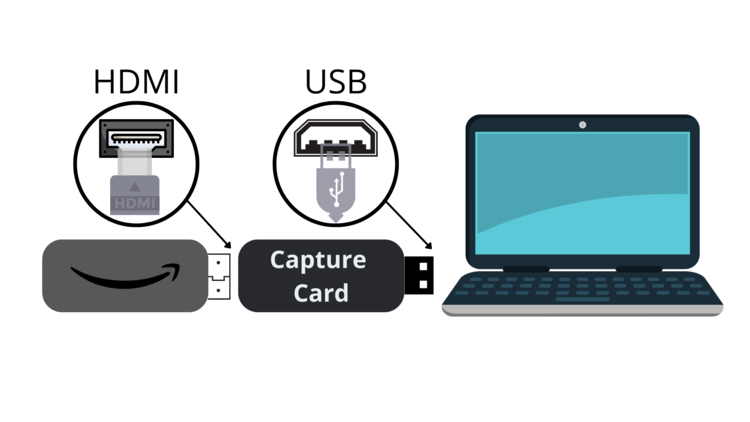
The HDMI capture device method remains the single most effective way to use Firestick on laptop. This hardware bridge converts Firestick’s HDMI output into a USB signal your laptop can process, effectively tricking your computer into thinking it’s receiving webcam footage.
Essential Equipment Checklist
Before you begin, verify you have these items:
– USB HDMI capture card (budget options start at $20)
– Firestick with original power adapter (USB ports won’t provide enough power)
– Standard HDMI cable (typically included with Firestick)
– Laptop with USB 3.0 port (USB-C required for 4K Firestick models)
– Free software: OBS Studio (recommended) or VLC Media Player
Step-by-Step Firestick-to-Laptop Connection
Follow these precise steps for guaranteed success:
- Power down your Firestick completely by unplugging it
- Connect Firestick to the HDMI input port on your capture device
- Plug the capture device directly into your laptop’s USB 3.0 port (avoid hubs)
- Connect Firestick’s power adapter to a wall outlet (critical for proper operation)
- Install OBS Studio if you haven’t already (download from obsproject.com)
- Launch OBS and create a new scene by clicking the ‘+’ under Scenes
- Add Video Capture Device by clicking ‘+’ under Sources
- Select your capture device from the dropdown menu and set resolution to 1920×1080
- Power on your Firestick and use the remote to navigate as content appears on your laptop
Pro tip: Always use the original Firestick power adapter—laptop USB ports lack sufficient power (1.0A minimum required), causing intermittent black screens and boot failures.
Troubleshooting Common Firestick-on-Laptop Problems
Even with proper setup, you might encounter issues that prevent smooth operation. These targeted solutions fix the most frequent problems users face when trying to use Firestick on laptop.
Black Screen Solutions That Actually Work
If Firestick appears but shows black screen:
– First, verify Firestick works on a regular TV (eliminates device failure)
– Try different USB ports on your laptop, preferably those directly on the chassis
– Update capture device drivers from manufacturer’s website
– In OBS, right-click the preview window and select “Filters” to check for disabled sources
– Lower capture resolution to 720p if your laptop struggles with 1080p processing
Critical warning: Never use USB hubs with capture devices—they cause bandwidth issues resulting in constant blackouts. Always connect directly to your laptop.
Fixing Audio Sync and Quality Issues
Most users experience audio problems within the first few minutes of setup. Resolve them with these precise steps:
- Right-click your sound icon and select “Sound settings”
- Under “Input,” select your capture device as the default input
- Open OBS Settings > Audio and verify sample rate matches system settings
- If audio drifts out of sync, add 150-300ms audio offset in OBS Filters
- For persistent distortion, close background applications eating CPU resources
Expert note: Budget capture devices often deliver poor audio quality. If audio quality matters, invest in mid-range options like Elgato HD60 S+ that process audio separately.
Best Capture Devices for Firestick on Laptop (2024)

Choosing the right hardware makes or breaks your Firestick-on-laptop experience. These tested options deliver reliable performance at different price points.
Budget Pick: Generic HDMI Capture Dongle ($20-$50)
- Handles basic 1080p30 streaming for Netflix and Prime Video
- Critical limitation: Often requires manual driver installation
- Expect 2-3 second input lag (unusable for gaming)
- Only recommended if you need occasional streaming on a tight budget
Value Champion: Elgato HD60 S+ ($130)
- Delivers smooth 1080p60 capture with minimal latency
- Plug-and-play setup works with OBS Studio immediately
- Includes pass-through HDMI for connecting to a TV simultaneously
- Best for: Most users wanting reliable daily use without breaking the bank
Professional Solution: Magewell USB Capture HDMI 4K ($300)
- Handles Fire TV Stick 4K Max at full resolution without quality loss
- Ultra-low latency crucial for interactive content
- Works across Windows, macOS, and Linux systems
- Worth it if: You’re creating content or need broadcast-quality capture
Why Wireless Mirroring Methods Fail (And What to Do Instead)
Many users waste hours trying wireless solutions that fundamentally cannot work for Firestick-to-laptop viewing. Windows’ built-in “Connect” feature and Firestick’s display mirroring both send laptop content to Firestick—not the reverse direction you need.
The Wireless Reality Check
When you press Win+K on Windows or enable display mirroring on Firestick:
– Your laptop attempts to send its screen TO the Firestick
– Firestick lacks the capability to broadcast its interface wirelessly to laptops
– Third-party apps like AirScreen only enable one-way mirroring (laptop→Firestick)
Better Alternative: Network Streaming Setup
Instead of fighting directionality, flip your approach:
1. Install Plex Media Server on your laptop
2. Add your movie library to Plex
3. Install Plex app on your Firestick
4. Stream content from laptop to Firestick via your home network
This method won’t show Firestick’s interface on your laptop, but it solves the core need of accessing your laptop’s content through your TV setup—often the real goal behind trying to use Firestick on laptop.
Legal Considerations When Streaming Firestick to Laptop
HDCP (High-bandwidth Digital Content Protection) creates legal and technical hurdles you must understand before setting up your Firestick-on-laptop system.
Content That Won’t Display
Streaming services actively block capture devices for premium content:
– Netflix 4K content typically shows black screen
– Amazon Prime Video may display ” HDCP error” message
– Disney+ restricts certain titles from appearing through capture devices
Important: Using capture devices for personal viewing falls under fair use in most jurisdictions, but recording and redistributing copyrighted content violates terms of service and copyright law. Stick to personal viewing only.
Cost Breakdown: What You Really Need to Spend
Your budget determines your experience quality when setting up Firestick on laptop. Avoid wasting money on solutions that won’t meet your needs.
Minimum Viable Setup ($30)
- Generic capture dongle ($20)
- Free OBS Studio software
- Result: Occasional streaming with frequent black screens and audio issues
Quality Daily Setup ($150)
- Elgato HD60 S+ ($130)
- Free OBS Studio software
- Result: Reliable 1080p60 streaming suitable for daily use
Professional Setup ($300+)
- Magewell USB Capture HDMI 4K ($300)
- Optional: Portable monitor for travel ($100)
- Result: Broadcast-quality capture for content creators
Smart buying tip: Skip ultra-cheap capture devices—they often fail within weeks, costing you more in replacement fees and frustration. Invest in mid-range hardware for lasting performance.
Quick Start Checklist Before You Buy Anything
Before spending a dime, verify these critical requirements:
– [ ] Confirm your laptop has USB 3.0 (blue port) or USB-C port
– [ ] Test your Firestick on a TV first to ensure it works properly
– [ ] Download OBS Studio and test with your webcam (simulates capture device)
– [ ] Measure your usage needs: occasional viewer vs. daily user
Start with the Elgato HD60 S+ if you plan regular use—it eliminates the most common setup headaches and delivers reliable performance without professional pricing. For occasional use, a well-reviewed $30 capture device might suffice, but always check recent user feedback about specific models.
Final note: Once properly configured, your Firestick-on-laptop setup will deliver seamless streaming for movies, YouTube, and most apps—just avoid expecting perfect performance with HDCP-protected premium content. With the right hardware and setup, you’ll enjoy your Firestick content anywhere your laptop can go.