How to Use a Laptop Computer: Beginner’s Guide
That sleek laptop on your desk holds more computing power than the room-sized machines of the 1960s—but getting started can feel overwhelming. Whether you’re unboxing your first laptop or finally ready to master the one gathering dust, this guide transforms that shiny device from intimidating mystery to your most valuable tool. You’ll learn exactly how to use a laptop computer for daily tasks, avoid common beginner mistakes, and unlock features you never knew existed—all while understanding why laptops function differently than desktops.
Unlike stationary desktops, your laptop offers true mobility with its integrated design. The screen, keyboard, and pointing device all work together seamlessly, allowing you to work from coffee shops, parks, or your couch without complicated setup. By the end of this guide, you’ll confidently navigate your laptop’s features, extend battery life, and troubleshoot common issues—turning that mysterious device into your go-to productivity partner.
Powering Up Your New Laptop: First-Time Setup Made Simple
Locate and Activate Your Laptop’s Power Button
Your laptop’s power button typically appears as a small circle with a line through the top, often positioned along the keyboard’s top row or on the device’s side. Press firmly until lights activate or you hear startup sounds. Don’t panic if the screen stays dark initially—some laptops conserve battery by delaying display activation until the system fully boots. During this first startup, your laptop configures settings and may take several minutes to complete the process.
Connect Your Specific AC Adapter Properly
Your laptop requires its dedicated AC adapter—using the wrong one risks damaging internal components. The adapter plugs into a round or rectangular port usually marked with a power symbol near the laptop’s edge. When correctly connected, most models display a charging indicator light near the port. Never force the connection—the plug should slide in smoothly with minimal resistance. Modern laptops automatically switch between battery and AC power, so you can begin using your device immediately while it charges.
Touchpad Mastery: Essential Gestures for Effortless Navigation
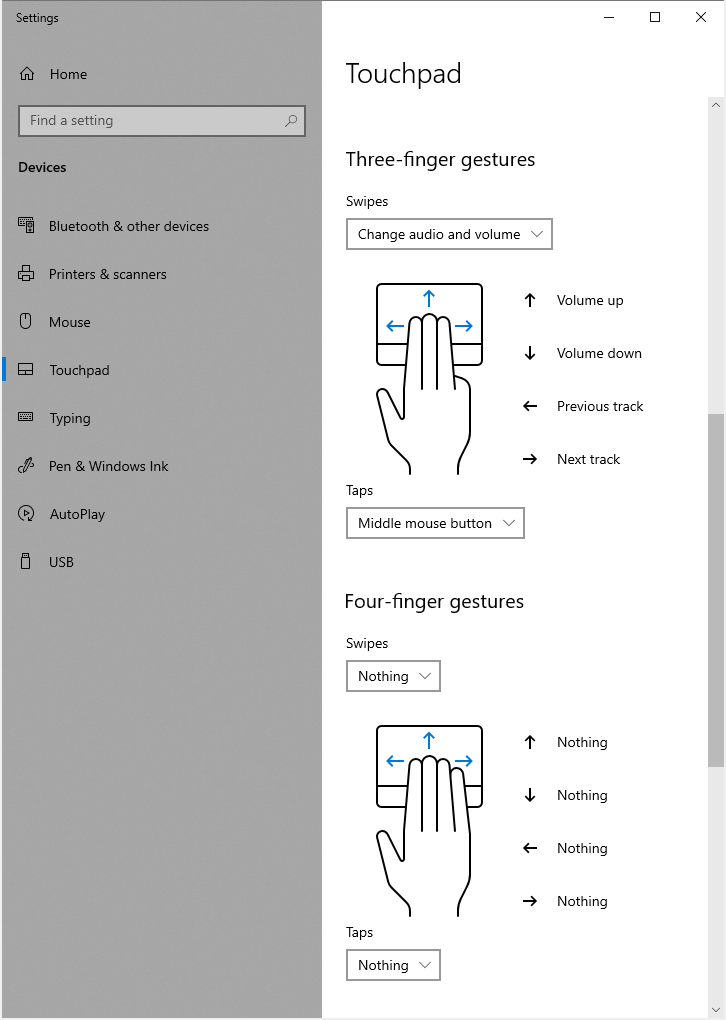
Execute Core Touchpad Functions Without a Mouse
The touch-sensitive surface below your keyboard replaces traditional mouse functionality. Slide one finger across the pad to move your cursor—this simple action replaces mouse movement. Tap to click—a gentle tap equals a left-mouse click, while a two-finger tap brings up right-click menus. Practice these fundamental gestures until they become second nature:
- Single-finger slide: Move cursor precisely
- Single tap: Select items or activate links
- Two-finger tap: Access right-click context menus
- Two-finger vertical slide: Scroll through documents and web pages
- Pinch gesture with two fingers: Zoom in and out on images or maps
Optimize Your Navigation Experience
While the touchpad works perfectly for basic tasks, many users prefer connecting a regular mouse for extended work sessions. Simply plug a USB mouse into any available port—your laptop instantly recognizes it while keeping the touchpad active. Pro tip: Disable the touchpad when typing long documents through your settings menu to prevent accidental cursor jumps that disrupt your workflow. This feature proves especially valuable when working on a cramped airplane tray or wobbly coffee table.
10 Must-Know Keyboard Shortcuts for Laptop Efficiency
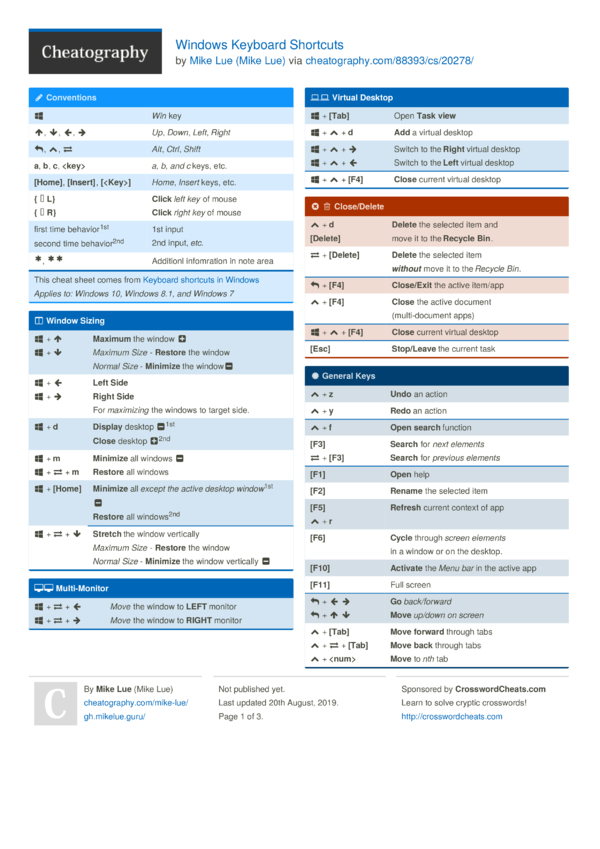
Windows Navigation Shortcuts That Save Time
Memorize these productivity-boosting combinations to navigate your Windows laptop efficiently:
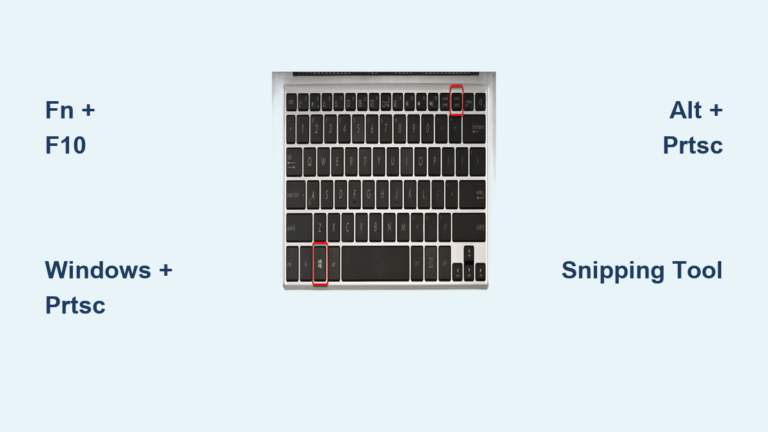
- Windows key: Instantly open the Start menu
- Alt + Tab: Seamlessly switch between open programs
- Ctrl + C/V/X: Copy, paste, and cut text or files
- Windows + L: Lock your screen with one keystroke
- Alt + F4: Close the current application immediately
Mac Navigation Shortcuts for MacBook Users
For Apple laptop users, these combinations become second nature:
- Cmd + Space: Activate Spotlight search for quick file finding
- Cmd + Tab: Switch between running applications
- Cmd + C/V/X: Copy, paste, and cut content
- Ctrl + Cmd + Q: Lock your screen instantly
- Cmd + W: Close the current window while keeping the app running
Expanding Your Laptop’s Capabilities with External Devices
Maximize Limited USB Port Usage Strategically
Laptops feature fewer USB ports than desktops to maintain their compact design. Prioritize your connections wisely—insert devices firmly until they click into place. Essential USB peripherals include:
- External mice and keyboards for extended use
- USB flash drives for file transfers
- Printers and scanners for document management
- External hard drives for additional storage
- Phone charging cables for mobile device power
Transform Your Laptop into a Desktop Workstation
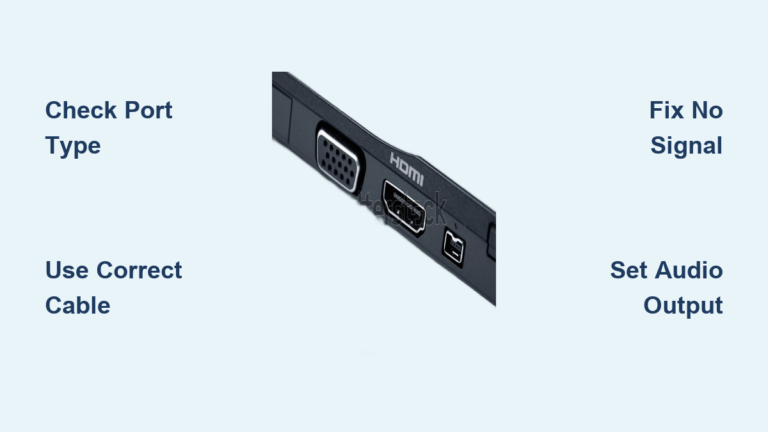
Your portable device becomes a desktop-like system by connecting external peripherals. Plug in a monitor via HDMI or USB-C, add a wireless keyboard and mouse, and suddenly you’re working with dual screens and ergonomic comfort. The magic moment: Disconnect three cables and you’re mobile again within seconds—this flexibility represents the true power of how to use a laptop computer effectively.
Double Your Laptop Battery Life with These Proven Techniques
Optimize Power Settings for Extended Usage
Access power settings through your operating system’s control panel. Balanced mode provides the best compromise between performance and battery longevity. Battery saver mode extends usage during travel by reducing background activity and screen brightness. High performance mode maximizes speed but drains battery rapidly—reserve this for demanding tasks when plugged in.
Control Screen Brightness for Maximum Efficiency
Your display consumes the most battery power. Dim the screen to 50-70% for indoor use—most users keep it brighter than necessary. Enable automatic brightness adjustment when available, allowing your laptop to adapt to ambient light conditions. This simple adjustment alone can add an extra hour or more to your battery life during mobile usage.
Organize Your Digital Life: Laptop File Management Made Simple
Create and Structure Folders for Quick Access
Think of your laptop’s storage as a digital filing cabinet. Create folders by right-clicking in File Explorer (Windows) or Finder (Mac), then selecting “New Folder.” Name folders descriptively—avoid generic names like “New Folder” or “Stuff.” Organize by project, date, or content type for quick retrieval. A well-structured folder system saves hours of searching and makes learning how to use a laptop computer much more efficient.
Implement Reliable Backup Strategies Immediately
Your laptop holds irreplaceable photos, documents, and memories. Cloud storage services like Google Drive or iCloud automatically sync files online across devices. External hard drives provide local backups—connect via USB and use built-in backup software. The golden rule: Keep important files in at least two locations to prevent permanent data loss from hardware failures.
Fix These 3 Common Laptop Problems in Under 5 Minutes
Troubleshoot Power-On Failures Quickly
Check these fundamentals first when your laptop won’t power on:
- Verify power adapter connection and test the outlet with another device
- Look for charging indicator lights near the power port
- Try a different power outlet to rule out electrical issues
- Hold the power button for 10+ seconds to force a restart
- Remove and reinsert the battery if your model allows user access
Restore Touchpad Functionality Immediately
Quick fixes for unresponsive touchpads:
- Function key toggle: Press Fn + F7 (varies by model) to enable/disable
- Restart the laptop to reset touchpad drivers
- Check for physical damage or liquid spills affecting performance
- Connect an external mouse as a temporary solution
- Update drivers through Device Manager (Windows) or System Preferences (Mac)
Keep Your Laptop Running Smoothly: Essential Maintenance Routine
Clean Your Laptop Properly to Prevent Damage
Weekly maintenance prevents long-term issues:
- Screen: Use a microfiber cloth lightly dampened with distilled water—never spray liquid directly
- Keyboard: Turn laptop upside down and gently tap to remove crumbs and debris
- Touchpad: Wipe with a slightly damp cloth, avoiding moisture seepage into edges
- Vents: Use compressed air to clear dust from cooling vents monthly
- Ports: Clean with dry cotton swabs, avoiding metal objects that could cause shorts
Manage Storage Space Proactively
Free up valuable space regularly:
- Empty recycle bin/trash weekly
- Uninstall unused programs through Control Panel or Applications folder
- Move large media files to external storage
- Clear browser cache and downloads folders
- Use built-in disk cleanup utilities monthly
Unlock Hidden Laptop Features for Maximum Productivity
Create Multiple Desktop Workspaces for Better Focus
Windows: Press Windows + Tab, then click “New Desktop” to create additional workspaces. Mac: Use Control + Up Arrow, then drag windows to new spaces. Organize your work by project—one desktop for email, another for creative work, a third for research. This technique prevents window clutter and helps maintain focus on specific tasks.
Customize Your Keyboard for Personalized Workflow
Remap keys to match your typing habits. Windows users often remap Caps Lock to Ctrl for easier shortcut access. Mac users can customize keyboard shortcuts through System Preferences. Pro tip: Create text expansion shortcuts for frequently typed phrases like your email address or signature—this small adjustment saves significant time over weeks of regular laptop use.
Your laptop represents incredible versatility—capable of replacing multiple devices while fitting in your backpack. Start with basic navigation using the touchpad and keyboard shortcuts to build confidence. Gradually expand your setup with external devices as your needs evolve. Prioritize battery care and regular maintenance to ensure years of reliable service from your investment.
Remember: every expert was once a beginner. Your laptop becomes more intuitive with daily use, transforming from mysterious machine to trusted companion. Begin with confidence—the entire digital world awaits your exploration, and now you know exactly how to use a laptop computer to access it all.