How to Use Laptop as Hotspot Windows 10/11
Your laptop holds a secret superpower: transforming into a Wi-Fi hotspot when you need internet access most. Imagine being stuck in a hotel with $20 device fees, traveling with spotty café Wi-Fi, or watching your phone’s data dwindle during an important presentation. With how to use laptop as hotspot knowledge, you can broadcast internet to all your devices in under a minute—no extra gadgets or fees required. This built-in Windows feature turns your machine into a personal router using existing connections, whether you’re plugged into hotel ethernet, connected to Wi-Fi, or burning through cellular data.
Mastering how to use laptop as hotspot solves critical connectivity gaps while saving money and time. You’ll learn both the one-click activation method for daily use and deeper configuration tricks professionals rely on. Most importantly, you’ll avoid common pitfalls like unexpected data overages or connection failures when it matters most. Let’s unlock your laptop’s hidden potential to keep your team connected anywhere.
Activate Laptop Hotspot Through Windows Settings
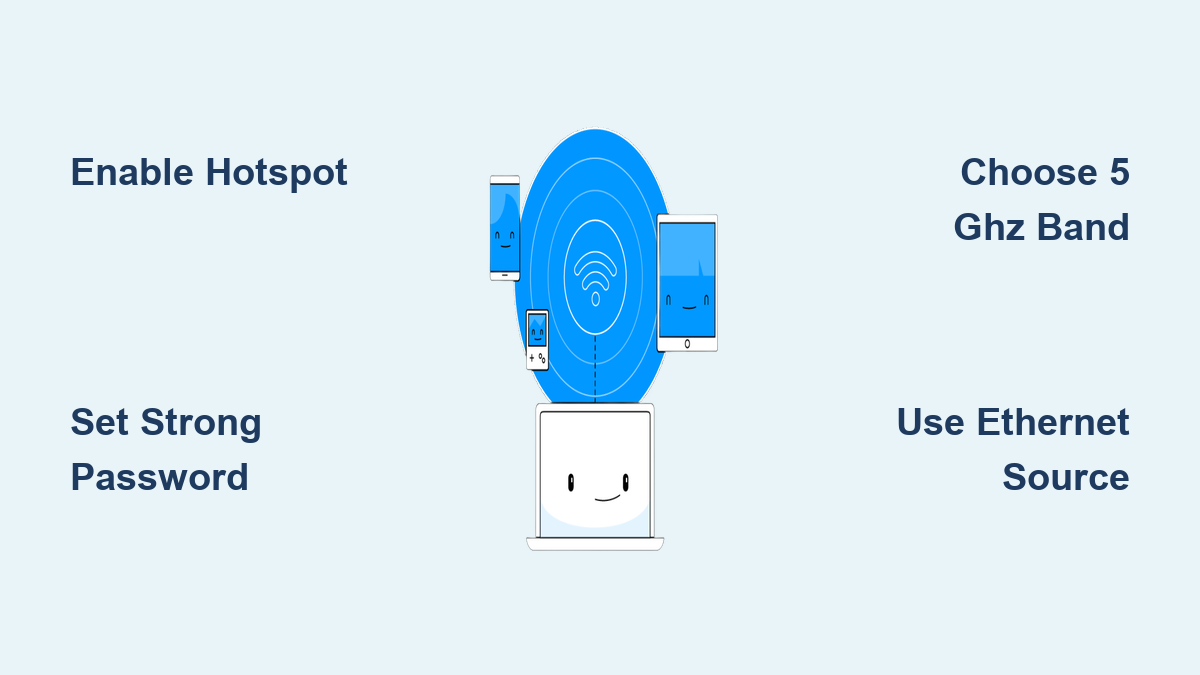
Windows 10 and 11 hide this lifesaver in plain sight—no downloads or drivers needed. Your laptop becomes a Wi-Fi transmitter instantly when you enable the mobile hotspot feature, sharing any active internet connection (Wi-Fi, ethernet, or cellular) with nearby devices. The process takes seconds but requires precise configuration to prevent security risks or data overages.
Select Your Internet Source Correctly
Navigate to Settings > Network & internet > Mobile hotspot. Under Share my internet connection from, choose your source carefully:
– Wi-Fi: Share an existing wireless network (creates two Wi-Fi signals)
– Ethernet: Broadcast wired connections wirelessly (ideal for hotels)
– Cellular: Use your data plan (monitor usage closely)
Critical warning: Selecting “Cellular” shares your mobile data—streaming video on connected devices can exhaust your plan in minutes. Always verify your source before toggling the hotspot on.
Configure Band Settings for Maximum Speed
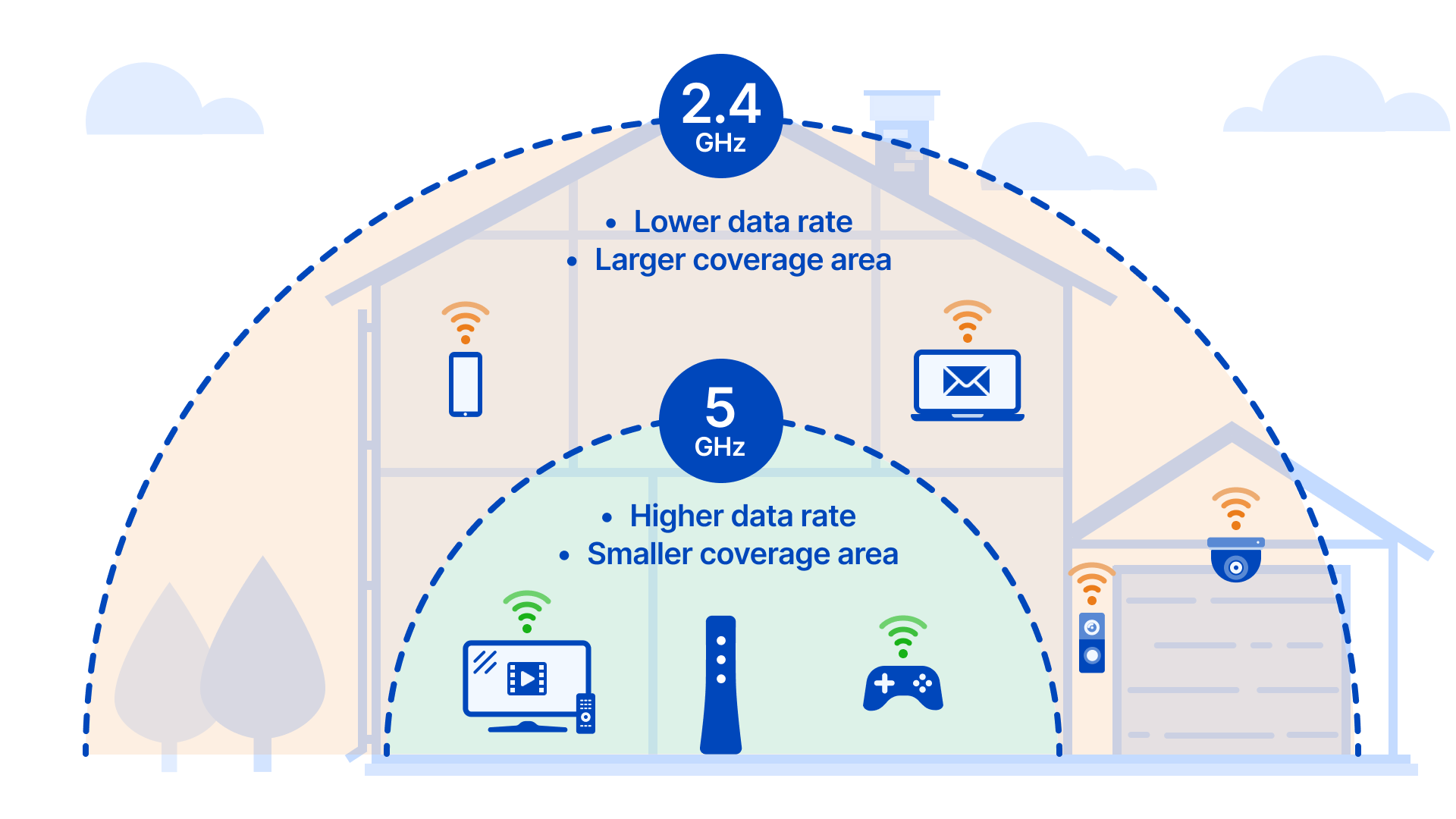
Click Edit under Properties to choose your broadcast band:
– 2.4 GHz: Better wall penetration, works with older devices (slower speeds)
– 5 GHz: Blazing fast but shorter range (requires modern devices)
In conference rooms or open offices, 5 GHz prevents interference from neighboring networks. For crowded spaces like airports, 2.4 GHz ensures compatibility with all devices. This setting persists after reboot—configure once for permanent use.
Launch Hotspot With One Taskbar Click
Skip menus entirely for daily use. Windows 10’s Action Center and Windows 11’s Quick Settings panel offer instant activation using your pre-configured settings—perfect when colleagues suddenly need internet during meetings.
Add Hotspot to Your Quick Settings Panel
- Click the network/sound icon in your taskbar
- Select Edit quick settings (pencil icon)
- Add Mobile hotspot to your active tiles
- Click the new tile to toggle on/off instantly
Pro tip: Right-click the hotspot tile and choose Go to Settings to adjust passwords or bands without navigating menus. This shortcut saves 15+ seconds every activation.
Securely Connect Devices to Your Laptop Hotspot
:max_bytes(150000):strip_icc()/strong-password-examples-2483118-3f292f7901214aa4bd99c899b356245b.png)
Your laptop broadcasts a new Wi-Fi network that devices join like any standard connection. But skipping security steps exposes your data—especially dangerous in public spaces where hackers scan for open networks.
Create Unbreakable Network Credentials
In Mobile hotspot > Properties > Edit:
– Network name: Avoid personal identifiers (use “TeamConnect” not “JohnsLaptop”)
– Password: Minimum 12 characters with uppercase, numbers, and symbols (e.g., “C0ffee!2024$afe”)
– Band: Match to your environment (see band selection guide above)
Click Save—these settings auto-apply every time you activate the hotspot. Never use default credentials that broadcast your laptop model.
QR Code Connection for Guests
Windows generates a scannable QR code displaying your network details. When clients visit:
1. Open Mobile hotspot settings
2. Click Show QR code
3. Have guests scan it with phone cameras
4. Devices connect automatically without password entry
This prevents embarrassing “what’s the password?” moments during presentations and eliminates typos.
Fix Hotspot Connection Failures Immediately
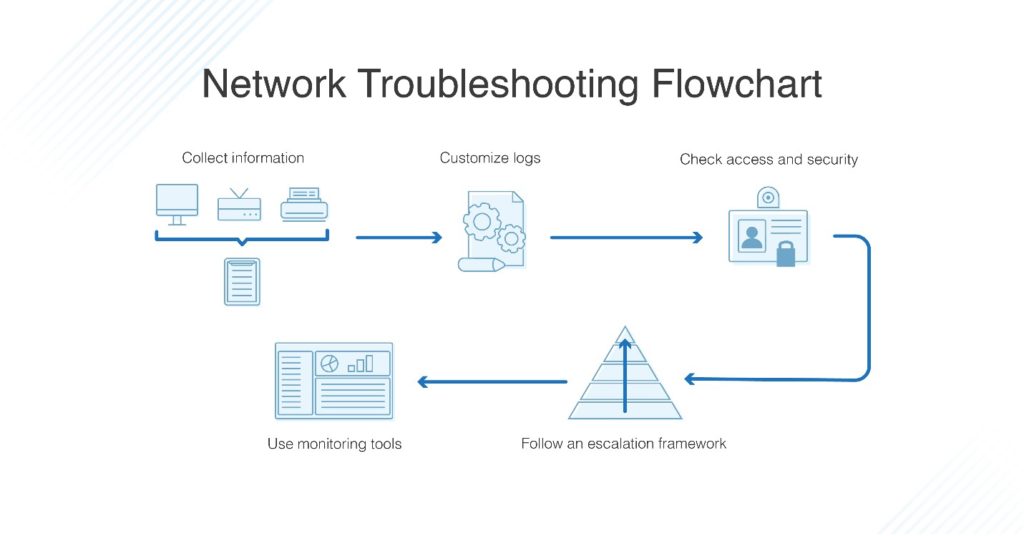
When devices show “Connected, no internet,” don’t restart your laptop yet. 90% of failures stem from three solvable issues that take under two minutes to diagnose.
No Internet on Connected Devices? Try This
Symptom: Phones/tablets show Wi-Fi symbol but can’t load pages
Solution sequence:
1. Verify your laptop has working internet (open browser)
2. Toggle hotspot off/on (saves 30 seconds vs full reboot)
3. On connected devices: Forget network > reconnect
4. Disable VPNs or firewalls temporarily (common conflict)
Data saver: When sharing cellular, set hotspot as metered connection (Settings > Network > Wi-Fi > hotspot name > Metered connection) to block background updates.
Hotspot Won’t Turn On? Critical Fixes
Error: “We can’t set up mobile hotspot”
Immediate actions:
– Update Wi-Fi drivers: Device Manager > Network adapters > Right-click adapter > Update driver
– Run network troubleshooter: Settings > System > Troubleshoot > Other troubleshooters > Network Adapter
– Reset network stack: Command Prompt as admin > type netsh winsock reset > reboot
Hardware check: Ensure airplane mode is off—this disables hotspot capability entirely.
Optimize Performance for Multiple Devices
Sharing internet drains battery and slows speeds if you overload your laptop. Most users hit performance cliffs at 3+ devices, but smart configuration doubles capacity.
Speed-Boosting Configuration
- Always select “Wi-Fi” under Share over (3x faster than Bluetooth)
- Close background apps like cloud sync services before sharing
- Position laptop centrally with vents unblocked (heat throttles performance)
- Limit to 3 devices for HD video calls or large file transfers
Cellular data users: Check real-time usage in Mobile hotspot settings before allowing downloads. Set connected devices to 480p video quality to cut data consumption by 70%.
Hotel Ethernet Power Move
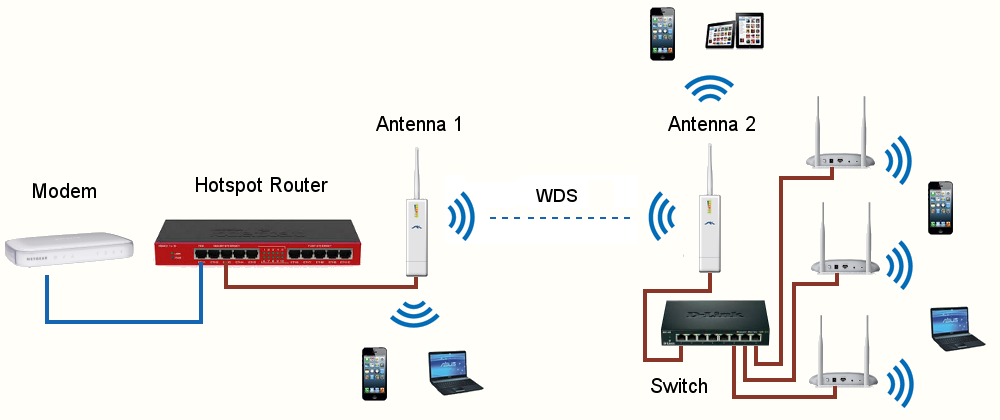
Plug your laptop into the room’s ethernet port (often faster than hotel Wi-Fi), then:
1. Set Share from > Ethernet
2. Broadcast as 5 GHz hotspot
3. Share password with entire team
This bypasses per-device Wi-Fi fees while giving everyone faster, more reliable connections than the hotel’s main network.
Advanced Remote Activation Tricks
Windows lets you turn on your laptop’s hotspot from your phone—essential when presenting or when your laptop is across the room.
Bluetooth Remote Setup in 30 Seconds
- Pair devices: Phone Bluetooth settings > Add device > Select laptop
- Enable: Mobile hotspot settings > Remote activation via Bluetooth > On
- Use Windows Phone Link app (free on iOS/Android) to toggle hotspot
Scenario: Start broadcasting during a presentation without walking to your laptop. Guests connect while you continue speaking.
Command Line Hotspot Control
When Settings menus fail, PowerShell commands bypass GUI limitations. Use these when the hotspot toggle is grayed out or drivers crash.
Essential PowerShell Commands
Start hotspot (replace values):
powershell

netsh wlan set hostednetwork mode=allow ssid=YourNetwork key=StrongPassword123

netsh wlan start hostednetwork
Check status:
powershell

netsh wlan show hostednetwork
Stop cleanly:
powershell

netsh wlan stop hostednetwork
Pro note: These commands work even when the Settings app malfunctions—bookmark them in a text file on your desktop.
Your laptop’s hotspot capability is your ultimate connectivity lifeline when configured correctly. By setting strong passwords once through Settings, adding the toggle to Quick Settings, and using ethernet sharing in hotels, you’ll save hundreds in per-device fees while keeping teams online. Remember: cellular data sharing requires vigilant monitoring, 3 connected devices is the performance sweet spot, and Bluetooth remote activation solves presentation emergencies. Next time internet fails, activate your built-in hotspot in 15 seconds—no more scrambling for cafes with “free Wi-Fi.” Bookmark this guide; when connectivity counts, you’ll be the hero who keeps the team online.